38
3.9
Using another screen with your
Grid Pad
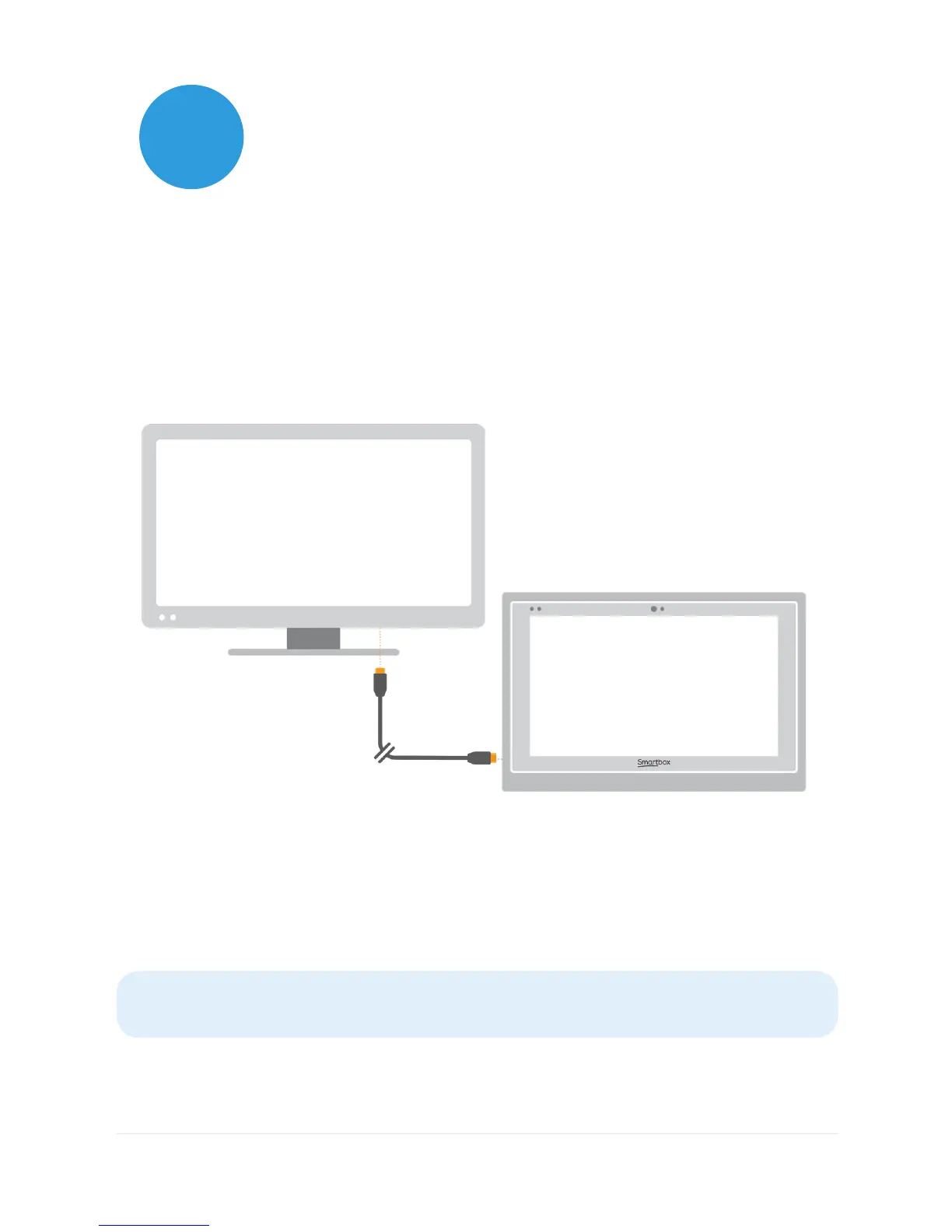
The HDMI socket enables you to connect your Grid Pad to a
second screen, or even a projector. When you attach the device
to a second screen, the default setting will mirror the screen of
your Grid Pad. To adjust these settings in Windows, open the
settings cog from the Start menu and go to Settings – System –
Display, then scroll down to Multiple displays.
Here you can change the resolution for your Grid Pad and second
screen, and choose to Extend your display. When this is selected,
your desktop will cover both screens and enable you to multi-
task. Note that certain access methods such as eye gaze are not
compatible with extended displays.
Tip: If you are using a second screen, the additional processing
required can have an impact on your device’s battery life.


 To Next Page