Main Menu Details
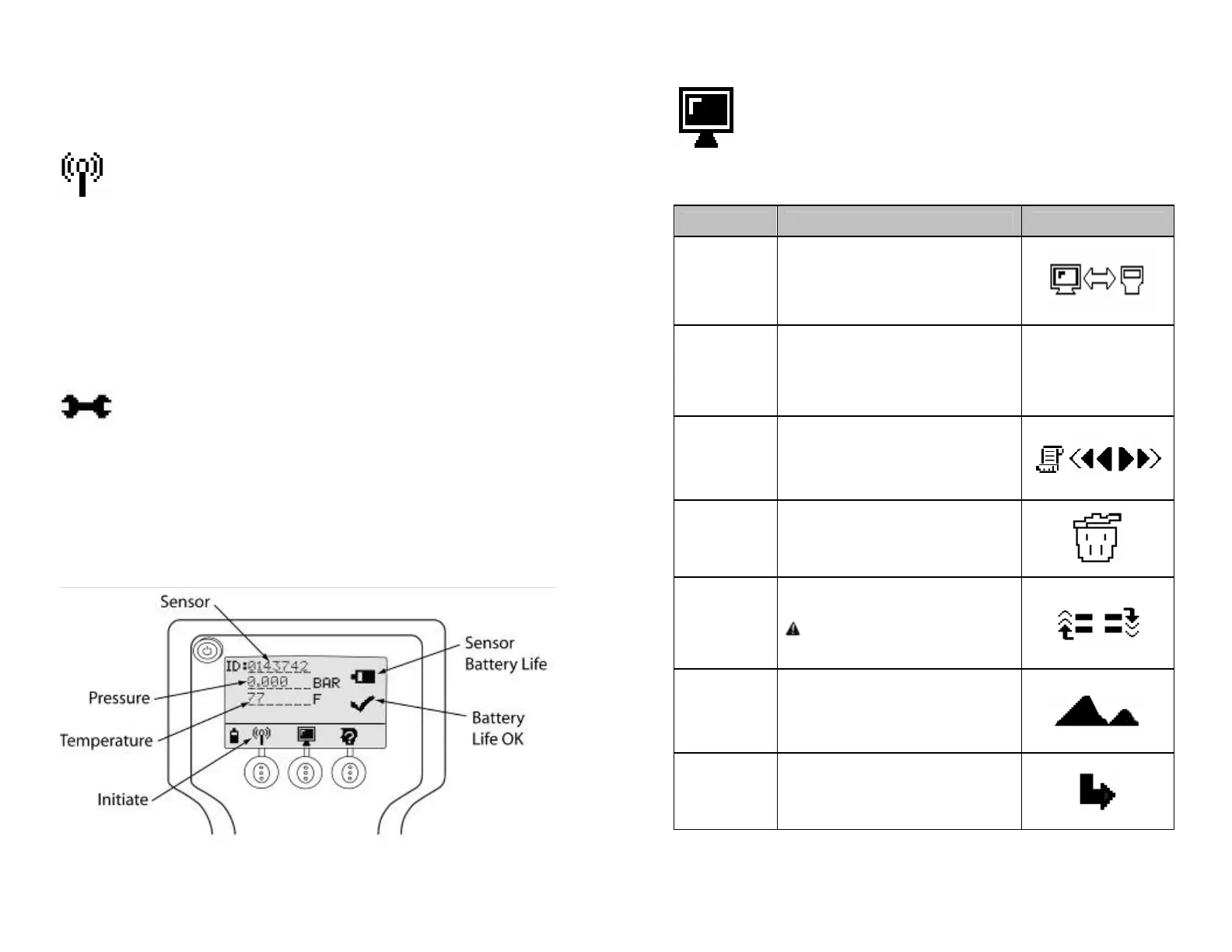
Initiate Function
If the Initiate button is pressed, the tool will retrieve sensor ID, pressure
data and battery status from the sensor that is displayed
• The button should be activated only once when pressed.
• The battery icon is used to show the battery status of the sensor.
9 Check icons indicates the battery is OK.
The Wrench icon indicates the battery is due for a
change at next service.
If an error occurs, such as no information has been received, then the
error screen appears retry the Initiate Function.
Example Display
Figure 4
7
Set-up Menu Icon Legend
Selecting the Setup button commands the tool into Setup mode.
STATE DESCRIPTION ICON
Software
Update
This icon indicates the software update
option which allows the user to download
the latest software from a personal
computer.
Measurement
Units
This option allows the user to change the
units of the parameters displayed.
PSI/BAR/kPa/
C/F
Stored Sensor
Information
Retrieval
This option allows the user to refer to
sensor information stored in memory. Up
to 100 sensors can be stored.
Delete
Sensors in
Memory
This option allows the user to delete all
sensors stored in memory.
Walk Around
Learn
This option is used for the Walk-Around
Learn process.
When Walk-Around Learn is initiated the
icon may appear indicating a low
battery in either the wheel sensor or the
tool.
Ambient
Sensor Learn
This option is used to activate and store
pressure information from the ambient
sensor to adjust the displayed readings
for changes in altitude.
Return
This option allows the user to return to
the main window.
8


 To Next Page