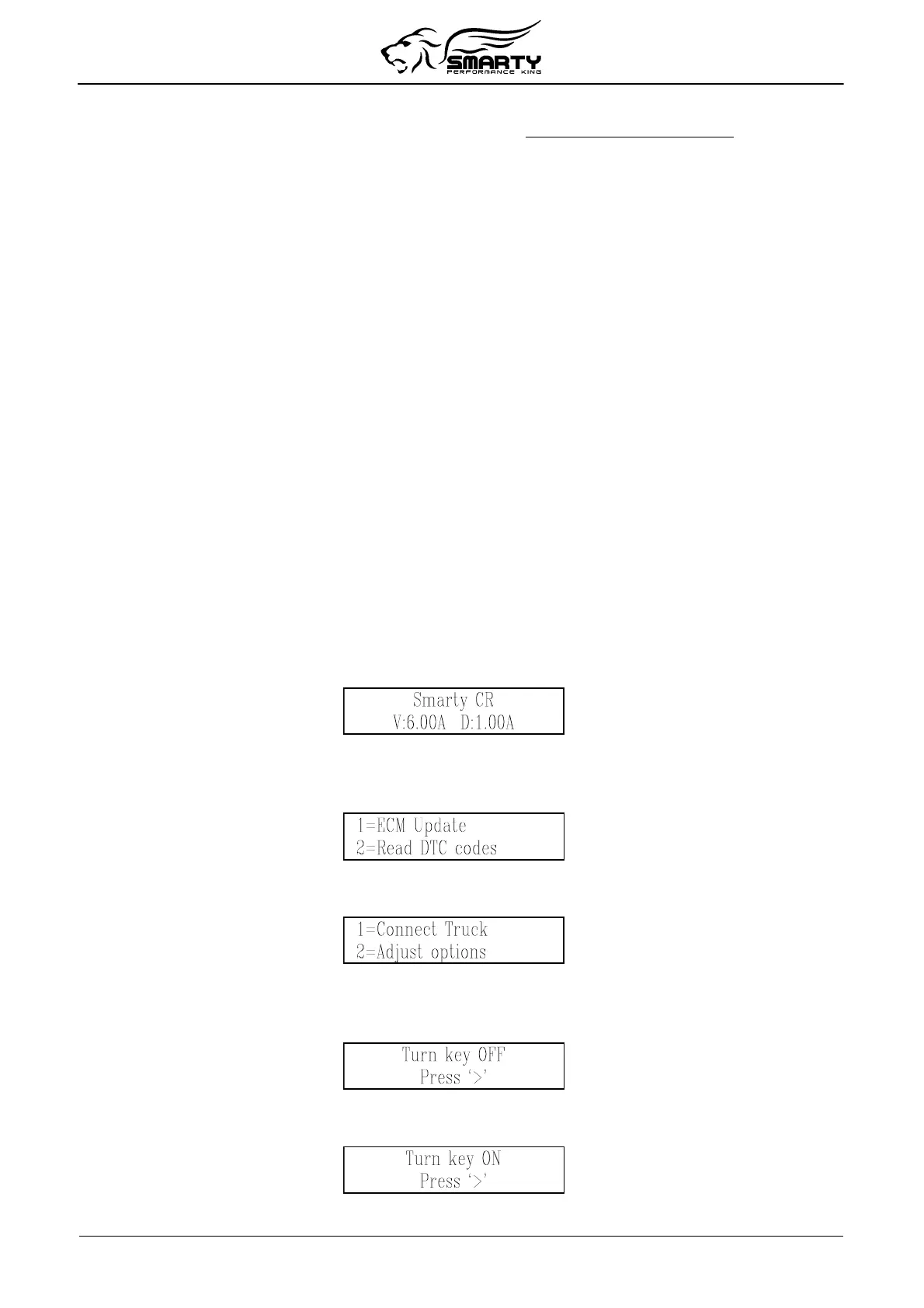
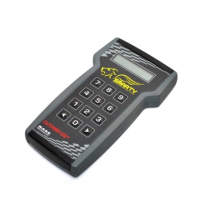
• USB Connector: Used for connecting Smarty to a personal computer for updates. The update
softwares can be downloaded from MADS internet site (www.madselectronics.com).
A USB cable is not included. Standard USB 1.1 or USB 2.0 cables can be used to connect Smarty
to your personal computer.
• 15 pin Connector: Used to connect Smarty to the vehicle through the vehicle’s diagnostic port
with an OBD II cable.
The OBD II – J1926 diagnostic connector cable is included in Smarty’s box. Note: Connecting
any other cable to the 15 pin connector invalidates MADS warranty, because it could damage
Smarty.
Smarty automatically switches on when one of the two connections described above is made.
NEVER CONNECT BOTH CABLES AT THE SAME TIME. This could damage Smarty and the
computer USB port. Such failure is not covered by the MADS warranty
3. Connecting Smarty to your vehicle
• Turn on the ignition key to the RUN position. DO NOT START THE ENGINE.
• Plug the furnished OBD II cable into the 15 pin connector in the top edge of Smarty and
GENTLY tighten the screws by hand. Over tightening these two screws DOES NOT make a
tighter or better connection. The screws are provided to keep the plug held gently to Smarty.
• Plug the Smarty cable into the diagnostic port on your vehicle. The diagnostic port is located
inside the cab, to the passenger side of the steering wheel, at the bottom of the dash panel near
the floor.
4. Updating the ECM
First time update
Turn on the ignition key to the RUN position. DO NOT START THE ENGINE.
Plug Smarty’s cable into the diagnostic connector of your vehicle. Smarty will display:
The second line of the display shows the firmware version and the tuning data version.
Both the internal firmware and the tuning data information can be updated connecting a personal
computer. (See MADS internet site for more details.) Then the main menu appears:
From the main menu, press ‘1’ to select ECM Update.
Then the Options menu appears:
From the Options menu, press '1' to select Connect Truck.
Smarty will try to communicate with the ECM. If the connection cannot be established, Smarty asks
you to switch off the ignition key:
Turn the ignition key to “OFF”. Press the ‘>’ key. Smarty will then ask you to switch the ignition
key “ON” in order to retry the connection:
Page 6 of 16


 To Next Page