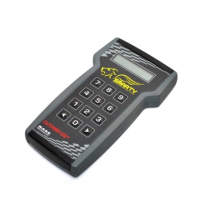
Turn the ignition key to the “RUN” position. DO NOT START THE ENGINE. Press the ‘>’ key.
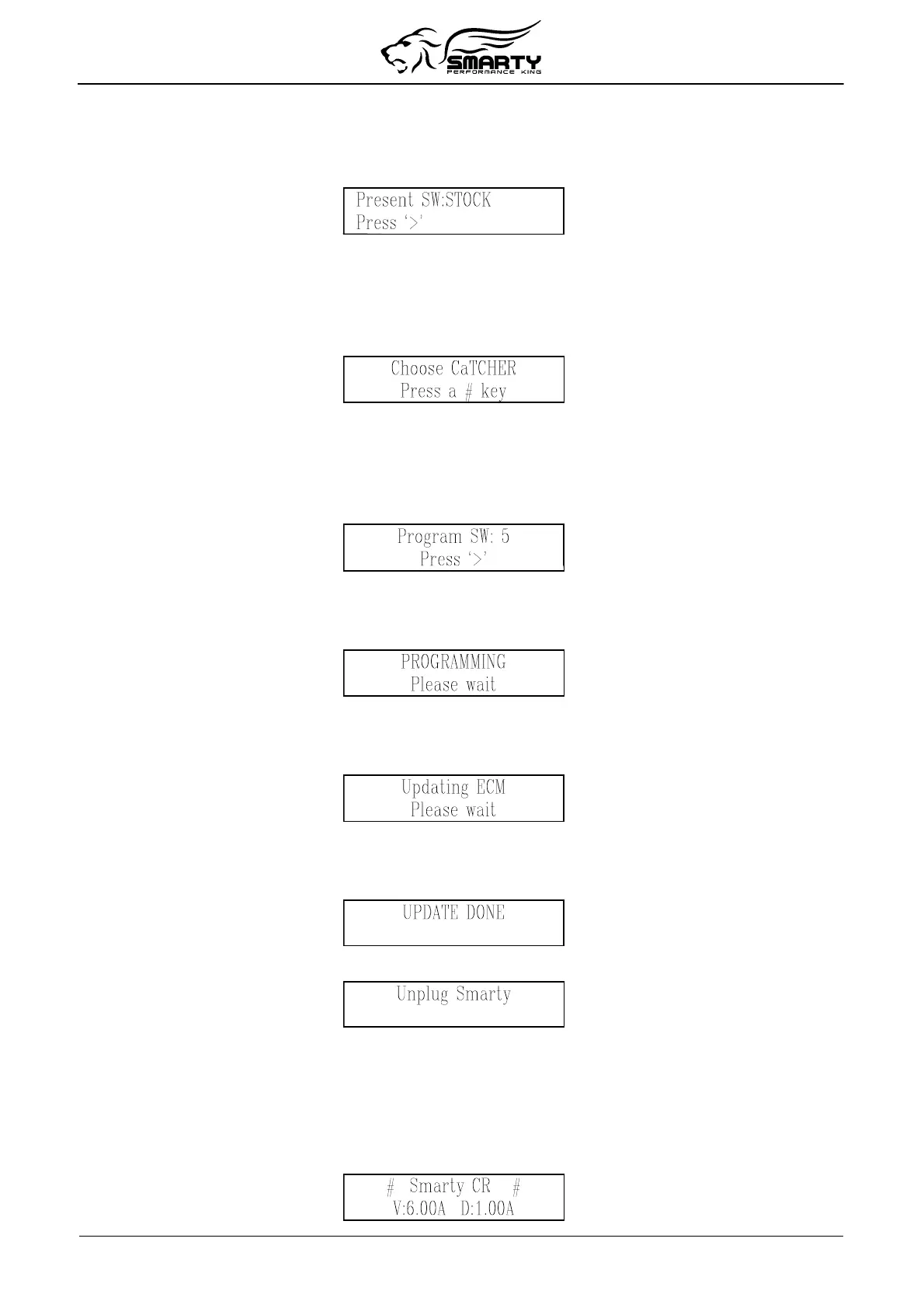
When the connection has been established, Smarty shows the current installed software. During the
first programming, the following screen will appear which indicates a STOCK ECM program is
installed:
Smarty will read the serial number of your vehicle and the serial number of your ECM, then store
them into its onboard memory for future reference. From this moment on, Smarty will work only with
your vehicle until your vehicle is restored back to the stock settings by Smarty.
Press the ‘>’ key. Smarty will ask you to select one of the CaTCHER software versions to load into
the ECM:
You can choose one of TEN different CaTCHER versions according to the desired performance.
Enter the single digit number (from 0 to 9), that corresponds with the software number to be
programmed into your ECM.
Smarty asks you to confirm the selection before he downloads the new software into the ECM:
(example software #5 has been entered):
Press the ‘<’ key to return back one step and enter a different software number.
Press the ‘>’ key to confirm your selection and to begin the updating session. You will see the
following screen:
After a few seconds, a numeric counter begins with the percentage of the transmitted software. At the
end of the download (when 100% is reached) Smarty will update the functional parameters of the
ECM. The following screen will appear:
During the updating session, Smarty can ask to Turn key OFF and Turn Key ON. Please follow these
instructions. DO NOT DISCONNECT Smarty before the updating session is completed.
At the end of the updating session, the following screen appears:
After a few seconds Smarty displays the following message:
Please unplug Smarty from the diagnostic port and turn the Key off for 15 seconds.
Remember to restore the STOCK software before returning your vehicle to a service center.
Changing Software
Turn on the ignition key to the RUN position. DO NOT START THE ENGINE.
Plug Smarty’s cable into the diagnostic connector of your vehicle. Smarty will display:
Page 7 of 16


 To Next Page