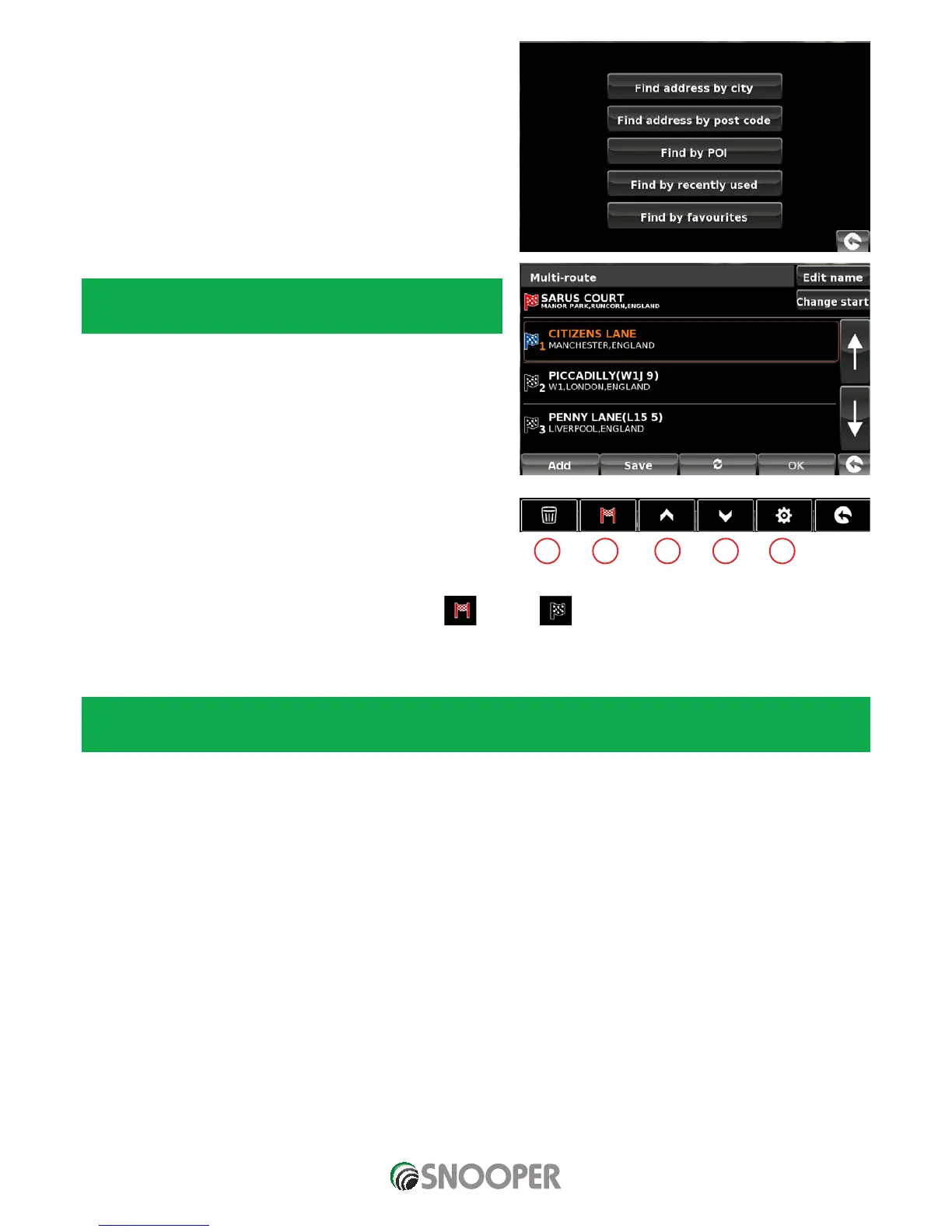
If you are happy with the start position, you can now begin to enter the
data of your first destination. If you want to change the start position,
press ‘Change Start’. You can then select how you want to find your start
position
Press ‘Add’ – you are provided with several options to find your
destination stage:
> Find address by city
> Find address by post code
> Find by POI
> Find by recently used
> Find by favourites
To find out how to use these options please refer to the applicable
sections in this user manual.
Once you have entered the data press ‘Set’.
The destination stage will now appear in the multi-route screen.
Press ‘’Add’ to enter additional destination stages.
Once you have entered all your destination stages press ‘Save’.
3.6.2 Editing a Multi-route
If you wish to change the order or delete any of the stages in the multi-
route:
Press the centre of the display to enter the ‘Navigate to’ menu.
Press the ‘Multi-route’ icon.
Press the name of the multi-route destination you wish to edit
Press one of the stages listed and some new options will appear near the bottom of the display.
1. Deletes selected destination
2. Changes destination. Choose between final destination and stops .
3. Move selected destination up
4. Move selected destination down
5. Route options, change the route option for that section of the journey (See section 6.0 for route options)
Note: These functions only apply to the stage that you have selected. To edit the other stages in the list press the ‘Return Arrow’
in the bottom right hand corner of the screen and select the new stage.
Once you have made your desired changes press ‘Save’.
1 2 3 4 5





 To Next Page