EasyManua.ls Logo

Socket 7 Series - User Manual

Socket 7 Series
131 pages
Print Icon
To Next Page IconTo Next Page
Loading...
Socket
Bluetooth
®
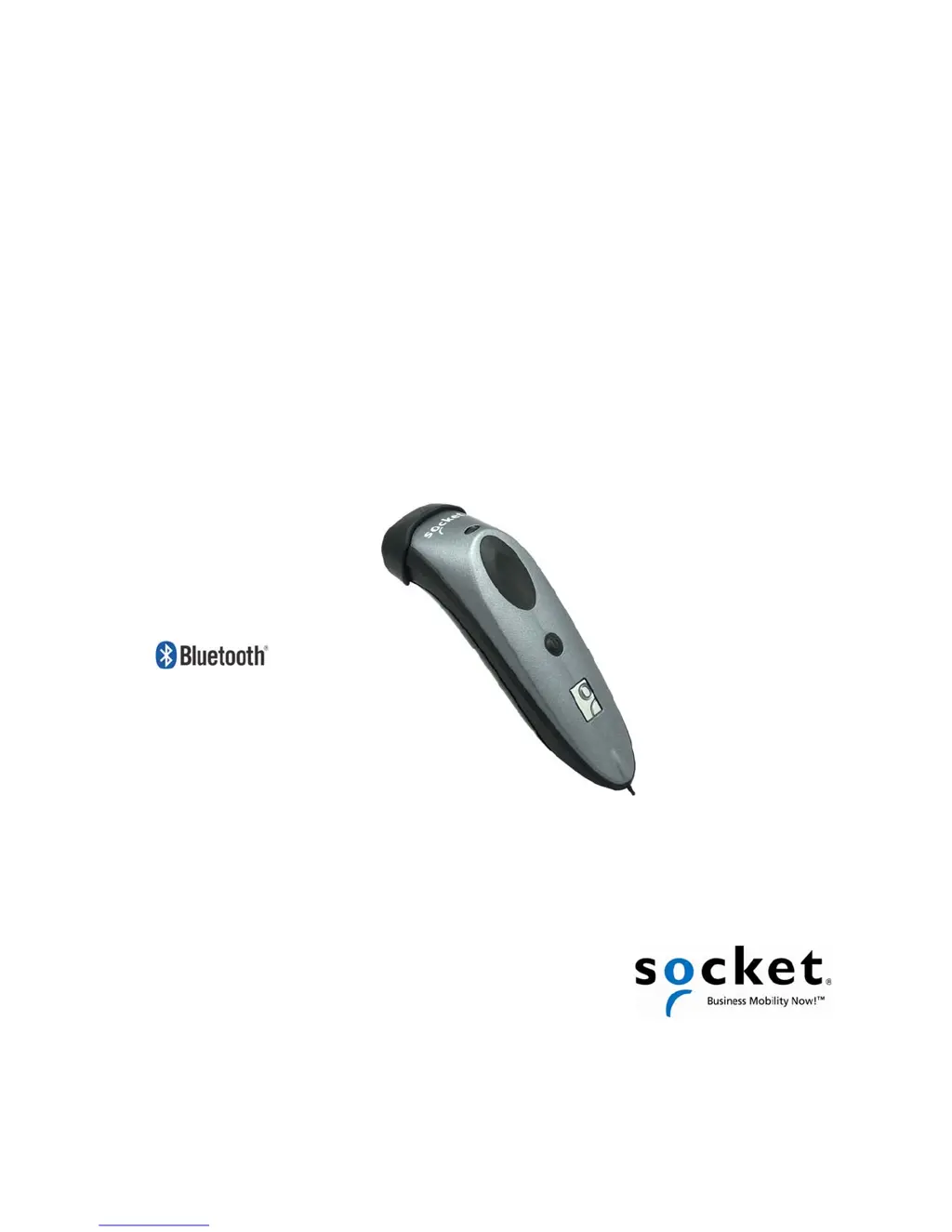
Cordless Hand Scanner (CHS) Series 7
1D Laser Barcode Scanners (v3)
User’s Guide

Other manuals for Socket 7 Series

Questions and Answers

  • K
    katherinecastroAug 31, 2025
    What to do if I try to install SocketScan 10 and an error message says Access is denied, or I have insufficient privileges to complete installation?
    • C
      Catherine WoodwardSep 1, 2025
      If you receive an 'Access is denied' error message or are told you have insufficient privileges when installing SocketScan 10, it's likely because you're trying to install it on a Windows 7 computer without being logged into an administrative account. To fix this, abort the installation process, log into an administrative account, and then restart the installation.
  • G
    Gary LloydSep 12, 2025
    What to do if the Socket 7 Series Barcode Reader won’t reconnect to my Samsung Galaxy or Dell Streak any more?
    • R
      richardsontimothySep 12, 2025
      If the Barcode Reader won’t reconnect to your Samsung Galaxy or Dell Streak, it is a known Bluetooth issue for these devices. Disable and enable Bluetooth on your Android device and try again.
  • S
    Sandra HollandAug 30, 2025
    What to do if I am using the Socket Barcode Reader in SPP mode and get the “CHS not connected” icon in the task tray and can’t trigger the scanner or scan any barcodes?
    • F
      Frederick HarperAug 30, 2025
      If you see the “CHS not connected” icon in the task tray while using the Barcode Reader in SPP mode, and you can’t trigger the scanner, ensure the Barcode Reader is on, in range, and has sufficient battery power. Then, attempt to reconnect.
  • D
    Debra MccallSep 14, 2025
    Why when I try to enable or disable Vibrate Mode in Scanner Settings, I get error message about properties 131340 failing to complete?
    • J
      jimmywarrenSep 14, 2025
      If you encounter an error message about properties 131340 failing to complete when trying to enable or disable Vibrate Mode in Scanner Settings, it's because you are using a CHS v2 scanner with SocketScan 10. SocketScan 10 is compatible only with CHS v3. Either downgrade your software to SocketScan 7 or upgrade your scanner to CHS v3.
  • J
    Jonathan WellsSep 13, 2025
    Why the characters “nj” follow each scan of data from my Socket Barcode Reader?
    • K
      kristin88Sep 13, 2025
      If the characters “nj” follow each scan of data, it's because you are using a CHS v2 scanner with SocketScan 10 and configured a carriage return suffix for each scan of data. SocketScan 10 is compatible only with CHS v3. Either downgrade your software to SocketScan 7 or upgrade your scanner to CHS v3.
  • C
    Crystal LaneSep 19, 2025
    What to do if I get a “No Scanner Detected” icon for Socket 7 Series Barcode Reader?
    • M
      Matthew WelchSep 19, 2025
      If you see a “No Scanner Detected” icon, it means your mobile computer is not connected to the Cordless Hand Scanner. Make sure the Cordless Hand Scanner is on and in range and has enough battery power. Try to reconnect.
  • B
    Brent LawrenceAug 27, 2025
    Why does the SocketScan 10 task tray icon not appear by default after I install the software?
    • D
      David ClarkAug 27, 2025
      If the SocketScan 10 task tray icon is missing after installation, it might be because Bluetooth wasn't fully initialized before launching SocketScan 10. To resolve this: * Ensure Bluetooth is enabled. * Open SocketScan 10 Settings by navigating to Your local drive:\Program Files\Socket Mobile\SocketScan 10\Bin\Windows and clicking on SocketScan Settings.exe. * Make sure 'Use keyboard wedge' and 'Show keyboard wedge icon in task tray' are selected, then click OK.
  • B
    Benjamin WaltersAug 26, 2025
    What to do if the Socket Barcode Reader is not scanning?
    • K
      Kristin FlynnAug 26, 2025
      If the laser beam is aimed at the barcode, but no data appears on your screen, and the laser eventually turns off, it could be due to several reasons: * The scanner may be too close or too far from the barcode, or at an incorrect angle. Try different distances and angles to find the most effective position. * The barcode may be incorrectly formatted, damaged, or poorly printed. Try scanning a barcode that is correctly formatted, printed clearly, and in good condition. * The barcode symbology may be disabled or not supported by the Barcode Reader. Enable the symbology. * You might not have an application open to scan data into. Open an application (e.g., a spreadsheet) and place the cursor where you want to enter data before scanning.
  • F
    Frederick ButlerAug 25, 2025
    What to do if my computer/device cannot find the Socket 7 Series Barcode Reader?
    • J
      Joseph HarrisAug 26, 2025
      If your computer or device is unable to find the Barcode Reader, or you encounter connection error messages, here are a few things to try: * Ensure the device and the Barcode Reader are within 10-15 meters of each other. * Confirm that the Barcode Reader is powered on. * If using SPP mode, check that no other device is set as the default Bluetooth serial device and that Bluetooth is enabled on your computer/device. * Make sure that the Bluetooth software is running. * Unpair the Barcode Reader from any other computer/device it may be connected to.
  • K
    Karen EllisAug 25, 2025
    What to do if laser activates, but no data appears on my Socket 7 Series Barcode Reader?
    • M
      manningjamesAug 25, 2025
      If the laser activates when you try to scan with your Socket Barcode Reader, but no data appears on your screen, and the laser turns off, it could be due to a few reasons. * The scanner might be too close or too far from the bar code. Practice adjusting the distance and angle for optimal scanning. * The bar code might be incorrectly formatted or poorly printed. Try scanning a well-printed bar code from a retail package. * The bar code symbology might be disabled or unsupported. Use Scan Demo for Windows Mobile or the Test screen for Palm OS to identify the symbology, and enable it using Symbology Selector for Windows Mobile or the Symbology screen for Palm OS if necessary.

Summary

Introduction to Socket Bluetooth Cordless Hand Scanner

Scanner Setup Procedures

Installing Batteries and Charging

Step-by-step guide for installing batteries and charging the scanner.

Setup for Windows PC

Pair and Connect CHS via SPP

Detailed steps for pairing and connecting the CHS via SPP mode.

Setup for Windows Mobile

Pair CHS with Socket SoMo

Steps to pair the CHS with the Socket SoMo device.

Setup for Apple Devices

Pair CHS with Apple Device

Instructions for pairing the CHS with iOS or Mac OS devices.

Setup for Android Devices

HID Mode Setup

Instructions for pairing CHS with an Android device in HID mode.

SPP Mode Setup

Instructions for installing SocketScan 10 for SPP mode on Android.

Setup for BlackBerry Devices

Install SocketScan 10 Software

Guide to installing SocketScan 10 on a BlackBerry smartphone.

Appendix A: Specifications

Appendix E: Command Barcodes

HID Mode Command Barcodes

Barcodes for configuring CHS settings in HID mode.

SPP Mode Command Barcodes

Barcodes for configuring CHS settings in SPP mode.

Appendix F: Special Button Sequences

Appendix I: Troubleshooting

General Troubleshooting (All OS)

Common issues and solutions applicable across all operating systems.

Troubleshooting for Windows PC

Specific troubleshooting steps for Windows PC connectivity and software.

Troubleshooting for Windows Mobile

Solutions for common problems with Windows Mobile devices.

Troubleshooting for Android OS

Solutions for common issues encountered on Android devices.

Troubleshooting for BlackBerry

Solutions for common problems with BlackBerry smartphones.

Appendix J: Technical Support

Socket 7 Series Specifications

General IconGeneral
BrandSocket
Model7 Series
CategoryBarcode Reader
LanguageEnglish

Related product manuals