EasyManua.ls Logo

Socket 7 Series - User Manual

Socket 7 Series
131 pages
Print Icon
To Next Page IconTo Next Page
Loading...
Socket
Bluetooth
®
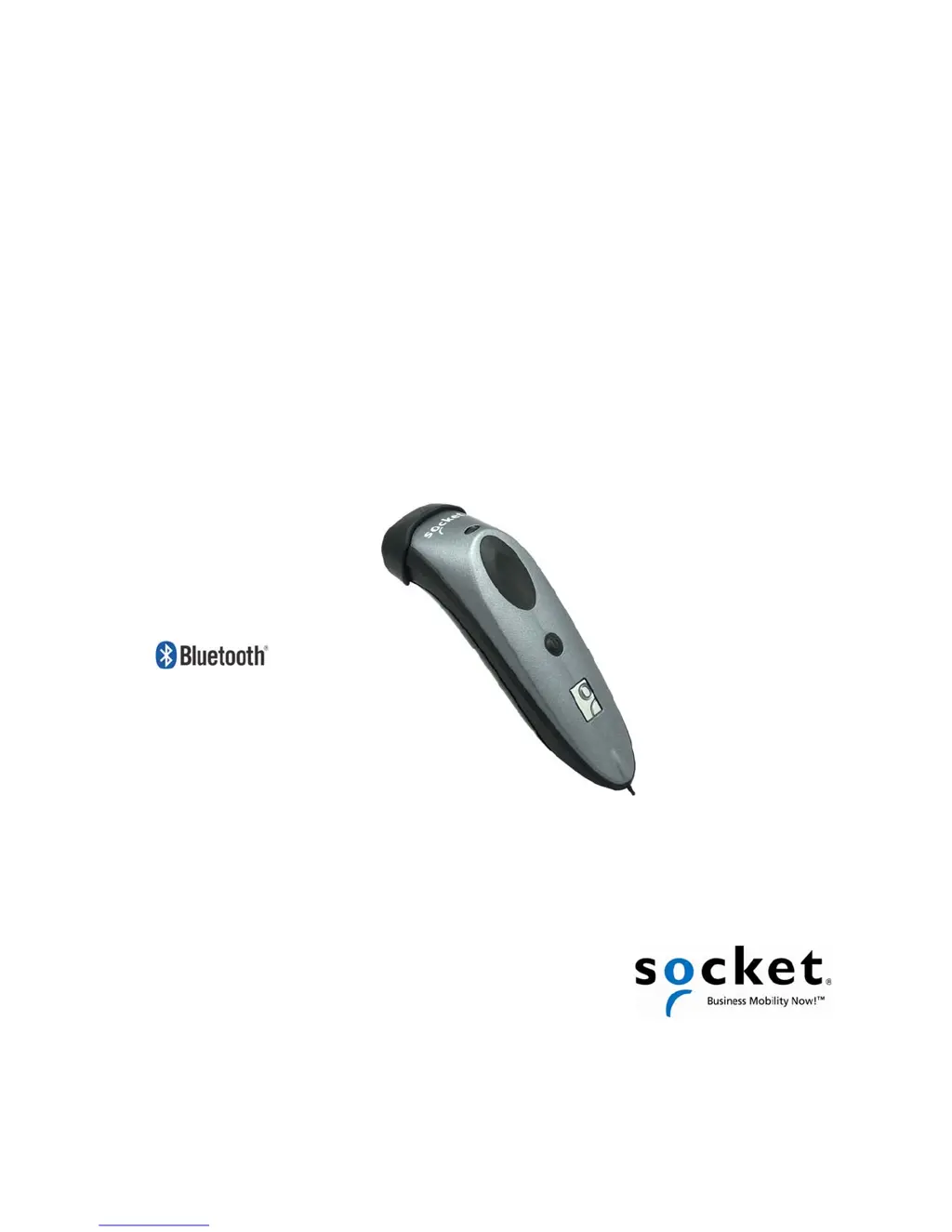
Cordless Hand Scanner (CHS) Series 7
1D Laser Barcode Scanners (v3)
User’s Guide

Other manuals for Socket 7 Series

Questions and Answers

  • K
    katherinecastroAug 31, 2025
    What to do if I try to install SocketScan 10 and an error message says Access is denied, or I have insufficient privileges to complete installation?
    • C
      Catherine WoodwardSep 1, 2025
      If you receive an 'Access is denied' error message or are told you have insufficient privileges when installing SocketScan 10, it's likely because you're trying to install it on a Windows 7 computer without being logged into an administrative account. To fix this, abort the installation process, log into an administrative account, and then restart the installation.
  • D
    Dominique VegaSep 1, 2025
    What to do if the Bluetooth device search has found multiple Socket Barcode Reader devices, and I don’t know which one to choose?
    • A
      Amanda FloresSep 2, 2025
      If the Bluetooth device search displays multiple Barcode Reader devices, and you're unsure which one to select, it's likely because the Barcode Reader isn't paired with a host system, and multiple devices are within range. Power off the Barcode Reader devices you don't want to connect to and restart the Bluetooth device search. Alternatively, if the Barcode Reader works in SPP mode with your computer/device, use the SocketScan Scanner Settings utility to change the scanner’s Bluetooth friendly name to something easily recognizable.
  • A
    Adam LopezSep 3, 2025
    What to do if I try to access SocketScan 10 and get an error message saying the installed version of the application could not be determined?
    • M
      Melissa McgrathSep 3, 2025
      If you encounter an error message stating that the installed version of the application could not be determined when trying to access SocketScan 10, it's likely because you installed SocketScan 10 while logged into a different account. Log into the account you used while installing SocketScan 10. Alternatively, install SocketScan 10 for every user account that plans to use the Barcode Reader.
  • K
    Kelli McdonaldSep 4, 2025
    What to do if the SocketScan 10 reports the Friendly Name of the last CHS connected to the computer, and I cannot modify any advanced settings or symbologies?
    • C
      Christopher VincentSep 4, 2025
      If SocketScan 10 reports the Friendly Name of the last Barcode Reader connected to the computer, and you cannot modify advanced settings or symbologies, close and restart SocketScan 10 and reconnect. This is a known issue in SocketScan 10 for Windows XP and Vista.
  • D
    davidmillerSep 4, 2025
    What to do if after the Socket Barcode Reader connects, an error message says the application failed to initialize properly?
    • T
      Theresa PattersonSep 4, 2025
      If, after the Barcode Reader connects, you receive an error message stating that the application failed to initialize properly, your system might be missing .NET Framework (0xc0000135). Install the latest version of .NET Framework with the appropriate version of Runtime software.
  • K
    Kayla JohnsonSep 5, 2025
    What to do if I try to open Scanner Settings and an error message says that SocketScan failed to set the scanner configuration mode?
    • J
      Jamie ThomasSep 5, 2025
      If you encounter an error message stating that SocketScan failed to set the scanner configuration mode when trying to open Scanner Settings, and the Barcode Reader is connected to a Toshiba Bluetooth stack while SocketScan 10 is running, ignore the message and click OK. The Scanner Settings application will launch and work properly.
  • C
    Christian BennettSep 6, 2025
    What to do if when I open SocketScan 10, an error message says it cannot determine the Bluetooth status?
    • Y
      ydiazSep 6, 2025
      If you receive an error message stating that SocketScan 10 cannot determine the Bluetooth status when you open it, it means Bluetooth is not enabled on your PC. Enable Bluetooth on your PC and ensure it is fully initialized before opening SocketScan 10.
  • M
    Matthew StevensonSep 7, 2025
    What to do if the Bluetooth software indicates that the Socket 7 Series Barcode Reader has connected, but when I try to scan data, it does not enter into my application?
    • S
      stevenskevinSep 8, 2025
      If the Bluetooth software shows the Barcode Reader as connected, but scanned data doesn't appear in your application, and the Barcode Reader is in SPP mode, ensure that the SoMo does not have multiple incoming Bluetooth serial ports enabled. Use your Bluetooth utility to disable extra incoming Bluetooth serial ports. Also, verify that SocketScan 10 is running by tapping Start | Programs | SocketScan 10 | SocketScan 10.
  • D
    Danielle SmithDec 3, 2025
    What to do if my Socket 7 Series Barcode Reader no longer connects to my computer?

    Summary

    Introduction to Socket Bluetooth Cordless Hand Scanner

    Scanner Setup Procedures

    Installing Batteries and Charging

    Step-by-step guide for installing batteries and charging the scanner.

    Setup for Windows PC

    Pair and Connect CHS via SPP

    Detailed steps for pairing and connecting the CHS via SPP mode.

    Setup for Windows Mobile

    Pair CHS with Socket SoMo

    Steps to pair the CHS with the Socket SoMo device.

    Setup for Apple Devices

    Pair CHS with Apple Device

    Instructions for pairing the CHS with iOS or Mac OS devices.

    Setup for Android Devices

    HID Mode Setup

    Instructions for pairing CHS with an Android device in HID mode.

    SPP Mode Setup

    Instructions for installing SocketScan 10 for SPP mode on Android.

    Setup for BlackBerry Devices

    Install SocketScan 10 Software

    Guide to installing SocketScan 10 on a BlackBerry smartphone.

    Appendix A: Specifications

    Appendix E: Command Barcodes

    HID Mode Command Barcodes

    Barcodes for configuring CHS settings in HID mode.

    SPP Mode Command Barcodes

    Barcodes for configuring CHS settings in SPP mode.

    Appendix F: Special Button Sequences

    Appendix I: Troubleshooting

    General Troubleshooting (All OS)

    Common issues and solutions applicable across all operating systems.

    Troubleshooting for Windows PC

    Specific troubleshooting steps for Windows PC connectivity and software.

    Troubleshooting for Windows Mobile

    Solutions for common problems with Windows Mobile devices.

    Troubleshooting for Android OS

    Solutions for common issues encountered on Android devices.

    Troubleshooting for BlackBerry

    Solutions for common problems with BlackBerry smartphones.

    Appendix J: Technical Support

    Socket 7 Series Specifications

    General IconGeneral
    BrandSocket
    Model7 Series
    CategoryBarcode Reader
    LanguageEnglish

    Related product manuals