APPENDIX F: COMMAND BARCODES FOR CHS 7E, 7M, 7P 107
APPENDIX F
C
OMMAND BARCODES FOR CHS 7E, 7M, 7P
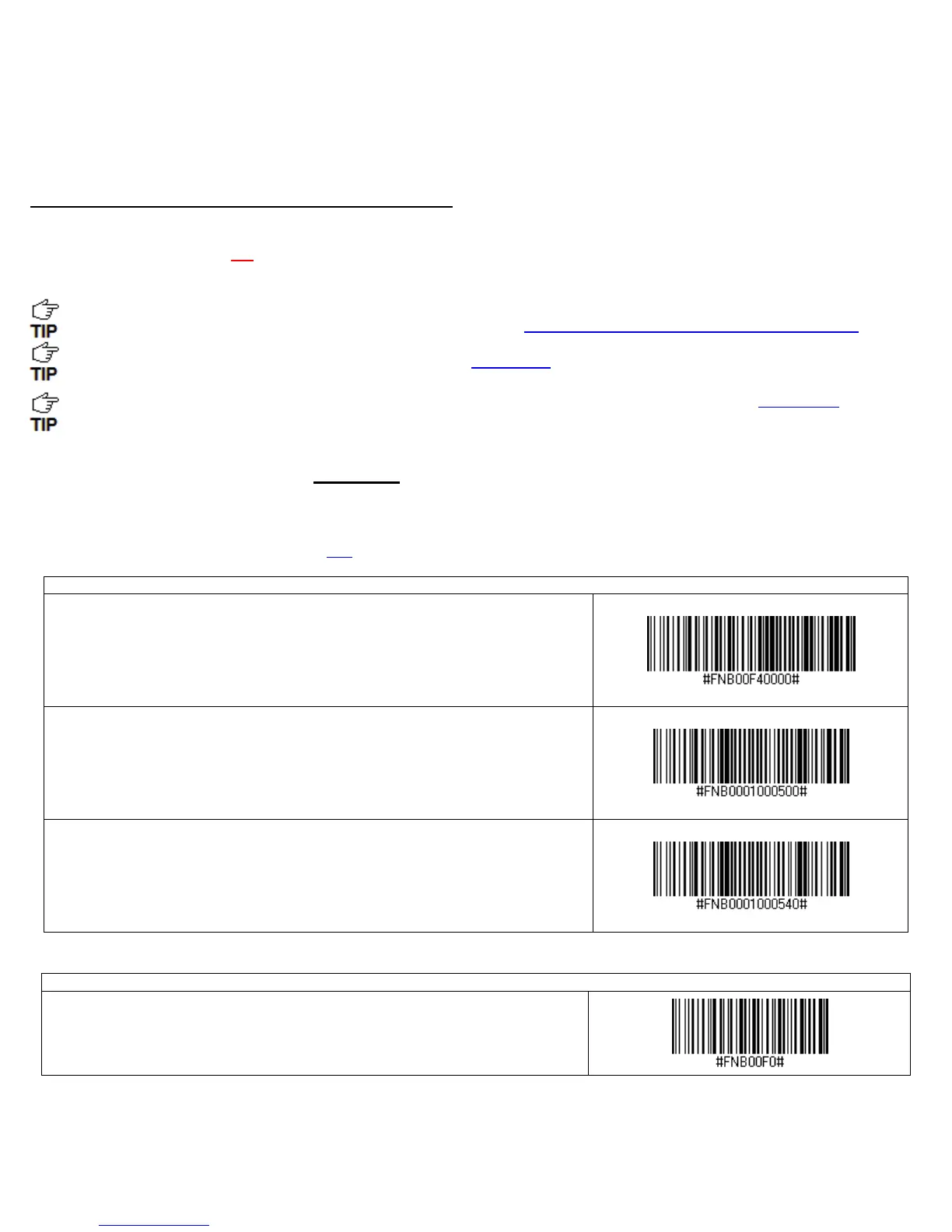
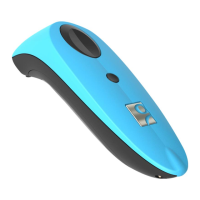
Scan command barcode(s) to quickly configure the Socket Bluetooth Cordless Hand Scanner v3 (1D versions).
By default, the CHS is in HID mode as a Keyboard device.
IMPORTANT!
• Make sure the CHS is not connected to computer / device before scanning a command barcode!
• Print out the page to scan the barcodes. Do not scan them onscreen.
For command barcodes that enable / disable symbologies, please see the Command Barcodes Sheet for CHS 7E, 7M,
7P available on the SocketScan 10 installation CD and online at: http://www.socketmobile.com/support/downloads
For command barcodes for the CHS 7C /7Ci, please see Appendix E
.
The CHS can only be paired with one device at a time. To use the CHS with a different device, see Appendix G for
unpairing instructions.
Command Barcodes for CHS in HID Mode
These command barcodes can be scanned with a CHS in HID mode. Some will not work for a CHS in SPP mode. If you do
not know which mode your CHS is in, scan the command barcode for HID Mode to make sure it is in HID mode.
If you have a CHS in SPP mode, see page 110
for relevant command barcodes.
Bluetooth Connection Settings
SPP Mode
Changes the CHS to Serial Port Profile (SPP) mode.
Required for BlackBerry, optional for Windows.
HID-Peripheral
Changes a CHS in HID-Keyboard mode to HID-Peripheral mode.
Optional for Windows.
HID-Keyboard (default)
Changes a CHS in HID-Peripheral mode to HID-Keyboard mode.
Required for Apple iOS, Mac OS, Nokia E71.
Factory Reset
Configures the CHS to revert all settings to factory defaults. The CHS will power off
after scanning this barcode.
IMPORTANT! Print out the page to scan the barcodes. Do not scan them onscreen.














 To Next Page