32 EN
DIRIS Digiware D-50 & D-70 - 548088B - SOCOMEC
9. CONFIGURATION VIA EASY CONFIG SYSTEM
The Easy Cong System software can be downloaded from the Socomec website at the following link:
www.socomec.com/easy-cong-system_en.html
The Conguration of the DIRIS Digiware D-50/D-70 display and downstream Socomec devices can be done from the
Easy Cong System software, by connecting a computer to the D-50/D-70 display either via USB or via Ethernet.
9.1. USB connection mode
DIRIS Digiware
D-xx
DIRIS B
RS485
Digiware Bus
Digiware system
Easy Config System
USB
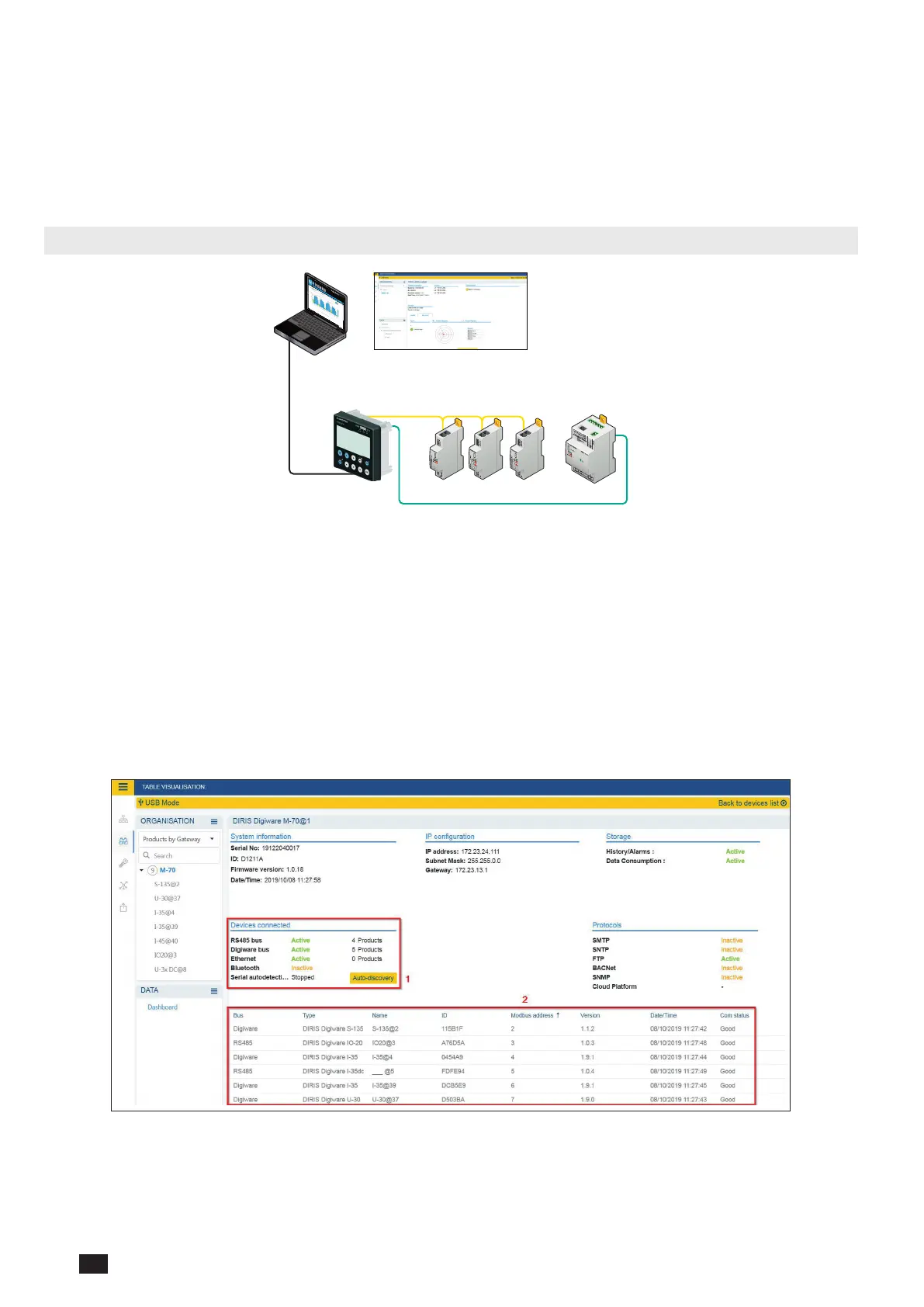
- Open Easy Cong System.
- Connect a USB cable between the DIRIS Digiware D-50/D-70 display and a computer.
- Log in as User or Admin. Admin default password is “Admin”.
- Click on “New Conguration”, enter a name and icon.
- Click on the newly created conguration.
- Click on “USB mode” on the right top corner to connect to the D-50/D-70 display and access conguration menus.
- Click on the “Binocular” icon on the left side bar.
- Under the “Organisation” part, select the D-70/D-50 display.
- Click on “Dashboard” to visualise general information about the display.
- Click on “Auto-discovery” (1):
- Once the slave auto-discovery process is nished, slave devices will be displayed in the lower part of the
dashboard (2). The number of devices accessible downstream the D-50/D-70 display is also displayed in the
“Organisation” part, next to the D-50/D-70 display.
- Conguration of slave devices can be done directly without unplugging the USB cable, by clicking on the Wrench
icon on the left side bar:



 To Next Page