EasyManua.ls Logo

Software House SWH-4100 - User Manual

Software House SWH-4100
21 pages
Print Icon
To Next Page IconTo Next Page
Loading...
1
DRAFT
Tyco CONFIDENTIAL
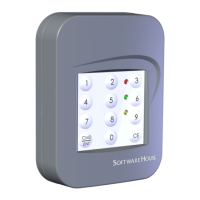
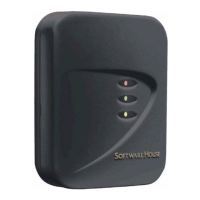
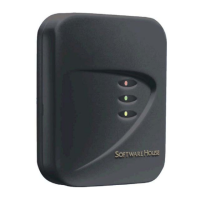
Model SWH-4100
and 4200 Contactless Multi-
Technology 125 KHz and 13.56
MHz Reader Installation Guide
Version H0
Part Number UM-090
May 2012

Questions and Answers

  • K
    Kathleen PriceAug 3, 2025
    How to troubleshoot Software House Card Reader when no LEDs are on?
    • P
      Patrick SmithAug 3, 2025
      If none of the LEDs are lit on your Software House Card Reader, check the power connections to the reader. Also, verify the reader supply voltage at connector pin 3 and ensure the ground connection at pin 2 is secure and well connected.
  • C
    Carol KellyAug 9, 2025
    What to do if the Software House SWH-4100 Card Reader doesn't open the door and the green LED doesn't light?
    • C
      Chase MontgomeryAug 9, 2025
      If the door doesn't open and the green LED doesn't light when you present a valid access card, make sure the door strike and green LED are correctly wired. Also, ensure the access card has been entered into the host system and that the Software House Card Reader is configured correctly within that system.
  • V
    Virginia NortonAug 17, 2025
    Why does my Software House SWH-4100 unlock the door but the green LED doesn't light up?
    • R
      Richard GriffithAug 17, 2025
      If the green LED on your Software House Card Reader isn't lighting up when you present a valid card, but the door still unlocks, check the door strike wiring. Consult the wiring diagram in your controller manual. Try disconnecting the wire from pin 7 (green LED) and connecting it to pin 2 (ground). If the LED lights up, the reader is fine, and the connection is faulty. If it doesn't light up, the reader needs replacement.
  • H
    Hayden HendersonAug 26, 2025
    How to troubleshoot Software House SWH-4100 when none of the LEDs are on?
    • J
      Jennifer ShannonAug 26, 2025
      If none of the LEDs on your Software House Card Reader are on, check the power connections to the reader. Verify the reader supply voltage at connector pin 3, and make sure the ground connection at pin 2 is secure and well connected.

Summary

Introduction

Features

Mounting

Installation Considerations

Wiring

Installation Notes

Configuration Notes

Flash Upgrade Notes

Troubleshooting

FCC Digital Device Limitations

Canadian Radio Emissions Requirements

UL Standards Compliance

CE Marking

Copyrights and Trademarks

Software House SWH-4100 Specifications

General IconGeneral
BrandSoftware House
ModelSWH-4100
CategoryCard Reader
LanguageEnglish

Related product manuals