15
8.6 ADD YOUR SO-255WUI AIR PURIFIER TO THE APP
1. Ensure your smartphone is connected to your 2�4GHz WiFi network (this is a
specic home network, if you are unsure of the dierence, please read the
quick explainer below)�
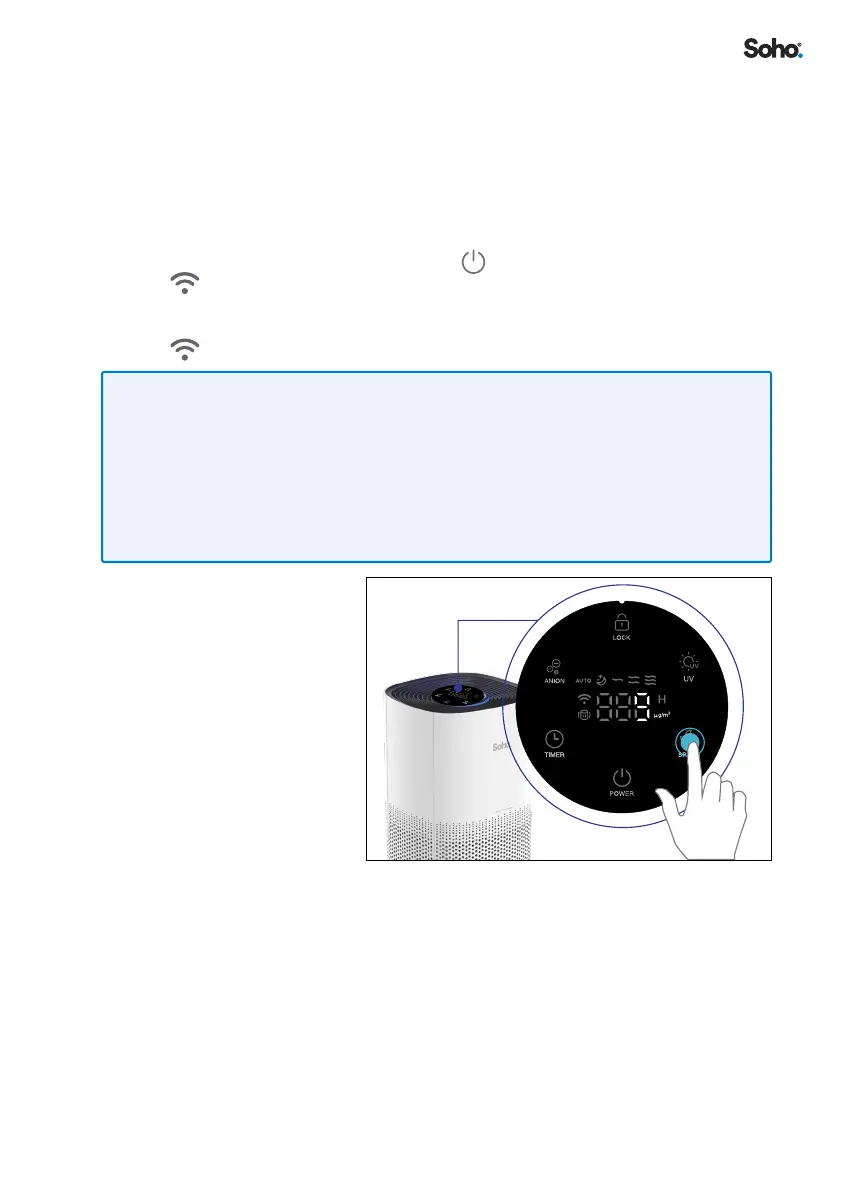
2. Plug the SO-255WUI power adaptor into power socket� Turn on power at the
power socket and your PureHome Connect Smart Purier will go into standby
mode� Please note, you won’t be able to pair your device to the SO-255WUI
Air Purier once you have turned the
button on the control panel, on� The
indicator on the control panel should start ashing quickly indicating the
device is in pairing mode� If it does not, tap and hold the WIFI button (located
on the control panel) for 5 seconds until you hear a beep sound and see the
indicator start ashing�
QUICK EXPLAINER:
• Modern home routers typically provide two WiFi networks (5GHz and 2�4GHz)� These
separate networks will NOT always be named clearly, especially if you have re-named your
home WiFi network�
• For your SO-255WUI PureHome Connect Smart Purier to work, you will need to pair it to
the 2�4GHz WiFi network, which has a greater range and a stronger and more reliable
signal� If you are unsure which of your WiFi networks is 2�4GHz, please clarify with your
network provider�
3. To pair your purier
to your app, please
ensure the WIFI
is enabled on your
smartphone�


 To Next Page