EasyManua.ls Logo

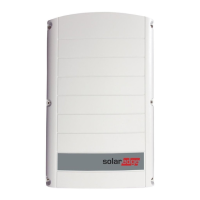
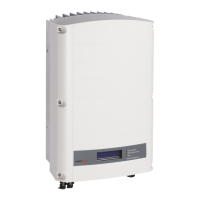
SolarEdge SE8k - User Manual

SolarEdge SE8k
114 pages
Print Icon
To Next Page IconTo Next Page
Loading...
Installation Guide
SolarEdge System
Installation Guide
For Europe and APAC
Version 4.1

Table of Contents

Questions and Answers

  • W
    wilsonjessicaSep 23, 2025
    What to do if my SolarEdge Inverter shows Faulty AC Relay?
    • N
      natasha39Sep 23, 2025
      If your SolarEdge Inverter displays 'Faulty AC Relay', it means the AC relay failed during wake-up tests. Disconnect the inverter from the AC grid and contact SolarEdge support for assistance.
  • A
    Amanda JohnstonAug 25, 2025
    What to do if SolarEdge SE8k Inverter gateway not responding?
    • C
      Christopher LeeAug 25, 2025
      If the gateway on your SolarEdge Inverter is not responding, it could be due to a failed ping to the router. Check the physical connection to the switch or router and ensure the link LED at the router/switch is lit, indicating a physical link. If the connection is OK, contact your network IT. Otherwise, replace the cable or change it from a cross to a straight connection.
  • B
    Bianca LawrenceAug 25, 2025
    How to fix SolarEdge Inverter pairing failed?
    • W
      Whitney DiazAug 26, 2025
      If pairing fails on your SolarEdge Inverter, it might be because the power optimizers are shaded. If you've connected the inverter to the monitoring platform, try pairing remotely during sunlight. Ensure the inverter's ON/OFF switch is ON and that S_OK appears on the status screen.
  • S
    Stanley MackAug 26, 2025
    What to do if my SolarEdge SE8k Inverter has an Ethernet communication error?
    • S
      Scott AndersonAug 27, 2025
      If you're experiencing an Ethernet communication error with your SolarEdge Inverter, begin by ensuring the Ethernet cable is properly connected, paying attention to the cable pin-out assignment. Also, verify that the DHCP IP is configured correctly by checking both the router and inverter configurations. If the internet connection is not operating, this may also cause the error. Communication issues with the SolarEdge server can be resolved by checking the server address.
  • Z
    zreynoldsAug 27, 2025
    How to fix DHCP Failed or Invalid DHCP Config on SolarEdge SE8k?
    • R
      ronaldarmstrongAug 27, 2025
      If your SolarEdge Inverter shows 'DHCP Failed' or 'Invalid DHCP Config', it indicates an issue with the IP settings. To resolve this, check both the router and inverter configurations.
  • J
    Joel ReillySep 14, 2025
    What does Isolation Fault mean on my SolarEdge Inverter?
    • L
      Lori NewmanSep 14, 2025
      If your SolarEdge Inverter displays 'Isolation Fault', it means the inverter has detected that the PV solar generator is not properly isolated from ground earth. A certified PV installer must check the PV installation for isolation problems and ground leakage and fix any faulty strings before reconnecting them to the inverter.
  • A
    Andrew ThomasSep 12, 2025
    What to do if my SolarEdge SE8k Inverter shows AC Voltage Too High?
    • M
      millsamySep 12, 2025
      If your SolarEdge Inverter displays 'AC Voltage Too High', it indicates the internal hardware has detected a substantially high instantaneous output voltage. First, check the AC connection to the inverter. Then, inquire with your grid operator about any large surge sources or irregular loads nearby. Finally, ensure the output wire size matches the distance between the inverter and the grid connection point, using a larger gauge wire if necessary.
  • C
    Cassandra OlsonSep 13, 2025
    What to do if my SolarEdge SE8k Inverter shows DC Voltage Too High?
    • E
      ecoxSep 13, 2025
      If your SolarEdge Inverter displays 'DC Voltage Too High', the input DC voltage is exceeding the supported maximum level. Turn OFF the ON/OFF switch at the bottom of the inverter and wait at least five minutes. The LCD panel should display a low safety voltage equal to 1 V * string length. If not, check for malfunctioning strings and their connections. Also, ensure no PV modules are directly connected without a PowerBox. Recommission all inverters on the site.
  • C
    Christopher OlsonSep 4, 2025
    What to do if G Server Ping Failed on SolarEdge SE8k Inverter?
    • J
      Joseph AndersonSep 4, 2025
      If your SolarEdge Inverter displays 'G Server Ping Failed', it indicates that the ping to google.com has failed. To resolve this, connect a laptop and check for internet connectivity.
  • B
    Brandon LopezSep 2, 2025
    What to do if Gateway Ping Failed on SolarEdge SE8k Inverter?
    • C
      Catherine RyanSep 2, 2025
      If your SolarEdge Inverter shows 'Gateway Ping Failed', the ping to the router has failed. Check the physical connection to the switch or router and ensure the link LED at the router or switch is lit, indicating a physical link. If the connection is fine, replace the cable or change it from cross to straight connection.

Summary

Disclaimers

Important Notice

General legal notices and copyright information for the document.

Emission Compliance

Support and Contact Information

Contact Details and Support Info

Contact details and required information for technical support.

Revision History

Version Updates

Details of changes and updates made in different versions of the guide.

Handling and Safety Instructions

Safety Symbols Information

Explanation of safety symbols used throughout the manual.

Important Safety Instructions

Critical Safety Precautions

Critical safety warnings and precautions for installation and operation.

Chapter 1: Introducing the SolarEdge Power Harvesting System

System Components Overview

Overview of Power Optimizer, Inverter, and Monitoring Platform.

Installation Procedure and Equipment

Steps for site setup and recommended tools.

Inverter Transport and Storage

Guidelines for safe transport and storage of the inverter.

Chapter 2: Installing the Power Optimizers

Safety and Installation Guidelines

Safety notes and general guidelines for power optimizer installation.

Step 1: Mounting the Power Optimizers

Step 2: Connecting a PV Module to a Power Optimizer

Step 3: Connecting Power Optimizers in Strings

Step 4: Verifying Proper Power Optimizer Connection

Chapter 3: Installing the Inverter

Inverter Package Contents

List of items included in the inverter package.

Identifying the Inverter

How to locate serial number and electrical ratings on the inverter.

Inverter Interfaces

Description of the inverter's connectors and components.

Mounting the Inverter

Chapter 4: Connecting the AC and the Strings to the Inverter

Grid Connection Guidelines

Guidelines for connecting the inverter to the AC grid.

Connecting the AC Grid to the Inverter

Connecting the Strings to the Inverter

Selecting a Residual Current Device (RCD)

Chapter 5: Commissioning the Installation

Step 1: Activating the System

Procedures to activate the inverter and system.

Step 2: Pairing Power Optimizers to the Inverter

Step 3: Verifying Proper Activation

Step 4: Reporting and Monitoring Installation Data

The Monitoring Platform

Logical Layout

Describes the schematic layout of system components and connectivity.

Physical Layout

Describes the visual placement of modules on a virtual site map.

Creating Logical and Physical Layout using Installation Information

Designer

Mapper Application

Using a Paper Template

Chapter 6: User Interface

LCD User Buttons

Explanation of the four buttons used to control the LCD menu.

Operational Mode

Setup Mode

Error Messages

Inverter Configuration - Setup Mode

Configuring the Inverter Using the Internal LCD User Buttons

Steps to configure the inverter using the internal LCD buttons.

Configuring the Inverter Using the LCD Light Button

Configuration Menu Options

Country and Grid

Configuring country and grid settings via the internal buttons.

Language

Setting the display language for the LCD panel.

Communication

Options for setting up communication with the monitoring platform.

Information Display Options

Versions

Displays inverter firmware versions (ID, DSP, CPU).

Error Log

Displays the last five recorded errors.

Warning Log

Displays the last five recorded warnings.

Hardware IDs

Displays hardware serial numbers of connected devices.

Status Screens - Operational Mode

Initial Status

Displays initial status of the inverter.

Main Inverter Status

Displays main operational status including frequency and temperature.

Energy Meter Status

Displays total energy produced.

Telemetry Status

Displays last received telemetry data from power optimizers.

ID Status

Displays inverter software version and configured country.

Server Communication Status

Shows the status of communication with the SolarEdge server.

IP Status

Displays Ethernet configuration.

ZigBee Status

Displays ZigBee configuration details.

Wi-Fi Status

Displays Wi-Fi configuration details.

GSM Status

Displays status for GSM/CDMA plug-in communication.

Communication Ports Status

Shows status for RS485, ZigBee, and other communication ports.

Smart Energy Management Status

Displays energy details when Smart Energy Management is enabled.

Fan Status

Provides information about the status of internal and external fans.

Power Control Status

Displays status for power control features.

Chapter 7: Setting Up Communication

Communication Options

Overview of supported communication types.

RS485

Wi-Fi

Cellular (GSM, CDMA)

ZigBee

Communication Connectors

Removing the Inverter Cover

Creating an Ethernet (LAN) Connection

Creating an RS485 Bus Connection

Verifying the Connection

Appendix A: Errors and Troubleshooting

Troubleshooting Communication

Guides to troubleshoot communication issues, especially Ethernet.

Power Optimizer Troubleshooting

Appendix B: Mechanical Specifications

Appendix C: Connecting the AC and DC Strings to the DC Safety Unit

Connecting the AC Grid to the Inverter

Steps for connecting the AC grid via the DC Safety Unit.

Connecting the Strings to the DC Safety Unit

How to connect DC strings to the DC Safety Unit.

Appendix D: SafeDC

Appendix E: External Fan Maintenance and Replacement

Fan Maintenance

Procedures for cleaning and checking the inverter fans.

External Fan Replacement

Steps for replacing an external fan in the inverter.

Appendix F: Replacing and Adding System Components

Replacing an Inverter

Procedures for replacing the inverter unit.

Replacing the DC Safety Unit

Procedures for replacing the DC Safety Unit.

Adding, Removing, or Replacing Power Optimizers

Appendix G: Determining the Circuit Breaker Size

Introduction

Importance of circuit breakers for inverter protection.

Using Transformers in Commercial Three Phase Inverter Installations

Optional use of transformers in commercial installations.

Determining the Size of an Inverter Circuit Breaker

Technical Specifications - Single Phase Inverters (Europe & APAC)

Technical Specifications - Three Phase Inverters (Europe & APAC)

SE4 K - SE12.5 K

Specifications for SE4K to SE12.5K three-phase inverters.

SE15 K - SE33.3 K

Specifications for SE15K to SE33.3K three-phase inverters.

Contact Information

SolarEdge SE8k Specifications

General IconGeneral
AC Output Power8000 W
CEC Weighted Efficiency97.5%
CoolingNatural Convection
Protection RatingIP65
Rated AC Power8000 W
Warranty12 years
Weight26 kg
Operating Temperature Range-25°C to 60°C
AC Voltage208/240 V

Related product manuals