EasyManua.ls Logo

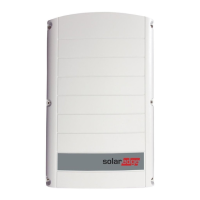
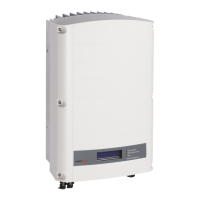
SolarEdge SE8k - User Manual

SolarEdge SE8k
114 pages
Print Icon
To Next Page IconTo Next Page
Loading...
Installation Guide
SolarEdge System
Installation Guide
For Europe and APAC
Version 4.1

Table of Contents

Questions and Answers

  • E
    edwardschristopherSep 9, 2025
    What to do if SolarEdge SE8k string voltage is 0V?
    • B
      brianwashingtonSep 9, 2025
      If the string voltage on your SolarEdge Inverter is 0V, it is likely that one or more power optimizer outputs are disconnected. Ensure that all power optimizer outputs are properly connected.
  • C
    christopherkellySep 8, 2025
    How to fix SolarEdge SE8k no DHCP?
    • T
      Tammy NicholsSep 8, 2025
      If your SolarEdge Inverter shows 'No DHCP', it could be due to an IP settings issue. Check both the router and the inverter configuration. You may need to configure a static IP address or set the inverter to DHCP. Consult your network IT professional for assistance.
  • F
    Frank WoodsAug 22, 2025
    Why SolarEdge Inverter has no Internet connection?
    • M
      Mrs. Courtney MillerAug 22, 2025
      If your SolarEdge Inverter has no internet connection, it may be due to a failed ping to google.com. Connect a laptop to the network to check for internet connectivity. If there is no internet access, contact your IT administrator or internet provider. If you are using Wi-Fi, make sure the username and password match those defined in your internet provider's access point or router.
  • C
    Christopher OlsonSep 4, 2025
    What to do if G Server Ping Failed on SolarEdge SE8k Inverter?
    • J
      Joseph AndersonSep 4, 2025
      If your SolarEdge Inverter displays 'G Server Ping Failed', it indicates that the ping to google.com has failed. To resolve this, connect a laptop and check for internet connectivity.
  • V
    Veronica RichardsonSep 3, 2025
    How to fix String voltage is 0V on SolarEdge Inverter?
    • E
      Emily MiddletonSep 3, 2025
      If the string voltage is 0V on your SolarEdge Inverter, it means a power optimizer output is disconnected. To fix this, connect all power optimizer outputs.
  • B
    Brandon LopezSep 2, 2025
    What to do if Gateway Ping Failed on SolarEdge SE8k Inverter?
    • C
      Catherine RyanSep 2, 2025
      If your SolarEdge Inverter shows 'Gateway Ping Failed', the ping to the router has failed. Check the physical connection to the switch or router and ensure the link LED at the router or switch is lit, indicating a physical link. If the connection is fine, replace the cable or change it from cross to straight connection.
  • S
    Stephen WhiteSep 1, 2025
    Why is string voltage higher than number of optimizers in SolarEdge SE8k?
    • V
      Vanessa ClarkSep 1, 2025
      If the string voltage of your SolarEdge Inverter is higher than the number of optimizers, there could be a few reasons. First, check if an extra power optimizer is connected in the string. Next, verify that only power optimizers are connected in the string and that no module outputs are connected without a power optimizer. If the issue persists, follow these steps: 1. Disconnect the wires connecting the power optimizers in the string. 2. Measure the output voltage of each power optimizer to locate any that aren't outputting the 1V safety voltage. Check the connections, polarity, module, and voltage of any malfunctioning power optimizers.
  • J
    Jimmy FieldsAug 30, 2025
    What to do if string voltage is lower than number of optimizers in SolarEdge SE8k?
    • M
      Mr. Joseph MckayAug 31, 2025
      If the string voltage of your SolarEdge Inverter is not 0V but lower than the number of optimizers, it could be due to several reasons. First, ensure all power optimizers are properly connected in the string. Second, verify that all modules are correctly connected to the power optimizer inputs. Lastly, check the string polarity using a voltmeter and correct it if necessary.
  • A
    achavezAug 29, 2025
    Why SolarEdge SE8k Inverter has no connection to SolarEdge servers?
    • M
      Melissa TorresAug 29, 2025
      If your SolarEdge Inverter cannot connect to SolarEdge servers, the ping or connection to the SolarEdge server may have failed. Verify the SolarEdge server address under the LAN Configuration sub-menu. The address should be prod.solaredge.com and the port should be 22222. Check with your network administrator to see if a firewall or other device is blocking the transmission.
  • A
    alvaradobryanAug 28, 2025
    How to fix LAN Disconnected on SolarEdge SE8k?
    • P
      parkeralishaAug 28, 2025
      If your SolarEdge Inverter shows 'LAN Disconnected', it indicates a fault with the physical connection. Check the cable pin-out assignment and cable connection.

Summary

Disclaimers

Important Notice

General legal notices and copyright information for the document.

Emission Compliance

Support and Contact Information

Contact Details and Support Info

Contact details and required information for technical support.

Revision History

Version Updates

Details of changes and updates made in different versions of the guide.

Handling and Safety Instructions

Safety Symbols Information

Explanation of safety symbols used throughout the manual.

Important Safety Instructions

Critical Safety Precautions

Critical safety warnings and precautions for installation and operation.

Chapter 1: Introducing the SolarEdge Power Harvesting System

System Components Overview

Overview of Power Optimizer, Inverter, and Monitoring Platform.

Installation Procedure and Equipment

Steps for site setup and recommended tools.

Inverter Transport and Storage

Guidelines for safe transport and storage of the inverter.

Chapter 2: Installing the Power Optimizers

Safety and Installation Guidelines

Safety notes and general guidelines for power optimizer installation.

Step 1: Mounting the Power Optimizers

Step 2: Connecting a PV Module to a Power Optimizer

Step 3: Connecting Power Optimizers in Strings

Step 4: Verifying Proper Power Optimizer Connection

Chapter 3: Installing the Inverter

Inverter Package Contents

List of items included in the inverter package.

Identifying the Inverter

How to locate serial number and electrical ratings on the inverter.

Inverter Interfaces

Description of the inverter's connectors and components.

Mounting the Inverter

Chapter 4: Connecting the AC and the Strings to the Inverter

Grid Connection Guidelines

Guidelines for connecting the inverter to the AC grid.

Connecting the AC Grid to the Inverter

Connecting the Strings to the Inverter

Selecting a Residual Current Device (RCD)

Chapter 5: Commissioning the Installation

Step 1: Activating the System

Procedures to activate the inverter and system.

Step 2: Pairing Power Optimizers to the Inverter

Step 3: Verifying Proper Activation

Step 4: Reporting and Monitoring Installation Data

The Monitoring Platform

Logical Layout

Describes the schematic layout of system components and connectivity.

Physical Layout

Describes the visual placement of modules on a virtual site map.

Creating Logical and Physical Layout using Installation Information

Designer

Mapper Application

Using a Paper Template

Chapter 6: User Interface

LCD User Buttons

Explanation of the four buttons used to control the LCD menu.

Operational Mode

Setup Mode

Error Messages

Inverter Configuration - Setup Mode

Configuring the Inverter Using the Internal LCD User Buttons

Steps to configure the inverter using the internal LCD buttons.

Configuring the Inverter Using the LCD Light Button

Configuration Menu Options

Country and Grid

Configuring country and grid settings via the internal buttons.

Language

Setting the display language for the LCD panel.

Communication

Options for setting up communication with the monitoring platform.

Information Display Options

Versions

Displays inverter firmware versions (ID, DSP, CPU).

Error Log

Displays the last five recorded errors.

Warning Log

Displays the last five recorded warnings.

Hardware IDs

Displays hardware serial numbers of connected devices.

Status Screens - Operational Mode

Initial Status

Displays initial status of the inverter.

Main Inverter Status

Displays main operational status including frequency and temperature.

Energy Meter Status

Displays total energy produced.

Telemetry Status

Displays last received telemetry data from power optimizers.

ID Status

Displays inverter software version and configured country.

Server Communication Status

Shows the status of communication with the SolarEdge server.

IP Status

Displays Ethernet configuration.

ZigBee Status

Displays ZigBee configuration details.

Wi-Fi Status

Displays Wi-Fi configuration details.

GSM Status

Displays status for GSM/CDMA plug-in communication.

Communication Ports Status

Shows status for RS485, ZigBee, and other communication ports.

Smart Energy Management Status

Displays energy details when Smart Energy Management is enabled.

Fan Status

Provides information about the status of internal and external fans.

Power Control Status

Displays status for power control features.

Chapter 7: Setting Up Communication

Communication Options

Overview of supported communication types.

RS485

Wi-Fi

Cellular (GSM, CDMA)

ZigBee

Communication Connectors

Removing the Inverter Cover

Creating an Ethernet (LAN) Connection

Creating an RS485 Bus Connection

Verifying the Connection

Appendix A: Errors and Troubleshooting

Troubleshooting Communication

Guides to troubleshoot communication issues, especially Ethernet.

Power Optimizer Troubleshooting

Appendix B: Mechanical Specifications

Appendix C: Connecting the AC and DC Strings to the DC Safety Unit

Connecting the AC Grid to the Inverter

Steps for connecting the AC grid via the DC Safety Unit.

Connecting the Strings to the DC Safety Unit

How to connect DC strings to the DC Safety Unit.

Appendix D: SafeDC

Appendix E: External Fan Maintenance and Replacement

Fan Maintenance

Procedures for cleaning and checking the inverter fans.

External Fan Replacement

Steps for replacing an external fan in the inverter.

Appendix F: Replacing and Adding System Components

Replacing an Inverter

Procedures for replacing the inverter unit.

Replacing the DC Safety Unit

Procedures for replacing the DC Safety Unit.

Adding, Removing, or Replacing Power Optimizers

Appendix G: Determining the Circuit Breaker Size

Introduction

Importance of circuit breakers for inverter protection.

Using Transformers in Commercial Three Phase Inverter Installations

Optional use of transformers in commercial installations.

Determining the Size of an Inverter Circuit Breaker

Technical Specifications - Single Phase Inverters (Europe & APAC)

Technical Specifications - Three Phase Inverters (Europe & APAC)

SE4 K - SE12.5 K

Specifications for SE4K to SE12.5K three-phase inverters.

SE15 K - SE33.3 K

Specifications for SE15K to SE33.3K three-phase inverters.

Contact Information

SolarEdge SE8k Specifications

General IconGeneral
AC Output Power8000 W
CEC Weighted Efficiency97.5%
CoolingNatural Convection
Protection RatingIP65
Rated AC Power8000 W
Warranty12 years
Weight26 kg
Operating Temperature Range-25°C to 60°C
AC Voltage208/240 V

Related product manuals