Solwise Ltd., www.solwise.co.uk, sales@solwise.co.uk
- 12 -
4.2 Router/Switch/Hub/xDSL Modem Connection
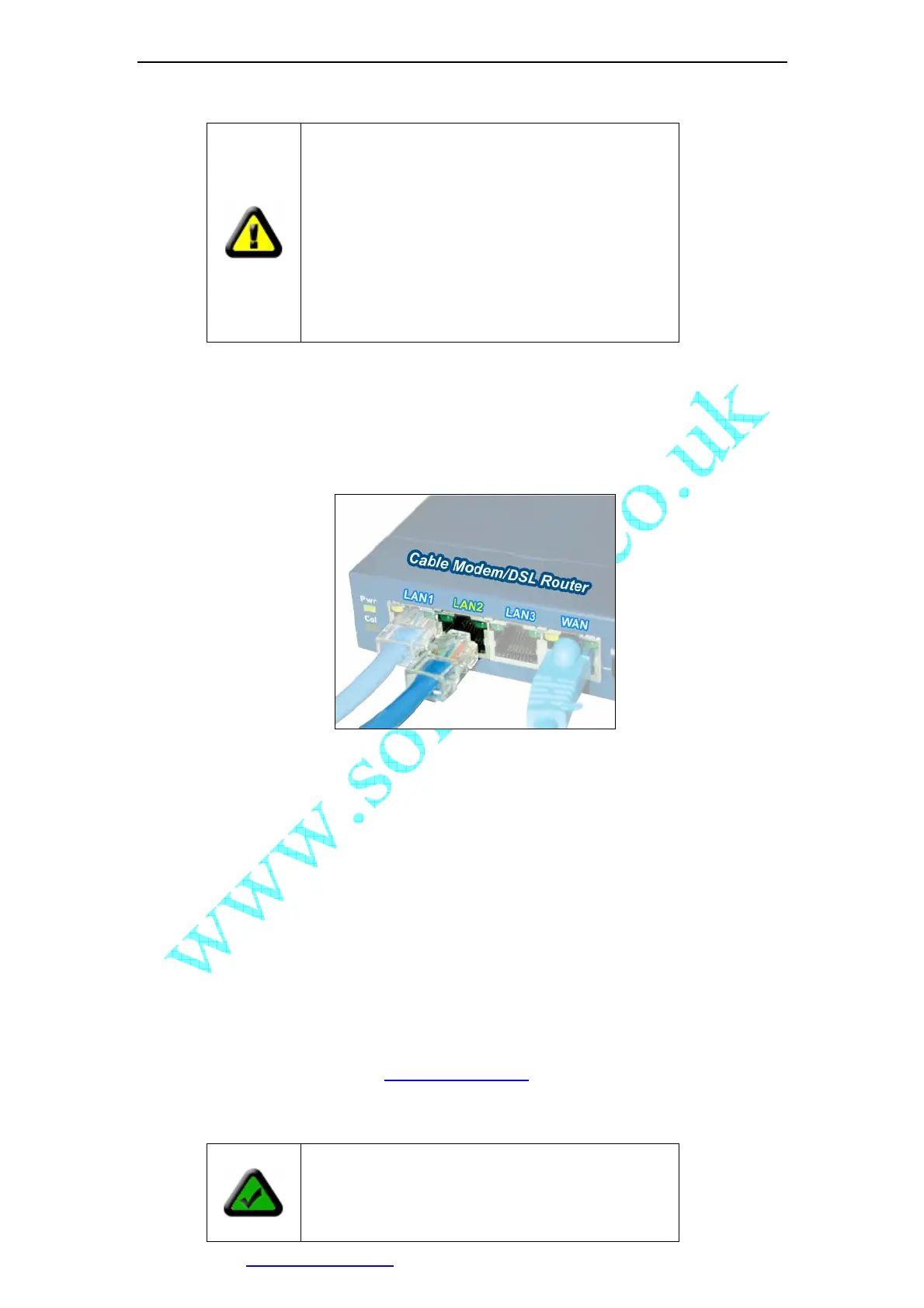
Plug the other end of the Ethernet cable into any available LAN port. A typical home
router/gateway connection is shown below. The LED of LAN port will then turns ON.
Figure 13 LAN connection
Check the LEDs on the RJ45 socket of IP Camera. If connection is ok, the green LED
turns on. If there’s any active data transportation, the orange LED will flash.
The LCD panel of IP Camera will show IP Camera’s current IP address/Network
Mask/Gateway.
IP Camera is available for visiting now. You have two methods to visit its homepage:
1. Run IPCamSearch Tool in the CD. This software will search for all IP Cameras in
your LAN. Select one and then click [visit] to continue.
2. Run an Internet Explorer, and input the IP address as shown on the LCD to IE’s
address bar, for example: http://192.168.0.234
.
CAUTION: Make sure to only use the power
adapter supplied with your IP Camera. Using a
non-approved power adapter may damage the
camera.
In different country or region, the power
supply might be different (110V/220,
50Hz/60Hz), please make sure it correspond to
the tag marked on the power adapter.
Note: IP Camera by default use fixed (static) IP
address setting. The default IP address
is :192.168.0.234, Network Mask is
255.255.255.0, Gateway is 192.168.0.1



 To Next Page