26
LOGGING INTO THE “SOMFY PROTECT” APP
With the “Somfy Protect” app, control your connected video door phone remotely and never miss a visit!
Receive notifications with a photo on all the smartphones connected to your account as soon as a visitor comes to your home.
Communicate with them in real time, open the gate and/or pedestrian gate and look up the missed visits history in video format.
If you are already equipped with Somfy security products (alarms, cameras), you can control them simultaneously and keep an
eye on your visitors.
Finally, if you have a TaHoma® box (Switch or premium (V2)), run up to 2 pre-recorded scenarios.
DON’T HAVE A “SOMFY PROTECT” ACCOUNT?
• Grab your Wi-Fi code
• Download the “Somfy Protect” app on your smartphone
• Open the app and create your account
• Add your new device by selecting “Connected video door phone”,
“Connectivity module” and then your video door phone model.
• Follow the step-by-step instructions shown.
More information about the compatible smartphone versions at www.somfyprotect.com/apps
ALREADY HAVE A “SOMFY PROTECT” ACCOUNT?
• Open the “Somfy Protect” app
• Go to “My devices”
• Add your new device by selecting “Connected video door phone”, “Connectivity module”,
and then your video door phone model.
• Follow the step-by-step instructions shown.
RESETTING/RESTARTING THE CONNECTED VIDEO DOOR PHONE
IN THE EVENT OF A CHANGE IN WI-FI NETWORK
To change the Wi-Fi network (for example when replacing your Internet hub), you must reset your video door phone:
• Take the reset pin supplied and your new Wi-Fi password
• Open the “Somfy Protect” app
• Go to the “My devices” menu
• Select your video door phone then “Change Wi-Fi network”
• Follow the instructions shown.
RESTARTING
To restart your connected video door phone:
- remotely: via the “Somfy Protect” app, go to “My equipment”, select the video door phone and press the “Restart” button at
the top right of the screen,
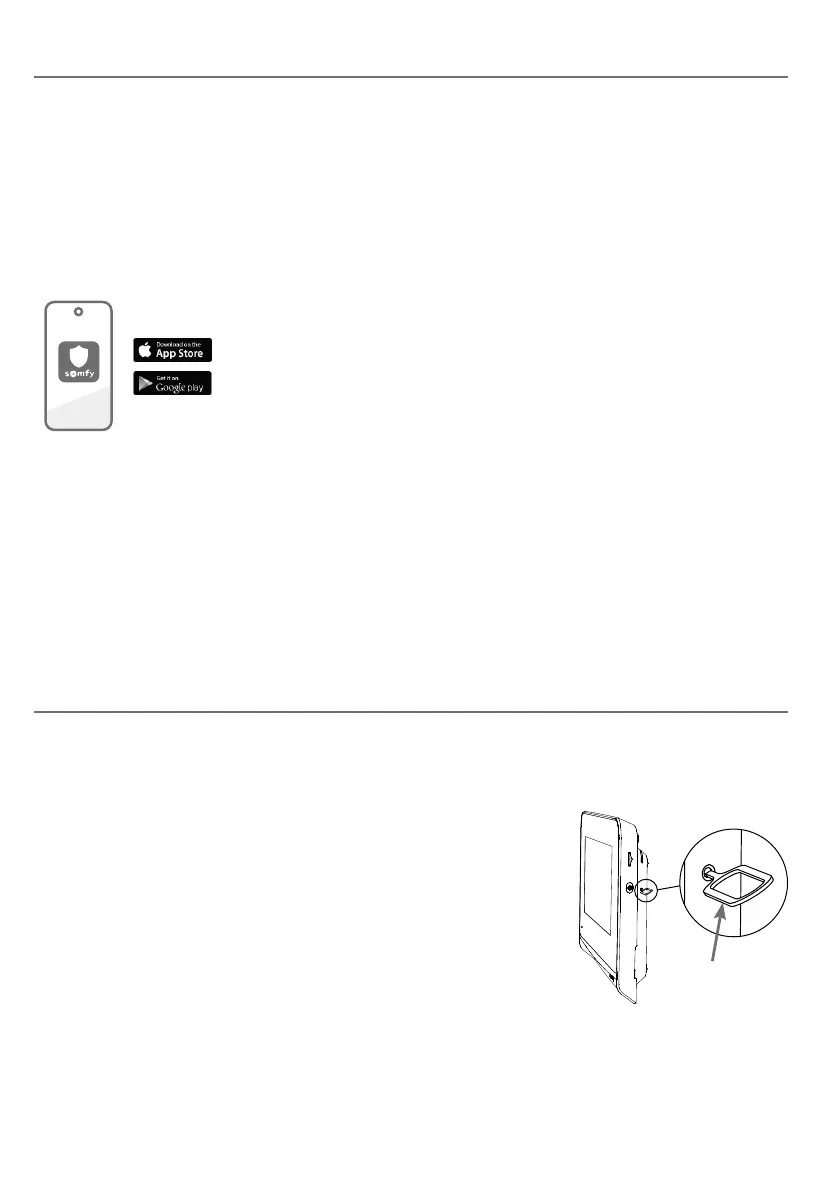
- via the monitor: press the reset button for 1 second using the pin supplied.
The settings configured in the “Somfy Protect” app and via the monitor are retained.
Reset pin
Somfy Protect



 To Next Page