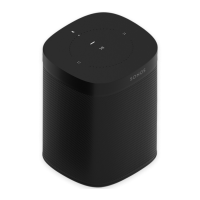
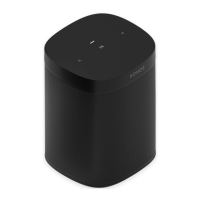
Sonos PLAY:1
9
• Music Playback: Choose Ambient (default; subtle, ambient sound) or Full (enables louder, full range sound). This
setting applies only to music playback, not TV audio.
Using the Sonos Controller for Mac or PC
1. Select Manage -> Settings (PC) or Sonos -> Preferences (Mac).
2. Select Room Settings if it is not already highlighted on the left.
3. Choose the room the Sonos PLAYBAR and surround speakers are located in from the Room Settings for drop-down.
4. Select the Surrounds tab.
5. Choose one of the following:
• Surrounds: Check to turn the sound from the surround speakers on; uncheck to turn it off.
• Surround Level Adjustment: Click and drag the slider to increase or decrease the volume of the surround speakers.
• Music Playback: Choose Ambient (default; subtle, ambient sound) or Full (enables louder, full range sound). This
setting applies only to music playback, not TV audio.
6. Close the Settings window when changes are complete.
Removing surround speakers
Using a handheld Sonos controller
1. From the Settings menu, select Room Settings.
2. Select the room the surround speakers are associated with. The room name appears as Room (+LS+RS) on the Room
Settings menu.
3. Select Remove Surround Speakers.
4. Select Next to drop the surround sound speakers from your surround system. If these were newly purchased PLAY:1s or
PLAY:3s they will appear as Unused on the Rooms menu. If these players existed in your household previously, they
revert back to their previous state.
You can now move them to another room for individual use. If you want to add them back as surround speakers, see
"Surround Speakers" on page 7 for help.
Using the Sonos Controller for Mac or PC
1. Select Manage -> Settings (PC) or Sonos -> Preferences (Mac).
2. Select Room Settings if it is not already highlighted on the left.
3. Choose the room the Sonos PLAYBAR is located in from the Room Settings for drop-down list. The room name appears as
Room (+LS+RS).
4. From the Basic tab, click Remove Surround Speakers. If these were newly purchased PLAY:1s, they will appear as
Unused in the Rooms pane. If these PLAY:1s existed in your household previously, they revert back to their previous
state.



 To Next Page
 Loading...