18 Getting started
To change the phone language
1 From standby select Menu > Settings
> the General tab > Language > Phone
language.
2 Select an option.
Entering text
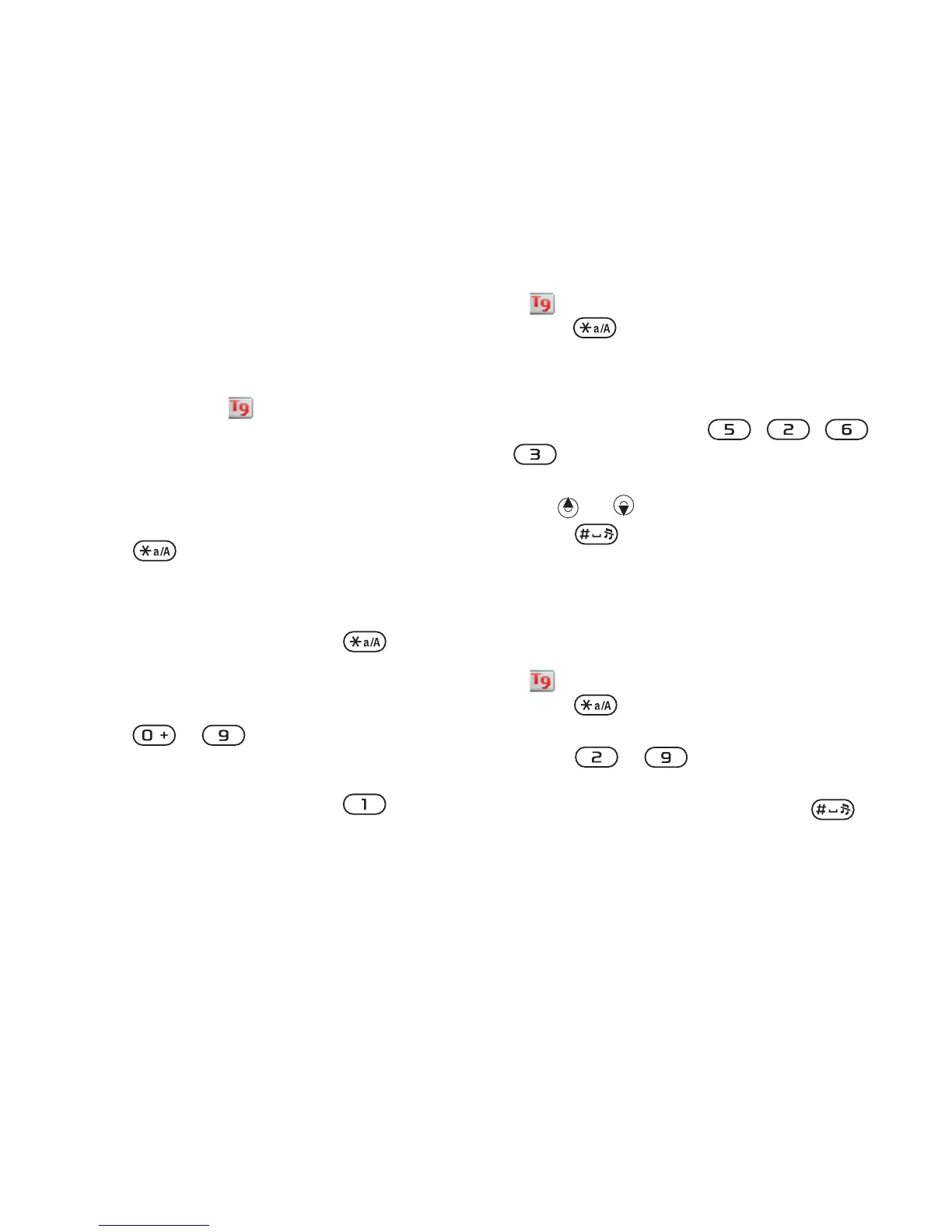
You can use multitap text input or
T9™ Text Input to enter text. The
T9 Text Input method uses a built-in
dictionary.
To change text input method
• When you enter text, press and hold
down .
To shift between capitals and lower-
case letters
• When you enter text, press .
To enter numbers
• When you enter text, press and hold
down – .
To enter full stops and commas
• When you enter text, press .
To enter a symbol
1 When you enter text, select Options >
Add symbol.
2 Scroll to a symbol and select Insert.
To enter text using T9™ Text Input
1 From standby select, for example,
Menu > Messaging > Create new >
Message.
2 If is not displayed, press and hold
down to change to T9 Text Input.
3 Press each key only once, even if the
letter you want is not the first letter on
the key. For example, to write the
word “Jane”, press , , ,
. Write the whole word before
looking at the suggestions.
4 Use or to view suggestions.
5 Press to accept a suggestion.
To enter text using multitap
1 From standby select, for example,
Menu > Messaging > Create new >
Message.
2 If is displayed, press and hold
down to change to multitap text
input.
3 Press – repeatedly until the
desired letter appears.
4 When a word is written, press to
add a space.
To add words to the built-in
dictionary
1 When you enter text using T9 Text
Input, select Options > Spell word.







 To Next Page