16
GB
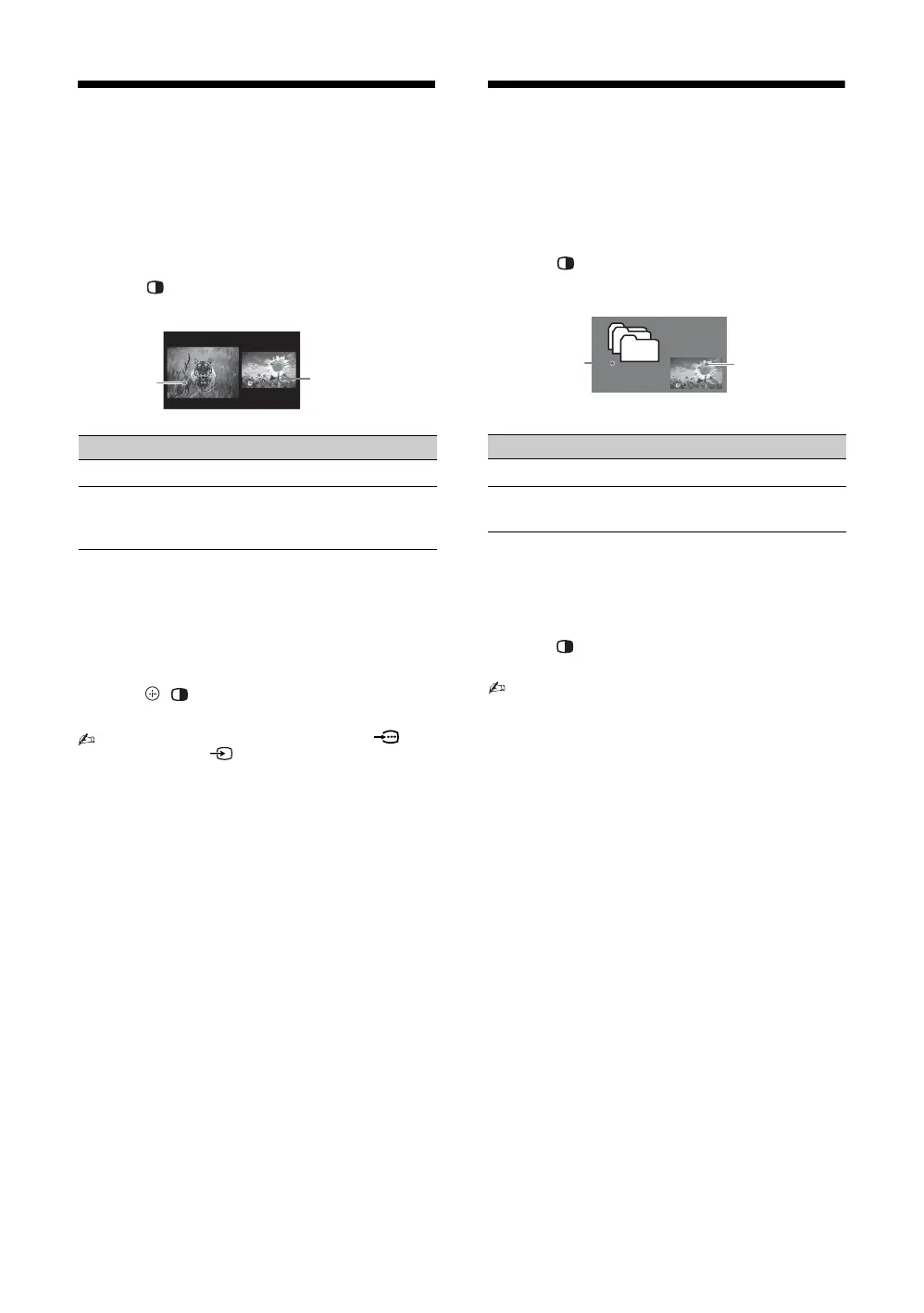
Viewing Twin Picture
You can view two pictures (in Component and HDMI
input mode) on the screen simultaneously.
Connect the optional equipment (page 13), and make
sure that images from the equipment appear on the
screen (page 15).
1 Press .
Two pictures are displayed simultaneously.
2 Press G/g to select active picture.
3 In right window, you can select the TV
channel or video input by pressing
OPTIONS and select “Sub window”.
To return to single picture mode
Press , , RETURN or select “Single Picture”
from Options menu.
• You cannot use the component video jack and
the video jack 1 at the same time.
• You cannot change the size of the pictures.
• In Twin Picture mode, as picture size reduced, this
may decrease picture smoothness.
z • The highlighted picture is audible. You can switch the
audible picture by pressing G/g.
• You can also use the Twin Picture feature by selecting
“Twin Picture” from the Options menu.
Viewing PIP (Picture in
Picture)
You can view two pictures (in PC input mode) on the
screen simultaneously.
Connect a PC (page 13), and make sure that images
from a PC appear on the screen (page 15).
1 Press .
Two pictures are displayed simultaneously.
2 In sub window, you can select the TV
channel or video input by pressing
OPTIONS and select “Sub window”.
To return to single picture mode
Press
, RETURN or select “Single Picture”
from Options menu.
• You cannot display resolutions higher than your TV's
display resolution (page 38).
• In PIP mode, as picture size reduced, this may
decrease picture smoothness.
z • You can switch the audible picture by selecting
“Audio Swap” from the Options menu.
• You can also use the PIP feature by selecting “PIP”
from the Options menu.
Twin Picture Availability
In Left Window In Right Window
Component
HDMI 1/2 (except PC input
mode)
TV programme or
Video 1/2
Left
Window
Right Window
PIP Availability
In Main Window In Sub Window
PC
HDMI 1/2 (PC timing)
TV programme
or Video 1/2
Sub Window
(Location of
the sub
window can
be moved by
pressing
F/f/G/g.
)
Main
Window




 To Next Page