Starting up “PMB Portable”
(Macintosh)
Turn on your camcorder, then
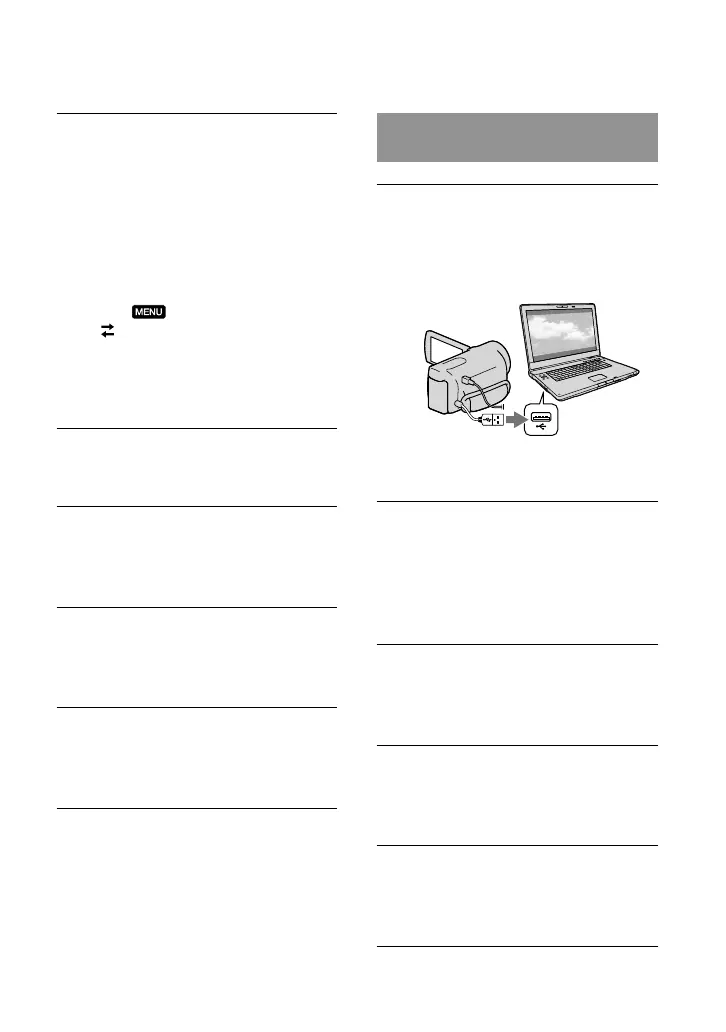
connect the camcorder to the
computer using the Built-in USB
Cable.
The [USB Select] screen appears on the
camcorder screen.
Touch [USB Connect] on the
camcorder screen.
When the computer recognizes the
camcorder, the [PMBPORTABLE] icon
appears on the computer screen
Click “PMBP_Mac” in the
[PMBPORTABLE] folder.
The area select screen appears.
Select [Region] and [Country/
Area] and click [OK].
The license agreement screen appears.
Read the agreement well and
click [I Agree].
“PMB Portable” starts up.
Touch [USB Connect] on the
camcorder screen.
When using Windows 7: The Device
Stage
* window opens.
When using Windows XP/Windows
Vista: The AutoPlay wizard is
displayed.
If the[USB Select] screen does not appear,
touch
(MENU) [Setup]
[
(Connection)] [USB Connect].
* “Device Stage” is a menu of Windows 7,
that is used to manage devices (camcorder,
camera, etc.) that are connected to the
computer.
Click “PMB Portable.”
The license agreement screen appears.
Select the desired language and
click [OK].
The area select screen appears.
Select [Region] and [Country/
Area] and click [OK].
The license agreement screen appears.
Read the agreement well and
click [I Agree].
“PMB Portable” starts up.




 To Next Page