To add a widget to the Home screen
1 Touch and hold an empty area on your Home screen until the device vibrates,
then tap Widgets.
2 Find and tap the widget that you want to add.
To resize a widget
1 Touch and hold a widget until it magnifies and the device vibrates, then release
the widget. If the widget can be resized, for example, the Calendar widget, then
a highlighted frame and resizing dots appear.
2 Drag the dots inward or outward to shrink or expand the widget.
3 To confirm the new size of the widget, tap anywhere on the Home screen.
To move a widget
• Touch and hold the widget until it magnifies and the device vibrates, then drag it
to the new location.
To delete a widget
• Touch and hold the widget until it magnifies and the device vibrates, then drag it
to .
To add a widget to the lock screen
1 To activate the screen, briefly press the power key .
2 Swipe inward from the top-left area of the screen until appears, then tap it.
3 If required, enter your PIN code, pattern, or password to unlock the screen.
4 Find and tap the widget that you want to add.
5 Follow the on-screen instructions, if necessary, to finish adding the widget.
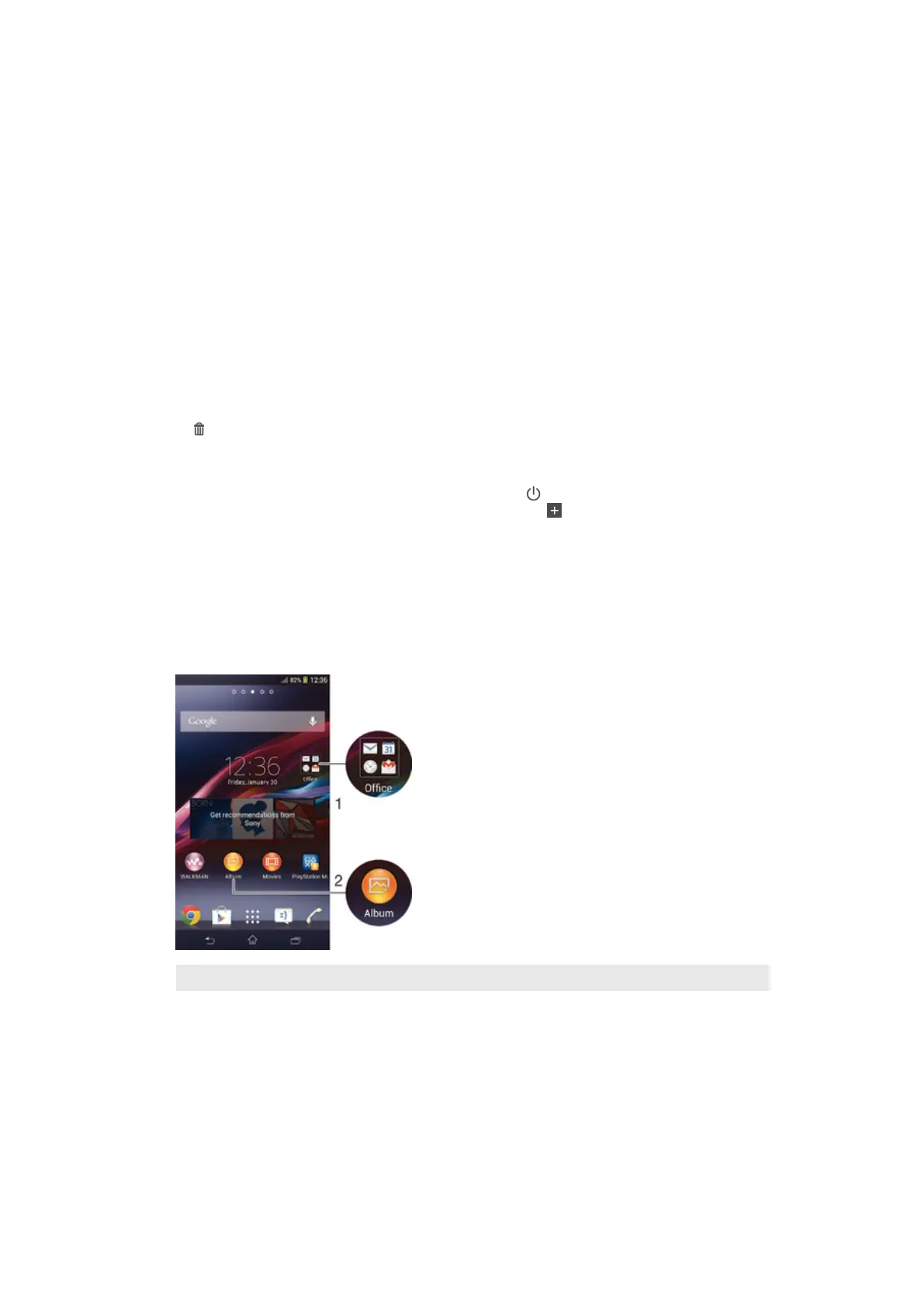
Shortcuts and folders
Use shortcuts and folders to manage your applications and keep your Home screen
tidy.
1 Access a folder containing applications
2 Access an application using a shortcut
17
This is an Internet version of this publication. © Print only for private use.






 To Next Page