Calendar and alarm clock
Calendar
Use the Calendar application to manage your time schedule. If you have signed into
and synchronized your device with one or several online accounts that include
calendars, for example, your Google™ account or Xperia™ with Facebook account,
then calendar events from these accounts will also appear in the Calendar application.
You can select which calendars you want to integrate into the combined Calendar
view.
When an appointment time approaches, your device plays a notification sound to
remind you. Also, appears in the status bar.
You can also synchronize your Outlook calendar with your device using PC Companion. If you
do so, all appointments from your Outlook calendar will appear in the calendar view of your
device. For more information, see
PC Companion
on the 83 page.
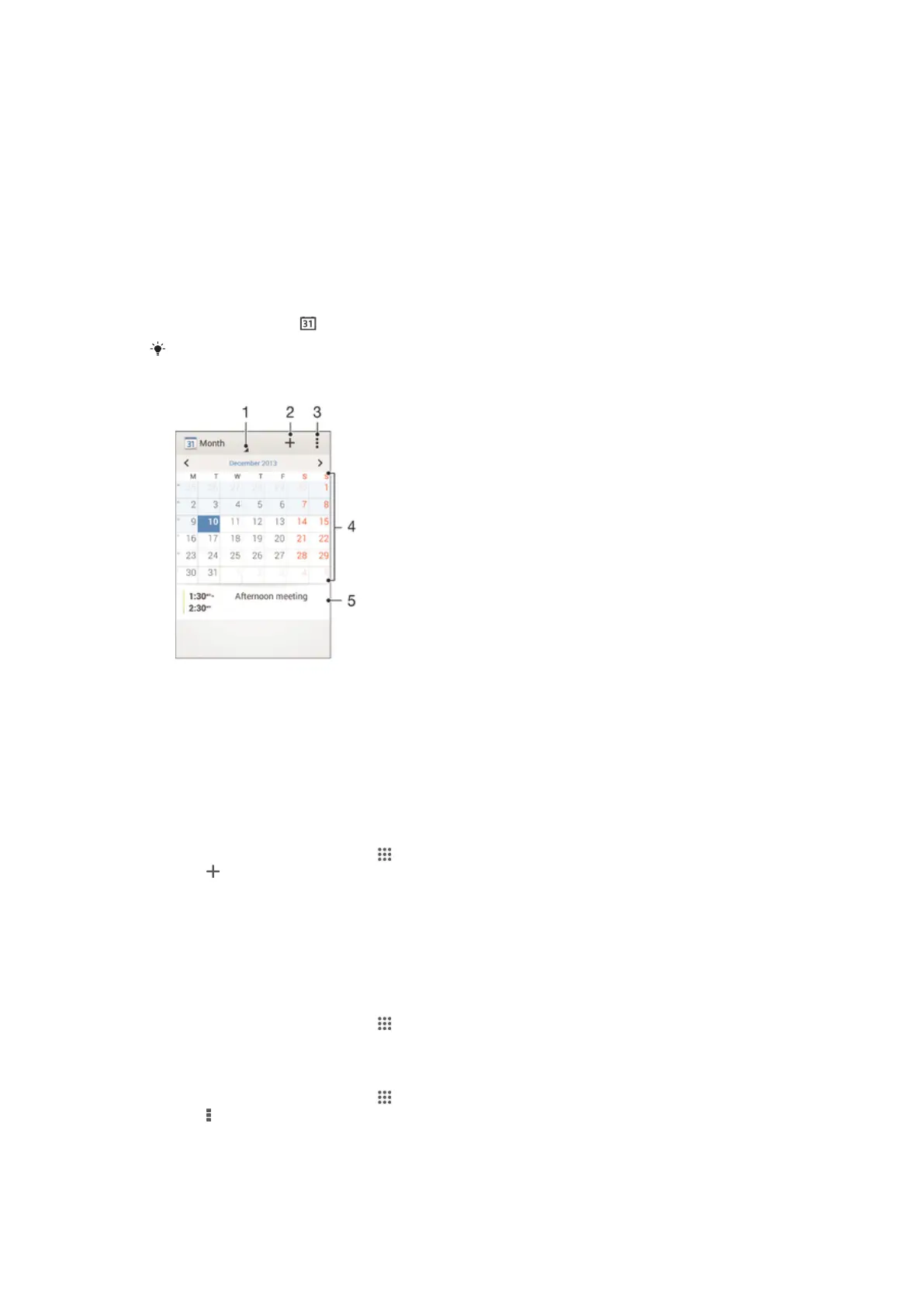
1 Select a view type
2 Add a calendar event
3 Access settings and other options
4 Flick left or right to browse more quickly
5 Agenda for the selected day
To create a calendar event
1 From your Home screen, tap , then tap Calendar.
2 Tap .
3 If you have synchronized your calendar with one or more accounts, select the
account you want to add this event to. If you only want to add this event on your
device, tap Device calendar.
4 Enter or select the desired information and add attendees to the event.
5 To save the event and send out invitations, tap Done.
To view a calendar event
1 From your Home screen, tap , then tap Calendar.
2 Tap the event you want to view.
To view multiple calendars
1 From your Home screen, tap , then find and tap Calendar.
2 Tap , then tap Calendars.
3 Tap to select the calendars you want to view.
89
This is an Internet version of this publication. © Print only for private use.







 To Next Page