Videos
Watching videos in the Movies application
Use the Movies application to play movies and other video content that you’ve saved
or downloaded to your device. The Movies application also helps you get poster art,
plot summaries, genre info, and director details for each movie. You can also play
your movies on other devices that are connected to the same network.
Videos taken with your device's camera are displayed in the Album application, not in the
Movies application.
Some video files may not be playable in the Movies application.
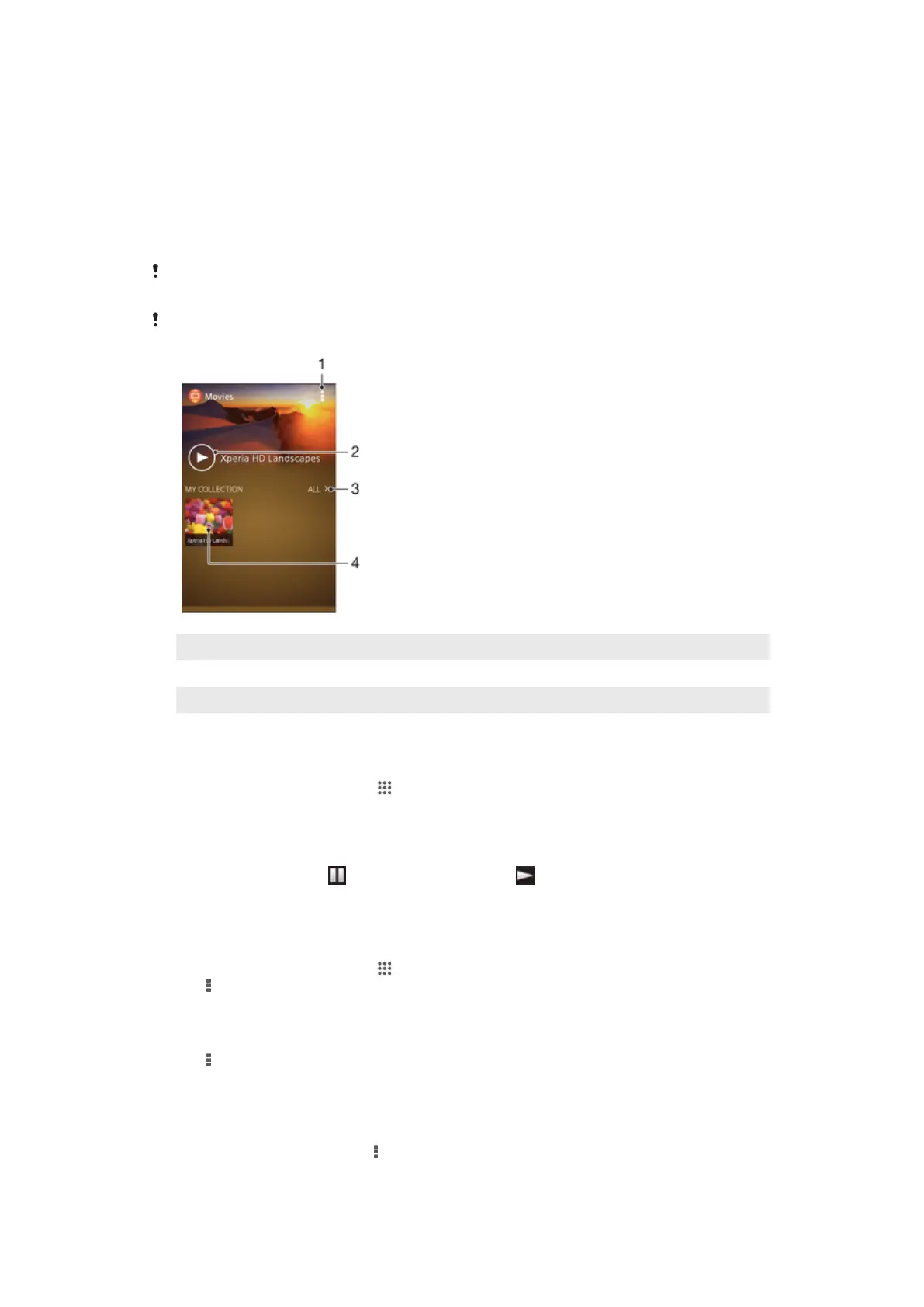
1 View menu options
2 Tap to play your most recently watched video
3 Browse all videos downloaded or saved to your device
4 Tap to play saved or downloaded video files
To play a video in Movies
1 From your Home screen, tap , then find and tap Movies.
2 Find and tap the video that you want to play. If the video is not displayed on the
screen, tap All in the My Collection tab, then find and tap the video that you
want to play.
3 To display or hide the controls, tap the screen.
4
To pause playing, tap
. To resume playing, tap .
5 To rewind, drag the progress bar marker to the left. To fast forward, drag the
progress bar marker to the right.
To change settings in Movies
1 From your Home screen, tap , then find and tap Movies.
2 Tap > Settings, then change the settings as desired.
To change the sound settings while a video is playing
1 While a video is playing, tap the screen to display the controls.
2 Tap , then tap Sound settings.
3 Mark the checkboxes for the sound settings that you want to activate.
4 When you're finished, tap OK.
To share a video
1 When a video is playing, tap , then tap Share.
2 In the menu that opens, tap the application that you want to use to share the
selected video, then follow the relevant steps to send it.
78
This is an Internet version of this publication. © Print only for private use.






 To Next Page