6-48
DCR-SR32E/SR33E/SR42/SR42A/SR42E/SR52E/SR62/SR62E/SR72E/SR82/SR82C/SR82E_ADJ
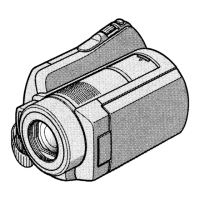
2. Switch Check
Click the [Switch Check] button on the SERVICE MODE screen,
and the “SWITCH CHECK” screen will appear.
Using method:
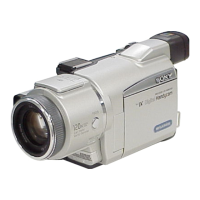
Click the [Start] button, and the switch check will start.
During execution of switch check, the pressed switch is displayed
in orange. Also, once the switch was pressed, its name characters
change to blue in color.
2-2. SERVICE MODE
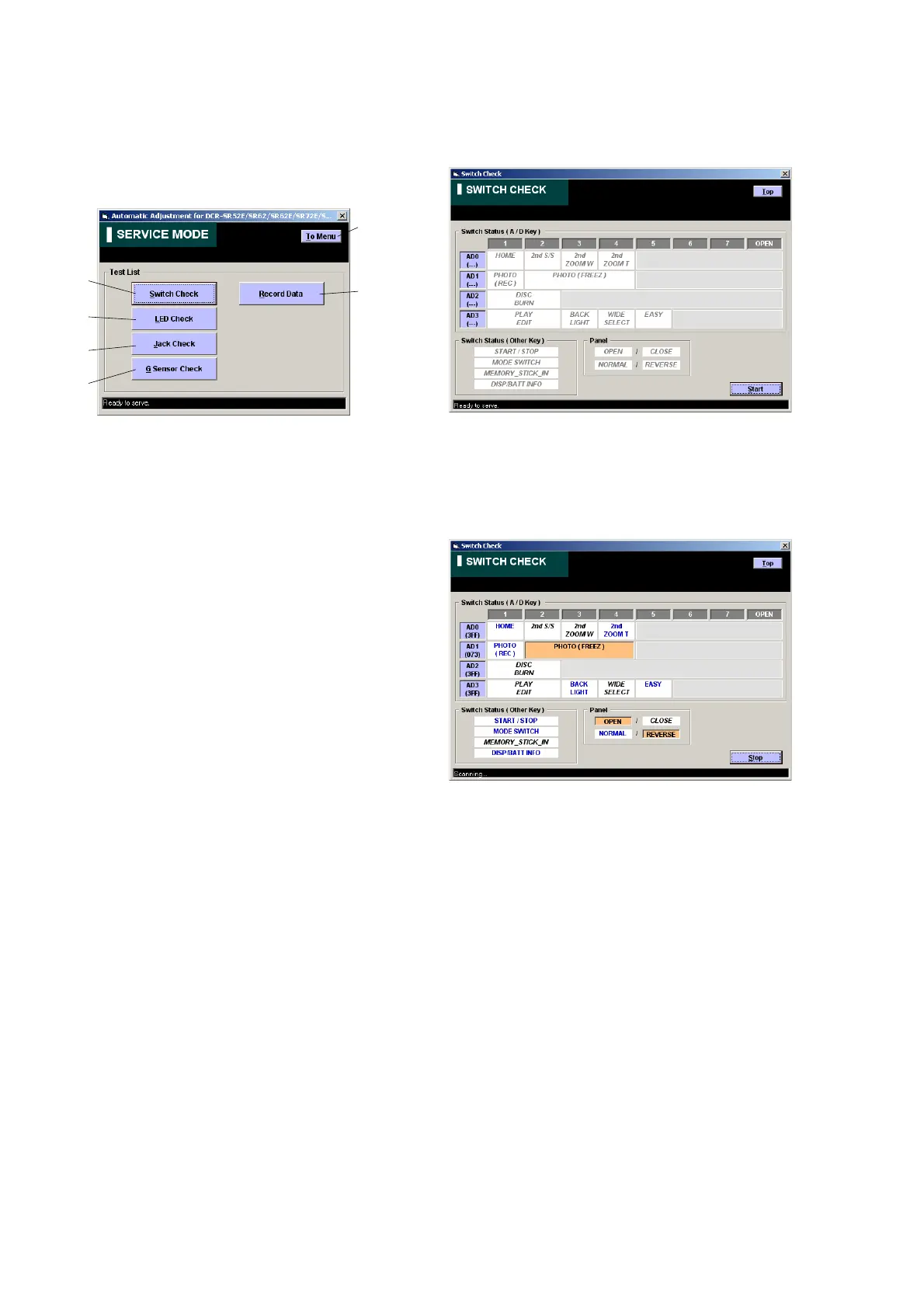
1. Function of Each Button on Service Mode Screen
Click the [SERVICE MODE] button on the Main Menu screen, and
the “SERVICE MODE” screen in Fig. 6-2-2 will appear.
Fig. 6-2-2
1 [To Menu] button
The Main Menu screen comes back.
2 [Switch Check] button
“SWITCH CHECK” screen appears.
3 [LED Check] button
“LED CHECK” screen appears.
4 [Jack Check] button
“JACK CHECK” screen appears.
5 [G Sensor Check] button
“G SENSOR CHECK” screen appears.
6 [Record Data] button
“RECORD DATA” screen appears.
1
6
2
3
4
5



 To Next Page