48
Setting the image size (IMAGE SIZE)
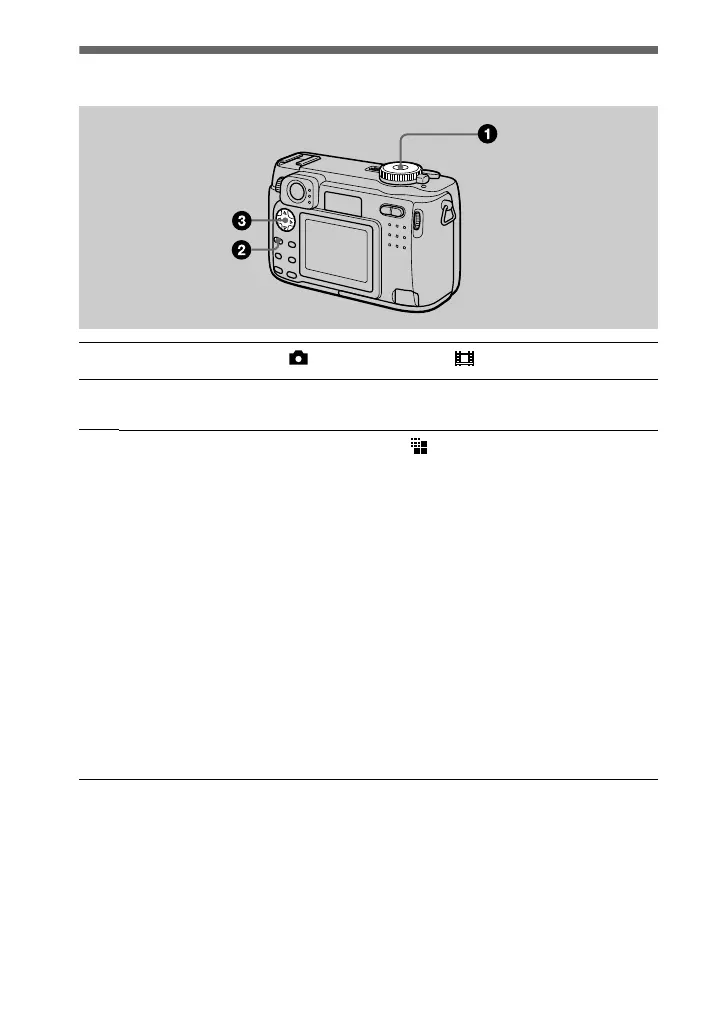
1
Set the mode dial to , SCN, S, A, M, or .
2
Press MENU.
The menu appears.
3
Select the desired image size from [ ] (IMAGE SIZE) and press
v
/
V
.
Still image sizes:
DSC-S85
2272×1704, 2272 (3:2)*, 1600×1200, 1280×960, 640×480
DSC-S75
2048×1536, 2048 (3:2)*, 1600×1200, 1280×960, 640×480
∗
The image is recorded in the ratio of three to two to fit the printing paper size. Using this
image size, the margin of an image is not printed out. However, the slight amount of the
upper and lower black portions are displayed on the LCD screen.
Moving image (MPEG movie) sizes:
320 (HQ)*, 320×240, 160×112
∗
High Quality mode
Clip Motion sizes:
NORMAL (160×120), MOBILE (80×72)







 To Next Page