EasyManua.ls Logo

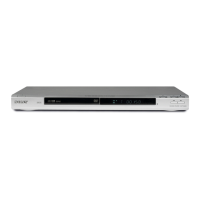
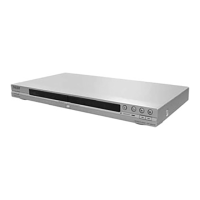
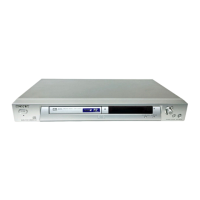
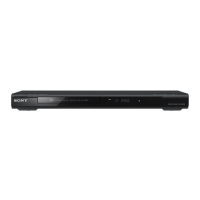
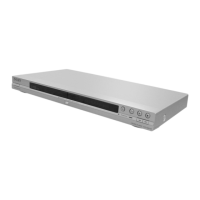
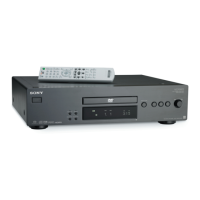
Sony DVP-NS36 - User Manual

Sony DVP-NS36
76 pages
Print Icon
To Next Page IconTo Next Page
Loading...
2-661-164-E1(1)
Operating Instructions
© 2006 Sony Corporation
DVP-NS36
DVP-NS37
CD/DVD
Player

Table of Contents

Question and Answer IconNeed help?

Do you have a question about the Sony DVP-NS36 and is the answer not in the manual?

Summary

Safety and Warning Information

Fire and Electric Shock Hazards

Instructions to prevent fire or electric shock by avoiding rain/moisture and opening the cabinet.

Laser Beam Eye Hazard Caution

Caution against using optical instruments and attempting cabinet disassembly due to laser beam.

Operational Precautions and Safety

Operational and Maintenance Precautions

Screen Burn-In Warning

Caution regarding permanent TV screen damage from prolonged display of still images.

Supported Disc Formats

Compatible Disc Formats

List of playable disc formats including DVD VIDEO, DVD-RW/-R, DVD+RW/+R, VIDEO CD/Music CD, CD-RW/-R.

Incompatible Disc Types

Unsupported Disc Formats

List of discs the player cannot play, including specific CD-ROMs, DATA DVDs, and region-coded DVDs.

Player Parts and Controls Identification

Front Panel Controls and Indicators

Identification and function of buttons and indicators on the player's front panel.

Rear Panel Connectivity Ports

Identification of input/output jacks on the player's rear panel.

Remote Control Functions

Remote Control Button Identification

Identification and function of buttons on the remote control.

Control Menu Item Functions

Custom Picture Mode Settings

Adjusts video signal for desired picture quality.

Parental Control Setup

Prohibits playback of inappropriate discs.

Advanced Control Menu Functions

Connecting and Setting Up the Player

Player Hookup Overview

Steps 1-6 to connect and adjust player settings.

Connecting Video Cables

Connecting to Video Input Jack

How to connect using an audio/video cord for standard quality images.

Connecting to SCART Input Jack

Instructions for connecting with a SCART cord, ensuring firm connections and TV compatibility.

Connecting Audio Cables

Connecting to Stereo Audio Inputs

Connecting to TV or amplifier using audio/video cords for stereo sound.

Connecting to Digital Audio Input

Connecting using a coaxial digital cord for Dolby Digital, DTS, or MPEG audio.

Connecting the Power Cord

Connecting the Mains Power Lead

Plugging the player and TV mains leads into a mains outlet.

Initial Player Setup (Quick Setup)

Quick Setup Procedure Steps

Step-by-step guide for basic player adjustments including language and TV settings.

Advanced Quick Setup Options

Dolby Digital Signal Output Setup

Selecting the Dolby Digital signal type for the amplifier.

DTS Signal Output Setup

Selecting whether to send a DTS signal to the amplifier.

Completing Player Setup

Finalizing Player Setup

Confirmation that all connections and setup operations are complete.

Basic Disc Playback Procedure

Turning On TV and Player

Steps to turn on the TV and player, and select the correct input.

Inserting Disc and Starting Playback

Procedure for placing a disc on the tray and starting continuous playback.

Advanced Disc Playback Operations

Playback Control Buttons

Instructions for Stop, Pause, Resume Play, Go to next/previous, Stop and remove.

Child Lock for Disc Tray

How to lock and unlock the disc tray to prevent children from opening it.

Resume Playback Functionality

Resume Play for Current Disc

How the player remembers and resumes playback from the stopped point.

Navigating DVD Menus

DVD Menu Navigation Overview

How to use TOP MENU and MENU buttons to select titles, language, and subtitles.

Interactive VIDEO CD Playback (PBC)

PBC Playback Overview

How PBC allows interactive playback by following on-screen menus.

Advanced Playback Modes

Programme Play Functionality

Allows playing contents in a user-defined order.

Shuffle Play Functionality

Plays titles, chapters, or tracks in random order.

Repeat Play Functionality

Plays entire disc or specific items repeatedly.

A-B Repeat Play Function

Specifies specific parts of a track to play repeatedly.

Creating a Custom Playback Program

Programme Play Steps

How to select and arrange titles, chapters, or tracks to create a custom program.

Managing Programme Play

Random Playback (Shuffle Play)

Shuffle Play Steps

How to select titles, chapters, or tracks to be shuffled.

Repeat Playback Functionality

Repeat Play Steps

How to select items for repeat playback (Disc, Title, Chapter, Track).

Specific Portion Repeat (A-B Repeat)

A-B Repeat Play Steps

How to set starting (A) and ending (B) points for repeated playback.

Scene Search Functionality

Disc Search and Playback Modes

Locating points on a disc using Search, Scan, Slow-motion, and Freeze Frame.

Chapter;Track Search Using Buttons

Searching for chapters, tracks, or scenes using previous/next buttons.

Scan Function for Locating Points

Using fast forward or fast reverse to locate points on a disc.

Frame-by-Frame Playback (Slow-Motion)

Slow-Motion Playback Controls

How to watch frame by frame using pause and step controls.

Searching by Title, Chapter, or Track

Selecting Search Methods

Selecting search method like TITLE, CHAPTER, or TIME/TEXT.

Freeze Frame Playback

Freeze Frame Controls

Using pause and step controls to freeze playback.

Advanced Scene Search Options

Selecting Search Criteria

Selecting search criteria like TRACK, INDEX, SCENE, ALBUM, FILE.

Searching by Time Code

How to search for scenes using time code on DVD VIDEO/DVD-VR mode.

Picture Navigation for Scene Search

Picture Navigation Overview

Dividing the screen into 9 subscreens to find scenes quickly.

Audio Settings and Adjustments

Changing Audio Output Settings

How to change audio format, language, and channel selection.

Audio Format and Channel Selection

DVD VIDEO Audio Options

Selecting languages and audio formats for DVD VIDEO playback.

DVD-VR Mode Sound Track Options

Displaying and selecting sound track types for DVD-VR mode discs.

Advanced Audio Settings

TV Virtual Surround (TVS) Settings

TVS Functionality Overview

How TVS creates virtual rear speakers using sound imaging for stereo TVs.

TVS Dynamic Theater Mode

Creates large virtual rear speakers and subwoofer from front speaker sound.

TVS Dynamic Mode

Creates virtual rear speakers from front speaker sound.

TVS Wide Mode

Creates five sets of virtual rear speakers from front speaker sound.

Advanced TVS Modes and Notes

TVS Night Mode

Suppresses loud sounds, enhancing dialogue for quiet listening.

TVS Standard Mode

Creates three sets of virtual rear speakers from front speakers.

Enhancing Movie Playback

Changing Viewing Angles

How to change viewing angles for scenes with multi-angle recordings.

Displaying and Managing Subtitles

How to change, turn on, or turn off subtitles.

Subtitle Language and Display Options

Custom Picture Mode Adjustments

Custom Picture Mode Overview

Adjusting video signal for desired picture quality.

Custom Picture Mode Options

Selecting STANDARD, DYNAMIC 1, DYNAMIC 2, CINEMA 1, CINEMA 2, or MEMORY.

Custom Picture Mode Settings

Selecting Picture Mode Settings

Selecting STANDARD, DYNAMIC, CINEMA, or MEMORY picture settings.

Adjusting Picture Items in MEMORY Mode

MEMORY Mode Picture Adjustments

Adjusting PICTURE, BRIGHTNESS, COLOR, and HUE individually.

Picture Sharpening Adjustment

SHARPNESS Function Overview

Enhancing image outlines for a sharper picture.

MP3 Audio and JPEG Image Playback

About MP3 and JPEG File Formats

Explanation of MP3 and JPEG compression technologies.

MP3 and JPEG File Format Basics

Explanation of MP3 (ISO/IEC MPEG) and JPEG (image compression) technologies.

Playing MP3 Audio and JPEG Image Files

Playing MP3;JPEG Files Sequentially

How tracks/files are played sequentially from a selected album.

Album Selection for Media Playback

Album Selection Process

Pressing MENU to display albums containing DivX video files and selecting one.

Selecting MP3 Audio Tracks

MP3 Track List Display

Displays the list of tracks within the selected album.

MP3 Track Selection and Playback

Selecting and playing an MP3 audio track.

Selecting JPEG Image Files

JPEG Image File Display

Displays image files in 16 subscreens after selecting an album.

Selecting and Viewing JPEG Files

Selecting and viewing a JPEG image file.

JPEG Image Slide Show Function

JPEG Image Slide Show Overview

Playing JPEG image files successively as a slide show.

Slide Show with Sound (MODE)

MODE (MP3, JPEG) Selection

Selecting AUTO, AUDIO (MP3), or IMAGE (JPEG) mode for playback.

Slide Show Pace Control (INTERVAL)

INTERVAL Setting Overview

Setting the time slides are displayed on the screen.

Slide Show Appearance Effects

EFFECT Setting Overview

Selecting the way slides are displayed during a slide show.

DivX Video Playback

About DivX Video Files

Explanation of DivX video compression technology and DivX Certified product.

Playable DivX Video File Formats

Details on DivX format, file extensions (.AVI, .DIVX), and logical format requirements.

DivX Video File Technology

DivX Video File Technology

DivX is a video compression technology developed by DivX, Inc.

Playable DivX File Requirements

Player supports DivX format with .AVI or .DIVX extensions, and specific logical formats.

Playing DivX Video Files

Playing DivX Video Files from Discs

How to play DivX video files on DATA CDs and DATA DVDs.

Selecting DivX Video Albums

Album Selection for DivX Files

Pressing MENU to display albums containing DivX video files and selecting one.

Selecting DivX Video Files

DivX Video File List

Displays the list of files within the selected album.

Selecting and Playing DivX Video File

Selecting and playing a DivX video file.

Additional Player Functions

Disc Locking Functions

Setting playback restrictions for discs.

Disc Playback Restriction Setup

Custom Parental Control Setup

Setting restrictions for inappropriate discs.

Parental Control for DVD VIDEOs

Limiting playback based on predetermined levels like user age.

Managing Disc Locking Settings

Parental Control (Limited Playback)

Parental Control Setup Overview

Setting a playback limitation level based on user age.

Advanced Parental Control Settings

Player Settings and Adjustments

Using the Setup Display

Navigating the Setup Display to make various adjustments.

Navigating the Setup Display

Setup Display Navigation Overview

Accessing and navigating the Setup Menu.

Language Setup Options

LANGUAGE SETUP Overview

Setting languages for on-screen display or sound track.

Screen Setup Options

TV TYPE Aspect Ratio Selection

Selecting aspect ratio for 16:9 or 4:3 TVs.

Custom Setup Options

Multi-Disc Resume Feature

Storing resume settings for up to 6 discs (DVP-NS37).

Audio Setup Options

AUDIO SETUP Overview

Setting sound according to playback and connection conditions.

Digital Output Signal Settings

Digital Output Method Selection

Switching audio output method for components with digital input jacks.

Troubleshooting and Additional Information

Troubleshooting Guide

Guide to resolve common difficulties with the player.

Troubleshooting Common Issues

Power Not Turning On

Steps to check if the player's power is not turning on.

No Picture or Picture Noise

Troubleshooting steps for no picture, noise, or incorrect colors.

No Sound or Distorted Sound

Troubleshooting steps for no sound, low volume, or distorted sound.

Advanced Troubleshooting Scenarios

Further Troubleshooting Scenarios

Player Specifications

Summary

Safety and Warning Information

Fire and Electric Shock Hazards

Instructions to prevent fire or electric shock by avoiding rain/moisture and opening the cabinet.

Laser Beam Eye Hazard Caution

Caution against using optical instruments and attempting cabinet disassembly due to laser beam.

Operational Precautions and Safety

Operational and Maintenance Precautions

Screen Burn-In Warning

Caution regarding permanent TV screen damage from prolonged display of still images.

Supported Disc Formats

Compatible Disc Formats

List of playable disc formats including DVD VIDEO, DVD-RW/-R, DVD+RW/+R, VIDEO CD/Music CD, CD-RW/-R.

Incompatible Disc Types

Unsupported Disc Formats

List of discs the player cannot play, including specific CD-ROMs, DATA DVDs, and region-coded DVDs.

Player Parts and Controls Identification

Front Panel Controls and Indicators

Identification and function of buttons and indicators on the player's front panel.

Rear Panel Connectivity Ports

Identification of input/output jacks on the player's rear panel.

Remote Control Functions

Remote Control Button Identification

Identification and function of buttons on the remote control.

Control Menu Item Functions

Custom Picture Mode Settings

Adjusts video signal for desired picture quality.

Parental Control Setup

Prohibits playback of inappropriate discs.

Advanced Control Menu Functions

Connecting and Setting Up the Player

Player Hookup Overview

Steps 1-6 to connect and adjust player settings.

Connecting Video Cables

Connecting to Video Input Jack

How to connect using an audio/video cord for standard quality images.

Connecting to SCART Input Jack

Instructions for connecting with a SCART cord, ensuring firm connections and TV compatibility.

Connecting Audio Cables

Connecting to Stereo Audio Inputs

Connecting to TV or amplifier using audio/video cords for stereo sound.

Connecting to Digital Audio Input

Connecting using a coaxial digital cord for Dolby Digital, DTS, or MPEG audio.

Connecting the Power Cord

Connecting the Mains Power Lead

Plugging the player and TV mains leads into a mains outlet.

Initial Player Setup (Quick Setup)

Quick Setup Procedure Steps

Step-by-step guide for basic player adjustments including language and TV settings.

Advanced Quick Setup Options

Dolby Digital Signal Output Setup

Selecting the Dolby Digital signal type for the amplifier.

DTS Signal Output Setup

Selecting whether to send a DTS signal to the amplifier.

Completing Player Setup

Finalizing Player Setup

Confirmation that all connections and setup operations are complete.

Basic Disc Playback Procedure

Turning On TV and Player

Steps to turn on the TV and player, and select the correct input.

Inserting Disc and Starting Playback

Procedure for placing a disc on the tray and starting continuous playback.

Advanced Disc Playback Operations

Playback Control Buttons

Instructions for Stop, Pause, Resume Play, Go to next/previous, Stop and remove.

Child Lock for Disc Tray

How to lock and unlock the disc tray to prevent children from opening it.

Resume Playback Functionality

Resume Play for Current Disc

How the player remembers and resumes playback from the stopped point.

Navigating DVD Menus

DVD Menu Navigation Overview

How to use TOP MENU and MENU buttons to select titles, language, and subtitles.

Interactive VIDEO CD Playback (PBC)

PBC Playback Overview

How PBC allows interactive playback by following on-screen menus.

Advanced Playback Modes

Programme Play Functionality

Allows playing contents in a user-defined order.

Shuffle Play Functionality

Plays titles, chapters, or tracks in random order.

Repeat Play Functionality

Plays entire disc or specific items repeatedly.

A-B Repeat Play Function

Specifies specific parts of a track to play repeatedly.

Creating a Custom Playback Program

Programme Play Steps

How to select and arrange titles, chapters, or tracks to create a custom program.

Managing Programme Play

Random Playback (Shuffle Play)

Shuffle Play Steps

How to select titles, chapters, or tracks to be shuffled.

Repeat Playback Functionality

Repeat Play Steps

How to select items for repeat playback (Disc, Title, Chapter, Track).

Specific Portion Repeat (A-B Repeat)

A-B Repeat Play Steps

How to set starting (A) and ending (B) points for repeated playback.

Scene Search Functionality

Disc Search and Playback Modes

Locating points on a disc using Search, Scan, Slow-motion, and Freeze Frame.

Chapter;Track Search Using Buttons

Searching for chapters, tracks, or scenes using previous/next buttons.

Scan Function for Locating Points

Using fast forward or fast reverse to locate points on a disc.

Frame-by-Frame Playback (Slow-Motion)

Slow-Motion Playback Controls

How to watch frame by frame using pause and step controls.

Searching by Title, Chapter, or Track

Selecting Search Methods

Selecting search method like TITLE, CHAPTER, or TIME/TEXT.

Freeze Frame Playback

Freeze Frame Controls

Using pause and step controls to freeze playback.

Advanced Scene Search Options

Selecting Search Criteria

Selecting search criteria like TRACK, INDEX, SCENE, ALBUM, FILE.

Searching by Time Code

How to search for scenes using time code on DVD VIDEO/DVD-VR mode.

Picture Navigation for Scene Search

Picture Navigation Overview

Dividing the screen into 9 subscreens to find scenes quickly.

Audio Settings and Adjustments

Changing Audio Output Settings

How to change audio format, language, and channel selection.

Audio Format and Channel Selection

DVD VIDEO Audio Options

Selecting languages and audio formats for DVD VIDEO playback.

DVD-VR Mode Sound Track Options

Displaying and selecting sound track types for DVD-VR mode discs.

Advanced Audio Settings

TV Virtual Surround (TVS) Settings

TVS Functionality Overview

How TVS creates virtual rear speakers using sound imaging for stereo TVs.

TVS Dynamic Theater Mode

Creates large virtual rear speakers and subwoofer from front speaker sound.

TVS Dynamic Mode

Creates virtual rear speakers from front speaker sound.

TVS Wide Mode

Creates five sets of virtual rear speakers from front speaker sound.

Advanced TVS Modes and Notes

TVS Night Mode

Suppresses loud sounds, enhancing dialogue for quiet listening.

TVS Standard Mode

Creates three sets of virtual rear speakers from front speakers.

Enhancing Movie Playback

Changing Viewing Angles

How to change viewing angles for scenes with multi-angle recordings.

Displaying and Managing Subtitles

How to change, turn on, or turn off subtitles.

Subtitle Language and Display Options

Custom Picture Mode Adjustments

Custom Picture Mode Overview

Adjusting video signal for desired picture quality.

Custom Picture Mode Options

Selecting STANDARD, DYNAMIC 1, DYNAMIC 2, CINEMA 1, CINEMA 2, or MEMORY.

Custom Picture Mode Settings

Selecting Picture Mode Settings

Selecting STANDARD, DYNAMIC, CINEMA, or MEMORY picture settings.

Adjusting Picture Items in MEMORY Mode

MEMORY Mode Picture Adjustments

Adjusting PICTURE, BRIGHTNESS, COLOR, and HUE individually.

Picture Sharpening Adjustment

SHARPNESS Function Overview

Enhancing image outlines for a sharper picture.

MP3 Audio and JPEG Image Playback

About MP3 and JPEG File Formats

Explanation of MP3 and JPEG compression technologies.

MP3 and JPEG File Format Basics

Explanation of MP3 (ISO/IEC MPEG) and JPEG (image compression) technologies.

Playing MP3 Audio and JPEG Image Files

Playing MP3;JPEG Files Sequentially

How tracks/files are played sequentially from a selected album.

Album Selection for Media Playback

Album Selection Process

Pressing MENU to display albums containing DivX video files and selecting one.

Selecting MP3 Audio Tracks

MP3 Track List Display

Displays the list of tracks within the selected album.

MP3 Track Selection and Playback

Selecting and playing an MP3 audio track.

Selecting JPEG Image Files

JPEG Image File Display

Displays image files in 16 subscreens after selecting an album.

Selecting and Viewing JPEG Files

Selecting and viewing a JPEG image file.

JPEG Image Slide Show Function

JPEG Image Slide Show Overview

Playing JPEG image files successively as a slide show.

Slide Show with Sound (MODE)

MODE (MP3, JPEG) Selection

Selecting AUTO, AUDIO (MP3), or IMAGE (JPEG) mode for playback.

Slide Show Pace Control (INTERVAL)

INTERVAL Setting Overview

Setting the time slides are displayed on the screen.

Slide Show Appearance Effects

EFFECT Setting Overview

Selecting the way slides are displayed during a slide show.

DivX Video Playback

About DivX Video Files

Explanation of DivX video compression technology and DivX Certified product.

Playable DivX Video File Formats

Details on DivX format, file extensions (.AVI, .DIVX), and logical format requirements.

DivX Video File Technology

DivX Video File Technology

DivX is a video compression technology developed by DivX, Inc.

Playable DivX File Requirements

Player supports DivX format with .AVI or .DIVX extensions, and specific logical formats.

Playing DivX Video Files

Playing DivX Video Files from Discs

How to play DivX video files on DATA CDs and DATA DVDs.

Selecting DivX Video Albums

Album Selection for DivX Files

Pressing MENU to display albums containing DivX video files and selecting one.

Selecting DivX Video Files

DivX Video File List

Displays the list of files within the selected album.

Selecting and Playing DivX Video File

Selecting and playing a DivX video file.

Additional Player Functions

Disc Locking Functions

Setting playback restrictions for discs.

Disc Playback Restriction Setup

Custom Parental Control Setup

Setting restrictions for inappropriate discs.

Parental Control for DVD VIDEOs

Limiting playback based on predetermined levels like user age.

Managing Disc Locking Settings

Parental Control (Limited Playback)

Parental Control Setup Overview

Setting a playback limitation level based on user age.

Advanced Parental Control Settings

Player Settings and Adjustments

Using the Setup Display

Navigating the Setup Display to make various adjustments.

Navigating the Setup Display

Setup Display Navigation Overview

Accessing and navigating the Setup Menu.

Language Setup Options

LANGUAGE SETUP Overview

Setting languages for on-screen display or sound track.

Screen Setup Options

TV TYPE Aspect Ratio Selection

Selecting aspect ratio for 16:9 or 4:3 TVs.

Custom Setup Options

Multi-Disc Resume Feature

Storing resume settings for up to 6 discs (DVP-NS37).

Audio Setup Options

AUDIO SETUP Overview

Setting sound according to playback and connection conditions.

Digital Output Signal Settings

Digital Output Method Selection

Switching audio output method for components with digital input jacks.

Troubleshooting and Additional Information

Troubleshooting Guide

Guide to resolve common difficulties with the player.

Troubleshooting Common Issues

Power Not Turning On

Steps to check if the player's power is not turning on.

No Picture or Picture Noise

Troubleshooting steps for no picture, noise, or incorrect colors.

No Sound or Distorted Sound

Troubleshooting steps for no sound, low volume, or distorted sound.

Advanced Troubleshooting Scenarios

Further Troubleshooting Scenarios

Player Specifications

Sony DVP-NS36 Specifications

General IconGeneral
BrandSony
ModelDVP-NS36
CategoryDVD Player
LanguageEnglish

Related product manuals