7\SLQJWH[W
O
There are a number of pre-installed text entry providers on your device.
The default text entry provider may depend on the regional or language settings you use. One
or more text entry providers might not be available in your region.
6ZLWI.H\
p
NH\ERDUG
You can enter text using the on-screen keyboard by tapping each letter individually,
or you can use the SwitfKey
®
flow feature and slide your finger from letter to letter to
form words.
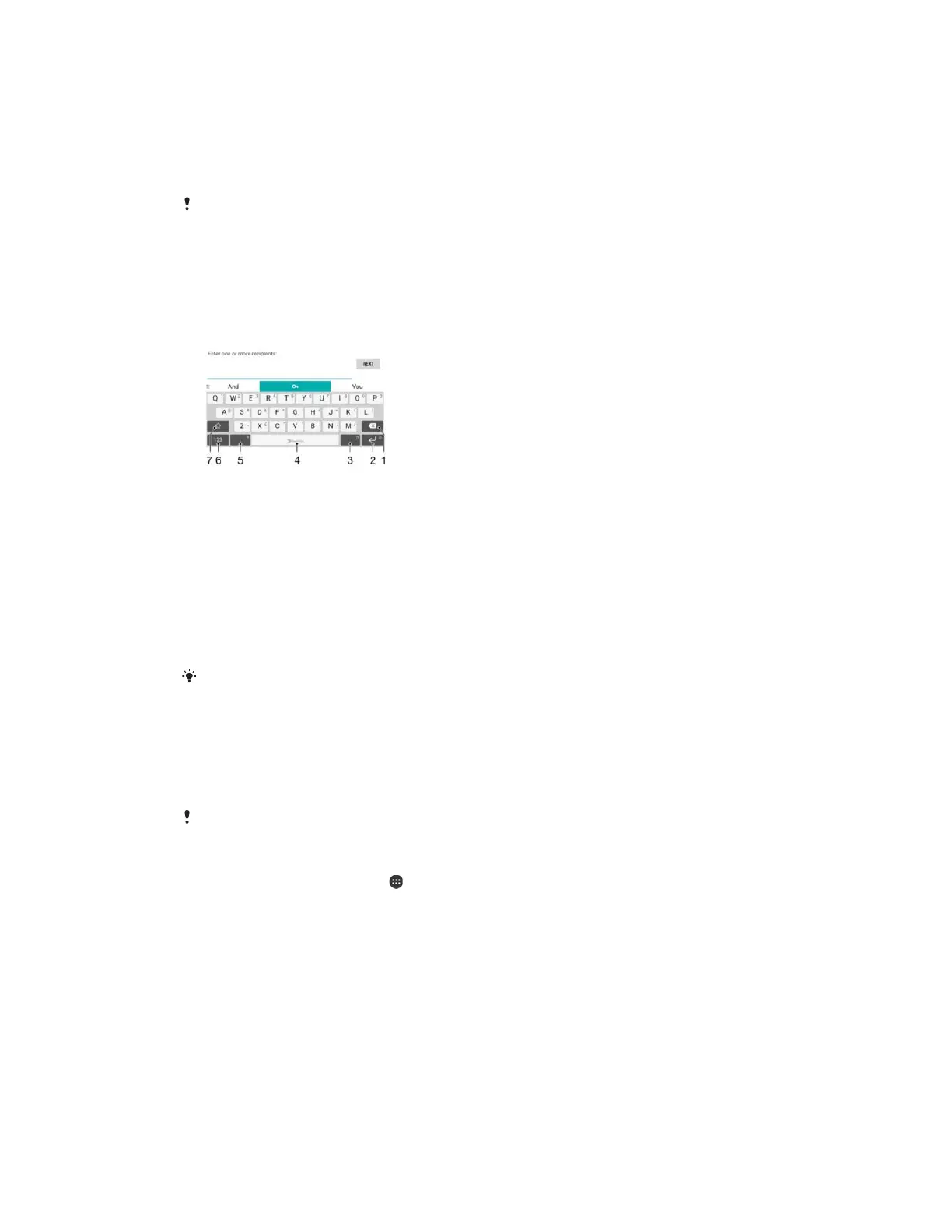
1 Delete a character before the cursor.
2 Tap to enter a carriage return, or touch and hold to access smileys.
3 Enter punctuation.
4 Enter a space.
5 Tap to enter a comma.
6 Display numbers and symbols.
7 Switch between lower case, upper case and all caps.
For more information about SwiftKey
®
, go to https://swiftkey.com/
7RGLVSOD\WKHRQVFUHHQNH\ERDUGWRHQWHUWH[W
ವ
Tap a text entry field.
7RXVHWKHRQVFUHHQNH\ERDUGLQODQGVFDSHRULHQWDWLRQ
ವ
When the on-screen keyboard is displayed, turn the device sideways.
You may need to adjust the settings in some applications to enable landscape orientation.
7RVZLWFKEHWZHHQGLIIHUHQWRQVFUHHQNH\ERDUGRSWLRQV
From the
, tap .
Find and tap
>
>
.
Tap
, then tap the slider to enable or disable the keyboard.
7RHQWHUWH[WFKDUDFWHUE\FKDUDFWHU
To enter a character visible on the keyboard, tap the character.
To enter a character variant, touch and hold a regular keyboard character to
get a list of available options, then select from the list. For example, to enter
"é", touch and hold "e" until other options appear, then, while keeping your
finger pressed on the keyboard, drag to and select "é".
7RHQWHUDSHULRG
ವ
After you enter a word, double-tap the space bar.
64
This is an internet version of this publication. © Print only for private use.



 To Next Page