HCD-SHAKE10/SHAKE30/HCDSHAKEX10/HCDSHAKEX30/HCDSHAKEX70
7
NOTE OF REPLACING MOTHERBOARD BOARD OR
BLUETOOTH MODULE OR RC-S730 (WW)
When the MOTHERBOARD board or BLUETOOTH module or
RC-S730 (WW) are replaced, please execute the below service
mode.
Pairing this system with a
Bluetooth
device
1. Press the [1] button to turn the power on.
2. Place the Bluetooth device within 1 meter from the unit.
3. Press BLUETOOTH on the unit to select Bluetooth function.
“BLUETOOTH” appears on the display.
Hint
• When there is no pairing information on the system (for
example, when you use the BLUETOOTH function for
the fi rst time after purchase), “PAIRING” fl ashes on the
display and the system enters the pairing mode.
Proceed to step 5.
• If the system is connected to a BLUETOOTH device, press
BLUETOOTH on the unit to disconnect the BLUETOOTH
device.
4. Hold down
on the unit for 2 seconds or more.
“PAIRING” fl ashes on the display.
5. Perform the pairing procedure on the Bluetooth device.
6. Select the system’s name on the display of the Bluetooth
device.
For example, select “SHAKE-X10 or SHAKE-X30 or
SHAKE-X10D or SHAKE-X30D or SHAKE-X70D”.
If passkey is required on the Bluetooth device, enter “0000”.
7. Perform the Bluetooth connection on the Bluetooth device.
8. When pairing is completed and the Bluetooth connection is
established, Bluetooth device name appears on the display.
9. To cancel pairing operation, hold down
on the unit
for 2 seconds or more until “BLUETOOTH” appears on the
display.
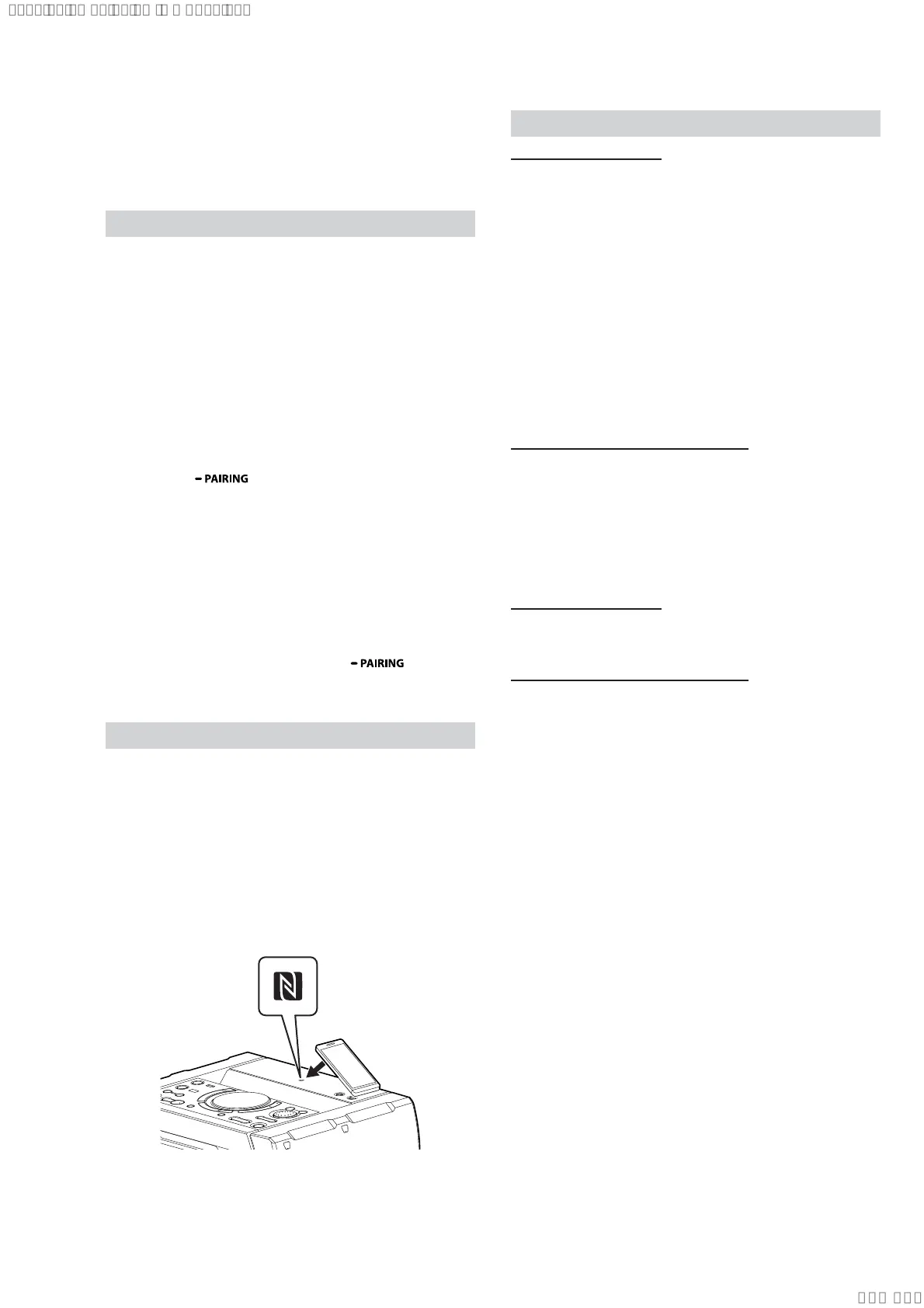
Connecting with a smartphone by one touch (NFC)
Note: The operation in this mode must use a NFC-compatible smartphone
(Smartphones with a built-in NFC function [OS: Android 2.3.3 or
later, excluding Android 3.x])
1. Press the [1] button to turn the power on.
2. Download and install the app “NFC Easy Connect”.
Download the free Android app from Google Play by searching
for “NFC Easy Connect”.
3. Start the app “NFC Easy Connect” on the smartphone.
Make sure that the application screen is displayed.
4. Touch the smartphone to the N-Mark on the system until the
smartphone vibrates.
Complete the connection by following the instructions
displayed on the smartphone.
5. When pairing is completed and the Bluetooth connection is
established, the Bluetooth device name appears in the display
panel.
Playing music from a
Bluetooth
device
For a Bluetooth device
1. Press the [
1] button to turn the power on.
2. Press BLUETOOTH on the unit to select Bluetooth function.
“BLUETOOTH” appears in the display panel.
3. Establish connection with the Bluetooth device.
Press BLUETOOTH on the unit to connect to the last
connected Bluetooth device.
Perform the Bluetooth connection from the Bluetooth device if
the device is not connected.
Once the connection is established, the Bluetooth device name
appears in the display panel.
4. Press N.
Depending on the Bluetooth device,
– you may have to press N twice.
– you may need to start playback of an audio source on the
Bluetooth device.
For an NFC-compatible smartphone
1. Press the [1] button to turn the power on.
Touch the smartphone to the N-Mark on the system to establish
the Bluetooth connection.
Start playback of an audio source on the smartphone. For
details on playback, refer to the operating instructions of your
smartphone.
To disconnect the Bluetooth device
For a Bluetooth device
Press BLUETOOTH on the unit.
“BLUETOOTH” appears in the display panel.
For an NFC-compatible smartphone
Touch the smartphone to the N-Mark on the system again.
To erase all the pairing registration information perform
BLUETOOTH PAIRING HISTORY CLEAR test mode (Re-
fer page 21).
SYSSET
2019/10/2523:34:43(GMT+09:00)



 To Next Page