Help Guide
Interchangeable Lens Digital Camera
ILCE-7RM5 α7RV
Selecting a person to track (Select Face to Track)
When the camera recognizes multiple people, you can choose which person to track.
Hint
Even when [
Focus Area] is set to an item other than [Wide] or [Center Fix], you can use a custom key for [Select Face to
Track]. Assign [Select Face to Track] to the desired key using [
Custom Key/Dial Set.] or [ Custom Key/Dial Set.] in
advance. The [Select Face to Track] screen appears when you press the key to which [Select Face to Track] is assigned.
Note
[Select Face to Track] is unavailable in the following situations:
When [
Focus Mode] is set to [Manual Focus] in still image shooting mode
When using the Smart Zoom, Clear Image Zoom and Digital Zoom
Related Topic
Assigning frequently used functions to buttons and dials (Custom Key/Dial Set.)
MENU →
(Focus) → [Focus Area] → [ Focus Area] → [Wide] or [Center Fix].
1
Press the top/bottom/left/right sides of the multi-selector while multiple people are recognized.
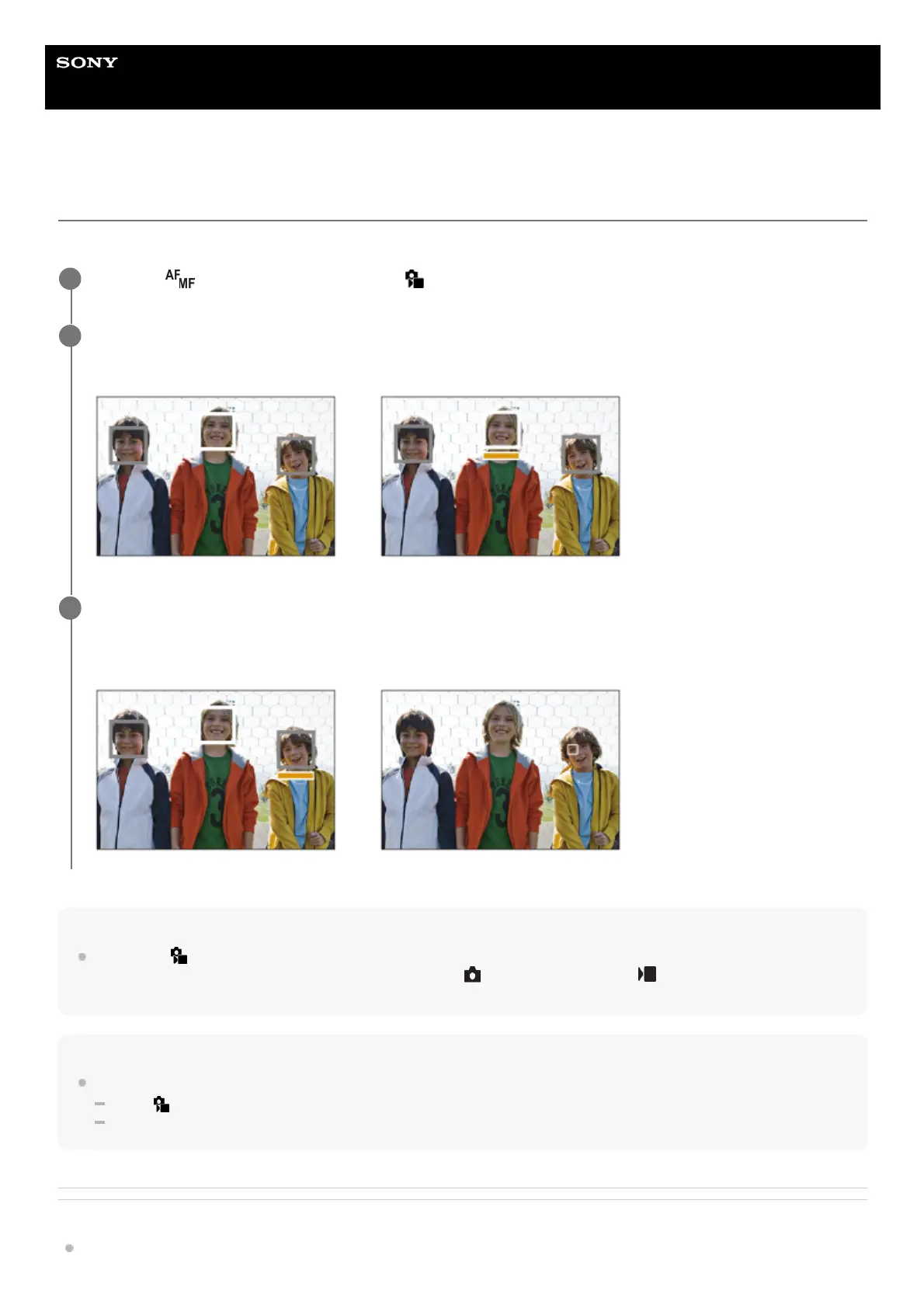
The [Select Face to Track] screen will appear, and an orange bar will be displayed below the face to be tracked.
2
Select a face to track using the multi-selector and press the center.
The orange bar will move to the selected face. Once the selection is confirmed, exit the [Select Face to Track]
screen and start tracking the selected face.
3


 To Next Page