Basic operations
17-GB
Recording still images
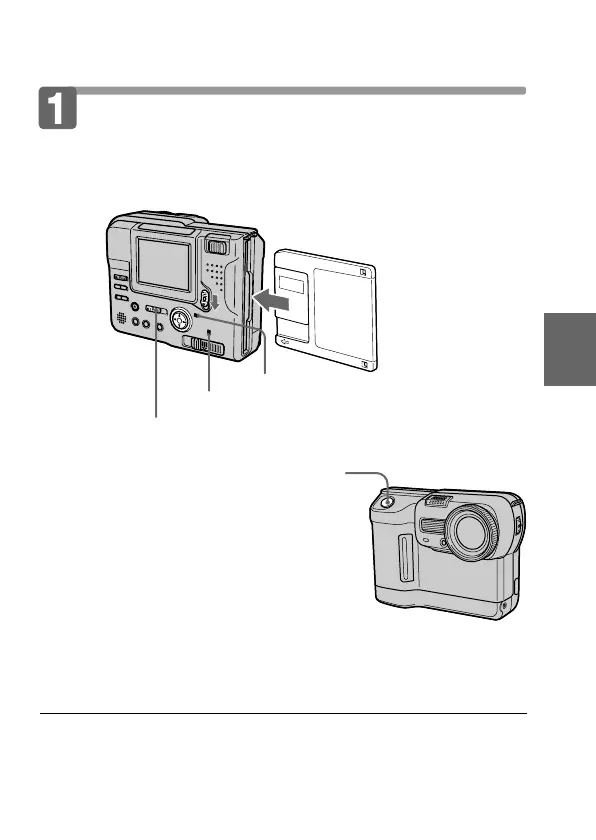
To record the images, slide the POWER switch down to turn on the
power (The POWER lamp lights up) and insert the floppy disk until
it clicks.
Recording and playing back images
1 Set PLAY/STILL/MOVIE to STILL.
2 Press the shutter button halfway
down.
The AE lock indicator z (green) flashes.
When AE (auto exposure), AWB (auto
white balance) and AF (auto focus) are
frozen, the AE lock indicator stops flashing.
3 Press the shutter button fully
down.
The image is recorded on the disk.
The number of images you can record on a floppy disk
About 8 – 12 images(FD83)/6 – 10 images(FD88) with all default settings.
(p. 36)
Note
When the image is recorded on the disk, the ACCESS lamp flashes.
When the ACCESS lamp is flashing, never shake or strike the unit. Also, do
not turn the power off or remove the battery pack or floppy disk. Otherwise,
an image data breakdown may occur and the floppy disk may become
unusable.
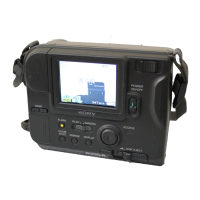
ACCESS lamp
POWER lamp


 To Next Page
 Loading...