39
4. Car Music Storage Unit
Checking out songs from the Hard Drive into the Memory Stick®
You can either “check out” (copy) songs to a Magic Gate
TM
(MG) Memory Stick® (for playback on a computer or)
MS Walkman. First select the source them the destination.
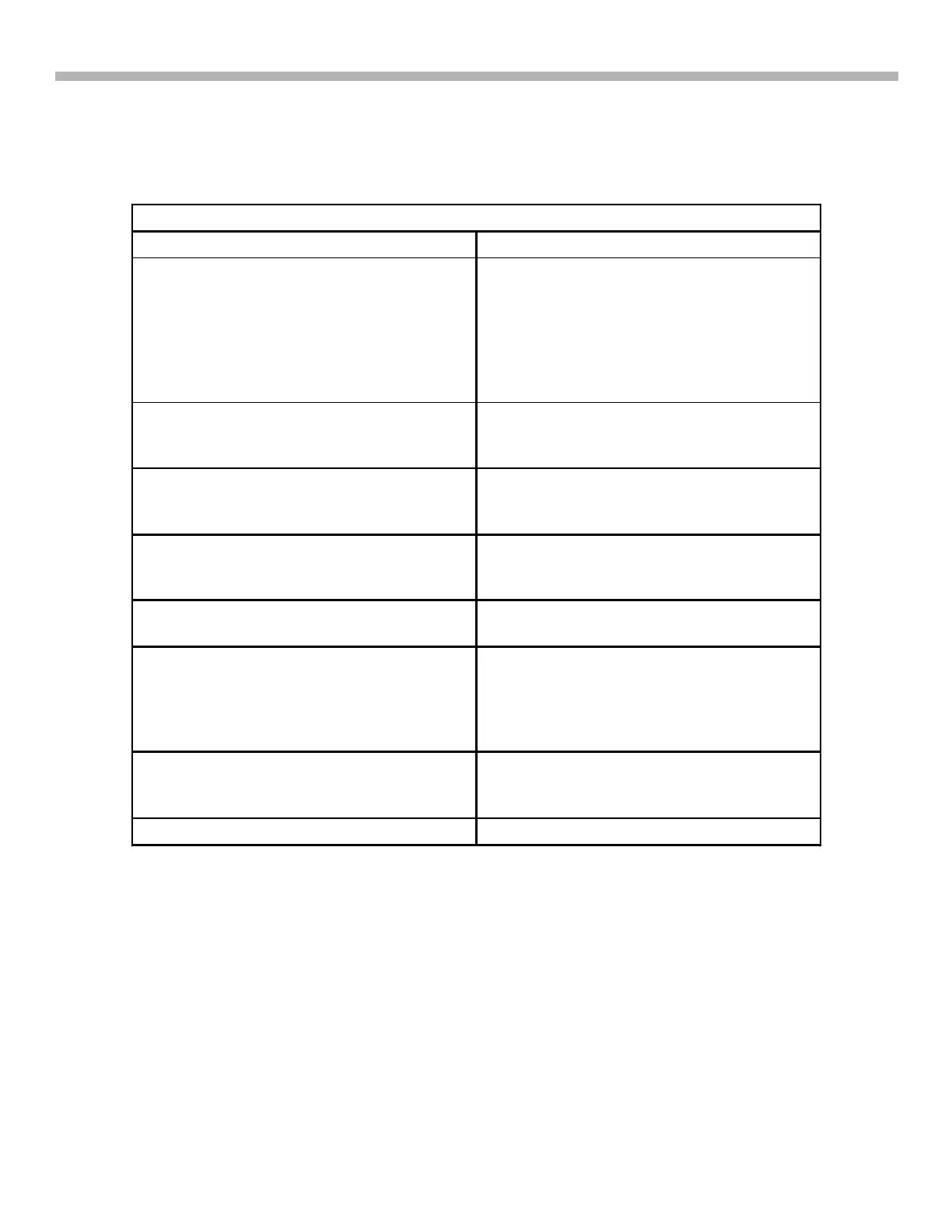
Table 4-5 - Recording from the Hard Drive into the MG Memory Stick
Procedure Feedback verification
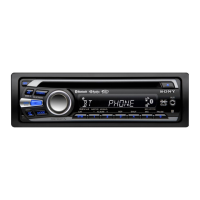
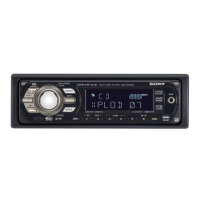
1. Apply power to Red and Yellow wires. Some buttons light blue. Display panel
shows model number, 10kHz AM spacing.
Sub panel shows: Memory Stick® led
lights momentarily, HDD led blinks a few
times, the CD unit spins, laser repeatedly
returns to home (clicking sounds) and
focus searches for a disc.
2. Press the R knob repeatedly to bypass
the 10kHz AM spacing and time/date.
The display panel’s blinking indicator
moves to the next position until the next
screen.
3. Open the front panel (press Open) and
insert the white MGMemoryStick
TM
containing song(s).
The LED next to the memory slot lights to
verify insertion.
4. Press the R button for a list of inputs
and rotate to select “Memory Stick®” from
the list. Press the R button to enter.
Pressing the R knob produces a list of
inputs on the display panel. Once Memory
Stick® is selected, its contents will display.
5. Rotate the R knob to “Check In” and
press.
6. If you want to copy a song, use the R
knob to select “Check Out” again. If you
want to move the entire song, select
“Move Out”. Then press the R knob to
Enter.
The display panel shows these selections:
“Check Out” for copying or “Move Out” to
transplant the song.
After selecting, you will see a list of songs.
7. Using the R knob Deselect the hard
drive songs you want. Press F2 to de-
select all of them.
You will see the contents of the hard drive
with all songs checked for checkout or
move.
8. Press F2 to start the move or check out.



 To Next Page