EasyManua.ls Logo

Sony MHC-EX5 - Timer-Recording Radio Programmes

Sony MHC-EX5
29 pages
Print Icon
To Next Page IconTo Next Page
To Previous Page IconTo Previous Page
Loading...
=
continued
5
set
the
hour
you
want
the
music
to
go
on
by
turning
MULTI
CONTROLLER
(-/+),
then
press
ENTER/NEXT.
Set
the
minutes
the
same
way.
“OFF”
appears
and
the
hour
digits
flash
again.
flashing
flashing
6
set
the
hour
you
want
the
music
to
go
off
by
turning
MULTI
CONTROLLER
(-/+),
then
press
ENTER/NEXT.
Set
the
minutes
the
same
way.
The
sound
source
setting
screen
appears.
7
Choose
a
sound
source
by
turning
MULTI
CONTROLLER
(-/
+):
CD
PLAY
<>
TUNER
1
I
MD
PLAY
«+
TAPE
PLAY
~~
wr
—a
FUER
Vv
8
Press
ENTER/NEXT.
After
‘DAILY
TIMER”
appears,
the
preset
items
appear
in
the
display
sequentially.
9
Press
SYSTEM
POWER
to
tun
off
the
system.
About
15
seconds
before
the
preset
time,
the
power
will
go
on
and
the
music
will
play.
At
the
turn-off
time,
the
power
will
go
off
again.
If
you
made
a
mistake
during
setting
procedure
To
change
the
timer
settings
Repeat
steps
1
to
9.
To
check
the
preset
items
To
cancel
the
timer
To
activate
the
timer
again
See
“Timer-Recording
Radio
Programmes”.
Note
on
tape
direction
when
setting
the
wake-up
timer
When
tape
playback
is
set
with
the
wake-up
timer,
the
tape
plays
back
in
the
direction
currently
displayed.
Always
confirm
the
tape
direction
before
turning
off
the
power.
Chapter
6:
Additional
Features
SSS
ee
ae
Timer-Recording
Radio
Programmes
You
can
set
the
timer
to
record
the
radio
at
a
certain
time.
This
timer
works
only
once
for
each
setting.
The
volume
level
is
automatically
set
to
MIN.
You
can
record
with
a
Sony
MD
recorder
with
the
AU
BUS.
Be
sure
to
connect
the
equipment
to
the
AU
BUS
jack.
Before
setting
the
timer,
make
sure
the
clock
is
set
correctly.
Tune
in
the
preset
station.
Use
the
buttons
on
the
unit
to
do
this
operation.
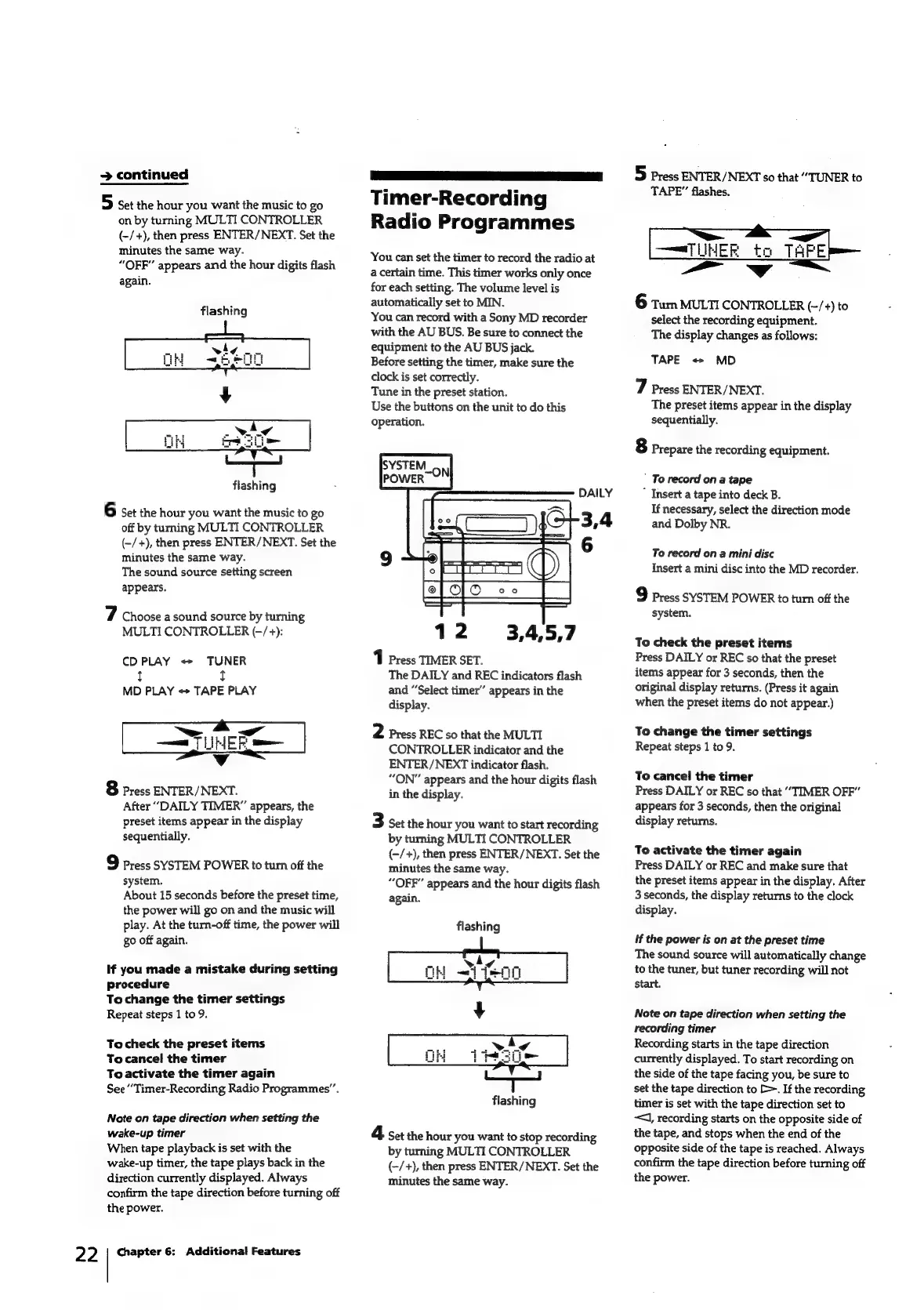
1
Press
TIMER
SET.
The
DAILY
and
REC
indicators
flash
and
“Select
timer”
appears
in
the
display.
2
Press
REC
so
that
the
MULTI
CONTROLLER
indicator
and
the
ENTER/NEXT
indicator
flash.
“ON”
appears
and
the
hour
digits
flash
in
the
display.
3
Set
the
hour
you
want
to
start
recording
by
turning
MULTI
CONTROLLER
(-/+),
then
press
ENTER/
NEXT.
Set
the
minutes
the
same
way.
“OFF”
appears
and
the
hour
digits
flash
again.
flashing
flashing
4
set
the
hour
you
want
to
stop
recording
by
turning
MULTI
CONTROLLER
(-/+),
then
press
ENTER/
NEXT.
Set
the
minutes
the
same
way.
5
press
ENTER/NEXT
so
that
“TUNER
to
TAPE”
flashes.
_
Vw
6
Turn
MULTI
CONTROLLER
(-/+)
to
select
the
recording
equipment.
The
display
changes
as
follows:
TAPE
«+
MD
7
Press
ENTER/NEXT.
The
preset
items
appear
in
the
display
sequentially.
8
Prepare
the
recording
equipment.
’
To
record
on
a
tape
”
Insert
a
tape
into
deck
B.
If
necessary,
select
the
direction
mode
and
Dolby
NR.
To
record
on
a
mini
disc
Insert
a
mini
disc
into
the
MD
recorder.
9
Press
SYSTEM
POWER
to
tum
off
the
system.
To
check
the
preset
items
Press
DAILY
or
REC
so
that
the
preset
items
appear
for
3
seconds,
then
the
original
display
returns.
(Press
it
again
when
the
preset
items
do
not
appear.)
To
change
the
timer
settings
Repeat
steps
1
to
9.
To
cancel
the
timer
Press
DAILY
or
REC
so
that
“TIMER
OFF”
appears
for
3
seconds,
then
the
original
display
returns.
To
activate
the
timer
again
Press
DAILY
or
REC
and
make
sure
that
the
preset
items
appear
in
the
display.
After
3
seconds,
the
display
returns
to
the
clock
display.
If
the
power
is
on
at
the
preset
time
The
sound
source
will
automatically
change
to
the
tuner,
but
tuner
recording
will
not
Start.
Note
on
tape
direction
when
setting
the
recording
timer
Recording
starts
in
the
tape
direction
currently
displayed.
To
start
recording
on
the
side
of
the
tape
facing
you,
be
sure
to
set
the
tape
direction
to
>.
If
the
recording
timer
is
set
with
the
tape
direction
set
to
<J,
recording
starts
on
the
opposite
side
of
the
tape,
and
stops
when
the
end
of
the
opposite
side
of
the
tape
is
reached.
Always
confirm
the
tape
direction
before
turning
off
the
power.