Need help?
Do you have a question about the Sony PS5 and is the answer not in the manual?
Instructions for attaching the base for vertical or horizontal placement.
Connecting HDMI, AC power, and LAN cables to the console.
Turning on the console, setting up TV input and initial console configuration.
Pairing the wireless controller and setting up your user account.
Information on playing PS4 games and transferring data to your PS5.
Managing settings for children, including account creation and family setup.
Understanding the games and media home screens, search, and hub functions.
Accessing features and activities via cards and controls in the control centre.
Instructions for inserting, copying, and ejecting game discs.
Downloading and playing digital games from the PlayStation Store.
Charging the controller, muting the microphone, and managing audio output.
Connecting and assigning numbers to up to four controllers.
Understanding power indicator lights for on, rest, and off modes.
Entering rest mode, exiting rest mode, and completely turning off the console.
Locating safety information, the full user guide, and product specifications.
Finding online support, troubleshooting, and FAQs on the PlayStation website.
This document is a Quick Start Guide for the PlayStation®5 console, providing essential information on its setup, basic operation, and key features. It's designed to help users get started with their new console quickly and efficiently.
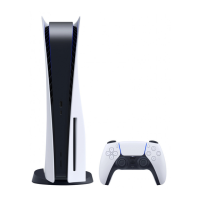
The PlayStation®5 (PS5) is a home video game console developed by Sony Interactive Entertainment. It serves as a central entertainment hub, allowing users to play both physical and digital games, access media applications, and connect with other players online. The console supports high-definition multimedia, offering an immersive gaming experience. It is designed to be used with a wireless controller, which facilitates interaction with games and the console's interface. The PS5 also supports backward compatibility with many PlayStation®4 (PS4) games, allowing users to enjoy their existing game libraries.
Console Setup: The guide begins with instructions on how to attach the console's base, which is crucial for both vertical and horizontal orientations. For vertical placement, users need to reconfigure the base by rotating its top and bottom parts until a "click" is heard. The console should be placed with its rear side facing up to remove a screw hole cap, which is then attached to the bottom of the base. A screw is removed from the base, and then the base is attached to the console and secured with the screw, tightened by hand or with a coin. For horizontal placement, the base is reconfigured similarly, ensuring a hook is in the correct position. The console is placed with its rear side up, and the base is aligned with a marked area and pressed firmly into place.
Connectivity: Connecting the console to a display and power source is straightforward. Users are instructed to connect the included HDMI cable from the PS5's HDMI OUT port to the HDMI IN port on their TV. The AC power cord is then connected to the console's AC IN connector and an electricity supply. It's emphasized that all connections should be made before plugging the AC power cord into the electricity supply. For internet access, users can connect a LAN cable (not included) to the console's LAN port for a wired connection. Alternatively, the console supports Wi-Fi® for wireless internet access, in which case the LAN cable step can be skipped.
Powering On and Initial Setup: To turn on the PS5 console, users press the (power) button. The power indicator will blink blue and then turn white, indicating the console is on. Users are also advised to turn on their TV and set the input to HDMI. The console features a screen reader that automatically activates if the console is left idle for 60 seconds after turning on, providing audio guidance for on-screen text and important information (available in certain languages).
Controller Pairing and Use: The wireless controller needs to be paired with the console. This is done by connecting the controller to a USB port on the console using a USB cable. Once connected, pressing the (PS) button on the controller will turn it on and complete the pairing process. The guide explains how to charge the controller using a USB cable while the console is on or in rest mode. In rest mode, the controller's light bar blinks orange while charging and turns off when fully charged. Users can adjust power saving settings to allow USB port power supply in rest mode.
Multiple Controllers: Up to four controllers can be used simultaneously. Pressing the (PS) button assigns a number to each controller, indicated by the player indicator lights. The number of lights corresponds to the controller's assigned number. When playing PS4 games, the controller's light bar glows blue, red, green, or pink based on connection order, separate from the player indicator. A paired controller can also be used to turn on the PS5 console by pressing the (PS) button.
Microphone Mute Function: The controller includes a mute button for the microphone. Each press toggles the mic between muted (button lit) and unmuted (button off). Pressing and holding the mute button mutes the mic and turns off sound output from both the controller's speakers and the TV. Pressing it again restores the original state.
Home Screen Navigation: The PS5 home screen is divided into two main content types: games and media. The games home displays games, the PlayStation™Store, and game-related apps. The media home shows music, video, and other non-game related apps. Users can switch between these home screens. The interface also includes a search function, settings, and profile editing options. The "Hub" provides more information about selected games or apps. On the PS5 console, the ☑ button confirms selected items. To return to the home screen from a running game or app, users can select "Home" from the control centre or press and hold the (PS) button on the controller.
Control Centre: Pressing the (PS) button opens the control centre, which offers various features without leaving the current game or app. It displays "Cards" that show features and activities related to current games and apps, allowing users to learn more or jump to the next activity. The control centre also provides "Controls" to return to the home screen, turn off the PS5 console, and access other basic functions and settings frequently used during gameplay.
Playing Games: For disc-based games, users insert the disc into the console. Game data will begin copying, and a notification will appear when the game is ready to play. The game can then be selected from the games home. To eject a disc, users press the ▲ (eject) button. For digital games, users download them from the PlayStation™Store. A notification confirms when the game is downloaded and ready, after which it can be selected from the games home. Purchasing and downloading games requires an internet connection and signing into an account. PlayStation™Network and PlayStation™Store are subject to terms of use and country/language restrictions, with users responsible for internet service fees and potential charges for content/services. Users must be 7 or older, with parental consent required for those under 18. Service availability is not guaranteed, and online features may be withdrawn.
PS4 Compatibility and Data Transfer: The PS5 console supports many PS4 games, though some functionalities may be absent. Users must update to the latest system software version and have an internet connection. Data, including game save data, user information, and downloaded content, can be transferred from a PS4 console to a PS5 console if both are connected to the same network. If a USB drive was used as extended storage for a PS4, it can be connected directly to the PS5. Users can also use their existing PS4 account on the PS5, transferring game history, trophies, profile, and friend exchanges.
Parental Controls: The PS5 allows for managing settings for children. Parental controls enable restrictions on games, play duration, chat functions, and more. Each adult and child needs a separate account. When a child's account is created, it's linked to the adult's account, forming a family, and parental controls can only be set for children within that family. Existing PS4 accounts and their associated family and parental control settings will carry over to the PS5. To create a child account, users press the (PS) button to open the control centre, select their profile picture, then "Switch User," and finally "Add User" from the user selection screen. Parental control settings can be reviewed and changed regularly by selecting "Settings" > "Family and Parental Controls" from the home screen. Game rating icons (e.g., PEGI in Europe, Africa, and India; USK in Germany) help determine age-appropriateness.
Shutting Down: The PS5 has a power saving mode called "rest mode." In rest mode, the console can charge controllers via USB ports, automatically update system software, and keep games/apps suspended. To enter rest mode, users select "Power" from the control centre and then "Enter Rest Mode." The power indicator blinks white and then turns orange. To exit rest mode, press the (PS) button. To turn off the console completely, users select "Power" from the control centre and then "Turn Off PS5." The power indicator blinks white and then turns off. It is crucial to disconnect the AC power cord only when the power indicator is off; disconnecting it while the indicator is solid or blinking can lead to data loss, corruption, or console damage.
System Updates: The console's functionality, especially for PS4 game compatibility, relies on system software updates. Users are advised to update to the latest system software version, which typically requires an internet connection.
Power Management: The guide provides clear instructions on how to put the console into rest mode or turn it off completely, emphasizing the importance of proper shutdown procedures to prevent data loss or console damage. Users can configure power saving settings to optimize energy consumption and functionality in rest mode.
Troubleshooting and Support: The guide directs users to the supplied Safety Guide for information on safe use, product warranty terms, and specifications. For comprehensive information on configuring settings and using functions, users can access the User's Guide from the PS5 home screen via "Settings" > "User's Guide, Health and Safety, and Other Information" > "User's Guide." Online support, including step-by-step troubleshooting and FAQs, is available on the PlayStation website (playstation.com/help).
 General
| Memory | 16GB GDDR6 |
|---|---|
| Expandable Storage | NVMe SSD slot, USB HDD support |
| Optical Drive | 4K UHD Blu-ray Drive |
| Output Resolution | Up to 8K |
| Max Frame Rate | Up to 120fps |
| Ray Tracing | Yes |
| Audio | Tempest 3D AudioTech |
| Controller | DualSense Wireless Controller |
| CPU | 8x Zen 2 Cores at 3.5GHz |
| GPU | 10.28 TFLOPs, 36 CUs at 2.23GHz, RDNA 2 architecture |
| Storage | 825GB SSD |
| Backward Compatibility | PS4 games supported |
| Connectivity | Wi-Fi 6, Bluetooth 5.1 |
| Ports | HDMI 2.1, Ethernet |
| Dimensions | 390mm x 104mm x 260mm |
| Weight | 4.5 kg |
| Power Consumption | 350W |

 To Next Page