000
3. Shooting
41
Connecting a Tablet or Other Devices using Wireless LAN
The camcorder can connect to smartphones,
tablets, and other devices using wireless LAN
connection by attaching the IFU-WLM3 USB
Wireless LAN Module (supplied) or a CBK-WA100
Wireless Adaptor (option).
[Note]
USB wireless modules other than the IFU-WLM3 are not
supported.
The following are supported from devices
connected by wireless LAN.
Remote control
Enables remote control of the camcorder.
Video monitoring (CBK-WA100 only)
Enables monitoring of the video from the
camcorder.
CBK-WA100 (option) and the Content Browser
Mobile application are required.
[Tip]
For details about the Content Browser Mobile application,
contact your Sony sales or service representative.
Compatible Devices
You can use a smartphone, tablet, or computer
to configure and operate the camcorder. The
supported devices, OS, and browsers are shown in
the following table.
Device OS Browser
Smartphone Android 6.0 Chrome
iOS 9 Safari
Tablet Android 6.0 Chrome
iOS 9 Safari
Computer Microsoft Windows 7/
Microsoft Windows
8.1/Microsoft Windows
10
Chrome
Mac OS 10.10/10.11 Safari
Attaching the IFU-WLM3
Plug the IFU-WML3 into the USB wireless LAN
module connector (page 4).
After attaching the unit, set Wi-Fi >Wi-Fi
(page 73) in the System menu to Enable to
enable wireless LAN.
[Note]
Attach/remove the IFU-WLM3 while the camcorder is turned
off.
Attaching the CBK-WA100
[Note]
Attach/remove the CBK-WA100 while the camcorder is
turned off.
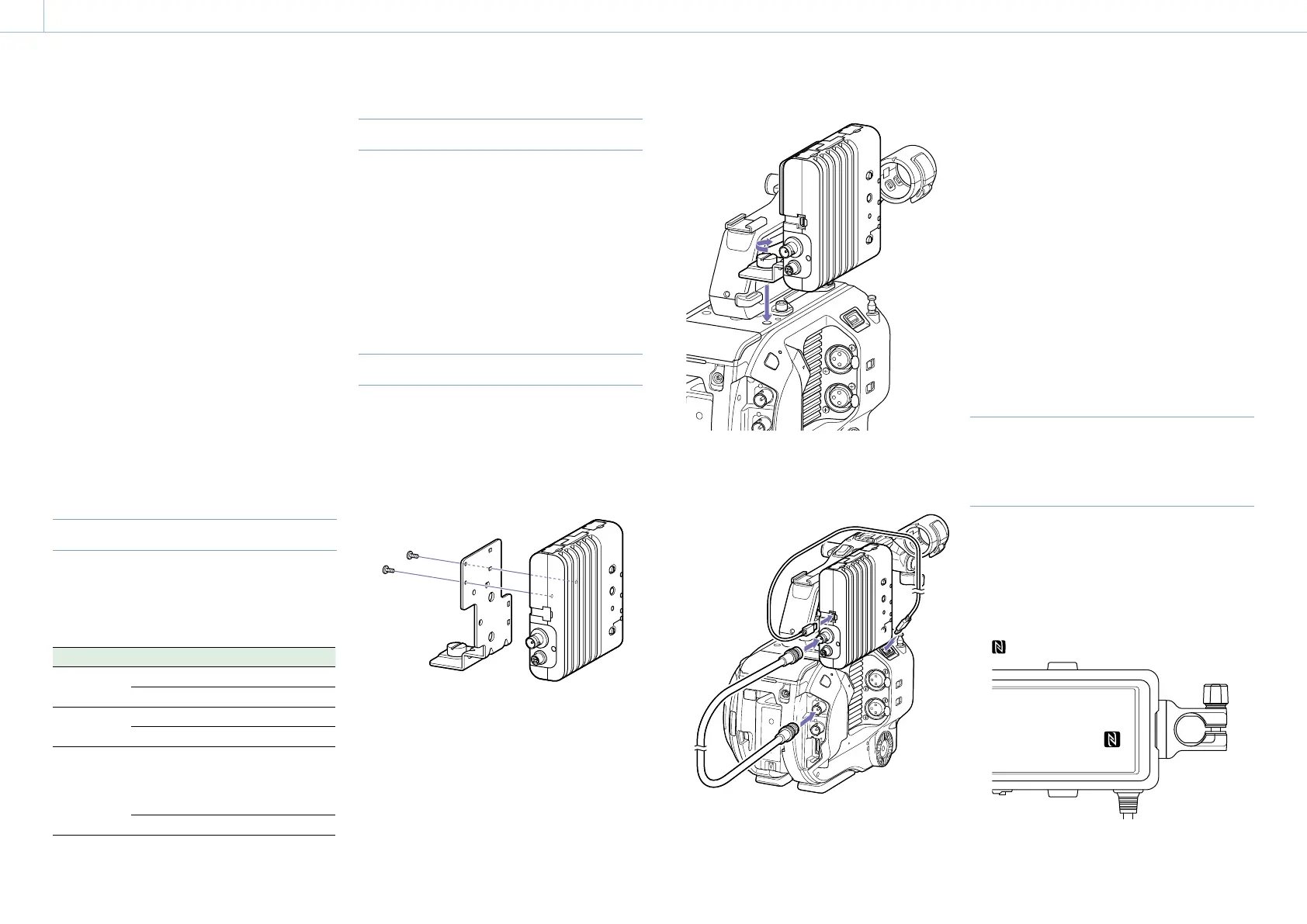
1 Attach the CBK-WA100 to the mounting
bracket, and tighten the two screws.
2 Attach the CBK-WA100 mounting bracket on
the camcorder, and tighten the screw.
3 Connect the CBK-WA100 USB cable to the USB
wireless LAN module connector (1), and the
SDI cable to the SDI OUT connector (2).
11
22
4 Turn the CBK-WA100 on, and then turn the
camcorder on.
5 Set Wi-Fi >Wi-Fi (page 73) in the System
menu to Enable to enable the wireless LAN.
[Note]
The SDI OUT output setting must be configured to use the
CBK-WA100 with the camcorder. However, the camcorder
cannot output a signal compatible with the CBK-WA100
when using XAVC-I 24.0P or ProRes 23.98P (page 60).
About the CBK-WA100
The CBK-WA100 has functions for low-resolution
recording proxy files on an SD card, and for
transferring the files to a server via a wireless LAN.
For details, refer to the operation manual for the
CBK-WA100.
One-touch Connection of NFC-
enabled Devices (Using IFU-WLM3
Only)
Devices that support NFC can be connected (one-
touch connection) using NFC.
1 Attach an IFU-WLM3 to the camcorder
(page 41), and set Wi-Fi >Wi-Fi (page 73)
in the System menu to Enable to enable
wireless LAN.
appears on the screen.
2 Open [Settings] on the device, select [More],
and place a check mark in the NFC checkbox.


 To Next Page