27(E)
Adjusting the Brightness of the
LEDs
You can adjust the brightness of the LEDs of the panel
buttons and camera number/tally indication window.
To adjust the brightness, proceed as follows.
1 Press [RCP Adjusting] on the RCP Configuration
menu to display the RCP adjustment menu.
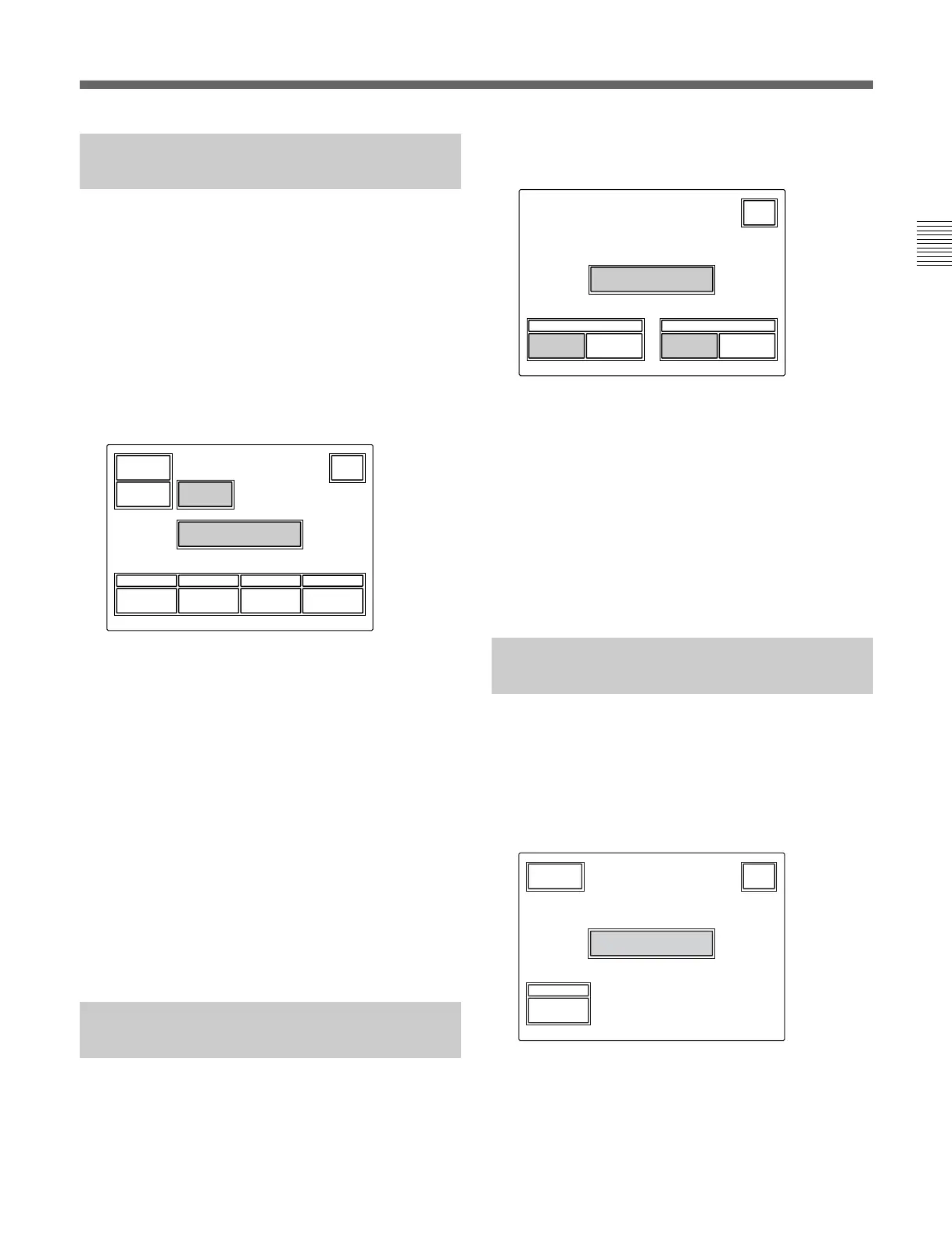
2 Press and light [LED Bright].
The lower half of the display becomes the LED
Brightness adjustment display.
Switch
50
Tally
50
Other Master
LED
Bright
Clear
Buzzer
Volume
LED
Bright
Exit
50 50
3 Adjust the brightness with the corresponding
control knobs (50 is the standard value with all
items).
Switch: Brightness of the built-in LEDs of the
control buttons
Tally: Brightness of the built-in LEDs of the
camera number/tally indication window
Other: Brightness of the other LED indicators/
lamps, including the master black indicator and
f-number indicator
The master brightness can be adjusted with the
rightmost control knob (Master).
When the adjustment is completed
Press
[Exit] to leave the menu.
Changing the Functions of the
Rotary Encoders
You can change the functions of BLACK/FLARE
control knobs and DETAIL control knob.
Proceed as follows:
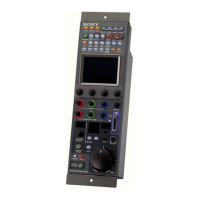
1 Press [RE Setting] on the RCP Configuration
menu to obtain the Rotary Encoder Setting display.
BLACK/FLARE DETAIL
Rotary Encoder
Setting
FlareBlack
SD
Detail
Detail
(
HD
)
Exit
2 When changing the function of the BLACK/
FLARE control knobs, press
[Black] or [Flare] as
desired.
When changing the function of the DETAIL
control knob, press
[Detail $HD%] or
[SD Detail] as desired.
When the adjustment is completed
Press
[Exit] to leave the menu.
Adjusting the Brightness of the
LCD
You can adjust the brightness of the display of the
menu control block.
Proceed as follows:
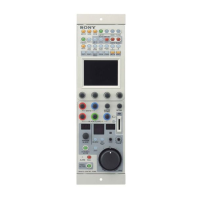
1 Press [LCD] on the Maintenance menu to display
the LCD setting display.
50
LCD Brightness
Clear
Bright
Exit
2 Adjust the brightness with the leftmost control
knob (50 is the standard value).
When the adjustment is completed
Press
[Exit] to leave the menu.



 To Next Page