1-18
76
Playing JPEG image files
Playing JPEG image files
You can play JPEG image files on DATA CDs
(CD-ROMs/CD-Rs/CD-RWs).
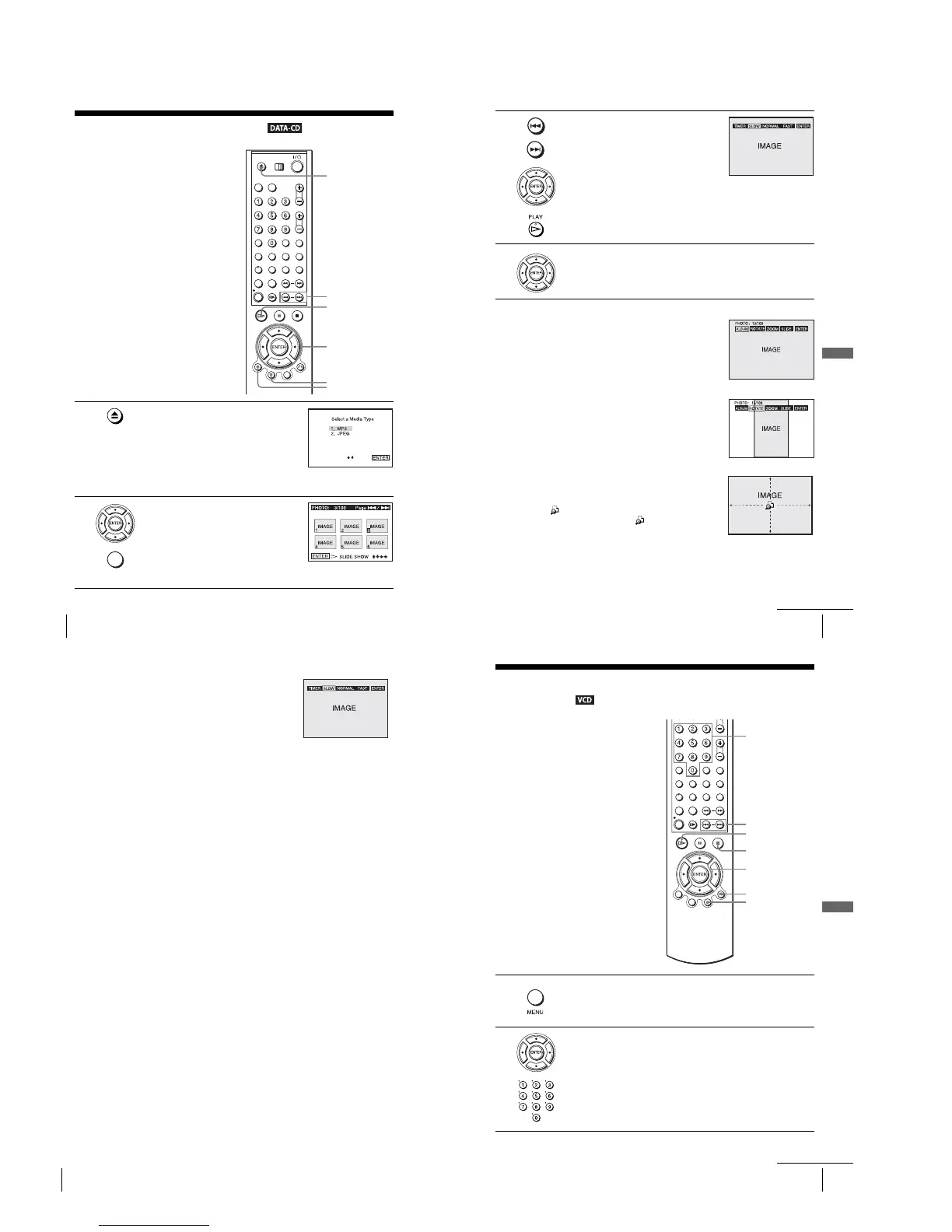
1
Press Z and place a DATA CD on the disc tray,
then press Z to close the tray.
When you load a DATA CD which contains
MP3 audio tracks and JPEG image files,
“Select a Media Type” menu appears.
If you load a DATA CD which contains only
JPEG image files, the ALBUM display
appears. Then you can skip step 2.
2
Press V/v to select “JPEG”, then press
ENTER.
The ALBUM display will appears.
To disp lay the total number of JPEG image
files on the disc, press DISPLAY.
V/v/B/b
ENTER
H PLAY
Z
TOP MENU
./ >
DISPLAY
DISPLAY
77
Playing JPEG image files
DVD Additional Operations
To display an image
To rotate an image
To zoom in an image
3
Press ./> to select the next/previous
ALBUM page, press V/v/B/b to select an
image in the ALBUM display, then press
H PLAY.
The TIMER menu appears.
4
Press B/b to select the desired play speed, then press ENTER.
Slide show starts from the selected image.
1
Press V/v/B/b to select an image in the ALBUM
display, then press ENTER.
The selected image number appears in the display
window.
2
To display the next/previous image, press ./>.
1
Press V/v/B/b to select an image in the ALBUM
display, then press ENTER.
2
Press B/b to select ROTATE, then press ENTER.
Each time you press ENTER, the image turns
clockwise by 90°.
1
Press V/v/B/b to select an image in the ALBUM
display, then press ENTER.
2
Press B/b to select ZOOM, then press ENTER.
“” appears.
3
Press V/v/B/b to move “ ” to the position where
you want to zoom in.
4
Press ENTER repeatedly to change the magnification.
Each time you press ENTER, the magnification
changes as shown below.
2× t 4× t 2× t normal magnification
continued
78
Playing JPEG image files
To enjoy the Slide show
To turn on/off the menu in the single image display
Press DISPLAY in the single image display.
To turn on/off the total number of images in the ALBUM display
Press DISPLAY in the ALBUM display.
To return to the ALBUM display
Press DISPLAY to turn on the menu and press B/b to select ALBUM, then press
ENTER. You can also use MENU button to return to the ALBUM display. Press
. repeatedly to return to the first ALBUM page.
To return to the “Select a Media Type” menu
Press x STOP twice, then press TOP MENU.
Notes
•Slide show can play in only one direction.
•You cannot rotate or zoom in the image during Slide show.
• If you select ALBUM in the rotated image display, the images in the ALBUM display will
also be rotated. Correct the rotation in the ROTATE menu.
About JPEG image files
Yo u can play JPEG image files on CD-ROMs, CD-Rs, or CD-RWs. However, the
discs must be recorded according to ISO9660 level 1, level 2, or Joliet format for the
player to recognize the files.
Yo u can also play discs recorded in Multi Session.
See the instructions of the CD-R/RW device or recording software (not supplied) for
details on the recording format.
To play a Multi Session CD
This player can play Multi Session CDs when an JPEG image file is located in the
first session. Any subsequent JPEG image files, recorded in the later sessions, can
also be played back. When audio tracks and images in music CD format or video CD
format are recorded in the first session, only the first session will be played back.
Notes
•The system can play the extension “.JPG” or “.JPEG.”
•
Some CD-Rs or CD-RWs cannot be played on this system depending on file format.
• If you add the extension “.JPG” or “.JPEG” to data not in JPEG format, the display will be
blank.
•Depending on the disc or the size of image files, playback may take some time to start.
Tip
• If you add numbers (01, 02, 03, etc.) to the front of the file names, the files will be played in
that order.
1
Press V/v/B/b to select an image in the ALBUM
display, then press ENTER.
2
Press B/b to select SLIDE, then press ENTER.
The TIMER menu appears.
3
Press B/b to select the desired play speed, then press
ENTER.
Slide show starts.
79
Playing VIDEO CDs with “MENU ON/OFF” Functions
DVD Additional Operations
Playing VIDEO CDs with “MENU ON/OFF”
Functions
The PBC (Playback control) function allows
you to search and perform other operations
interactively. PBC playback follows a selection
menu displayed on your TV screen.
The “MENU ON” function is the PBC function.
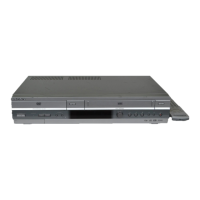
1
Press MENU to select “MENU ON.”
The menu for your selection appears.
2
Press V/v to select the item number you want.
You can also use the number buttons to select the item number and track.
V/v
ENTER
Number
buttons
H PLAY
O RETURN
x STOP
./>
MENU
continued



 To Next Page