1-2
8
Getting Started
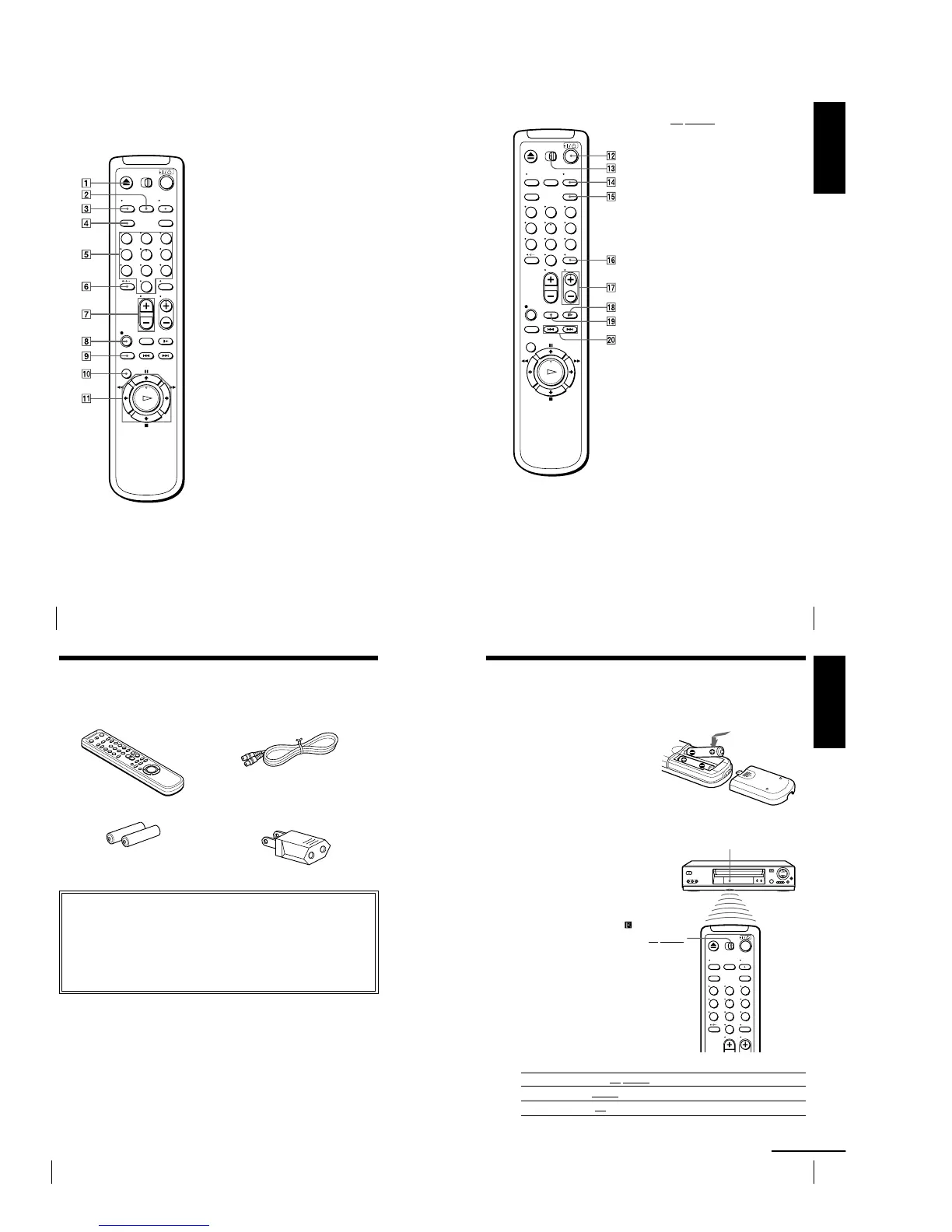
Remote commander
123
456
789
0
1 Z EJECT button (30)
2 INPUT SELECT button (32) (45)
(62)
3 TV/VIDEO button (for TV)
4 CLEAR button (31) (42) (50)
5 Programme number buttons* (42)
6 -/-- (tens digit) button
7 VOL (volume) +/— buttons
8 z REC (record) button (33) (49)
9 REC SPEED (recording speed)
button (32)
q; MENU button (21) (50)
qa X PAUSE/M button (21) (30)
x STOP/m button (21) (30)
m REW (rewind)/< button (21)
(30) (48)
M FF (fast-forward)/, button
(21) (30) (48)
H PLAY/OK button* (21) (30)
(48)
*The H PLAY, AUDIO MONITOR,
number 5 and PROG + buttons have a
tactile dot.
Index to parts and controls (continued)
9
Getting Started
Getting Started
qs ?/1 (on/standby) switch (43)
qd ¥TV/VIDEO remote control switch
(11)
qf AUDIO MONITOR button*
1
*
2
(52)
qg G-CODE button*
3
(42)
qh DISPLAY button (31) (33)
qj PROG (programme) +/— buttons*
1
(34)
qk y SLOW button (48)
ql ×2 button (48)
w; ./> INDEX SEARCH
buttons (55)
*
1
The H PLAY, AUDIO MONITOR,
number 5 and PROG + buttons have a
tactile dot.
*
2
not available on SLV-ED323ME/SG and
ED225PS
*
3
SLV-ED929MI only
123
456
789
0
10
Getting Started
Step 1 : Unpacking
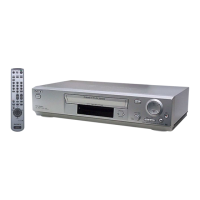
Check that you have received the following items with the VCR:
¥ Remote commander ¥ Aerial cable
¥ R6 (size AA) batteries ¥ Plug adaptor (SLV-ED828ME and
ED323ME only)
Check your model name
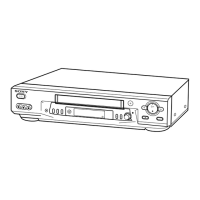
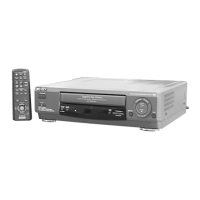
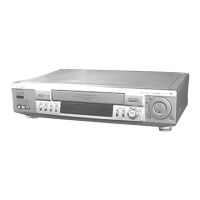
The instructions in this manual are for the 8 models: SLV-ED929MI, ED925PS,
ED828ME/SG, ED825PS, ED323ME/SG and ED225PS. Check your model
name by looking at the rear panel of your VCR. SLV-ED929MI is the model
used for illustration purposes. Any difference in operation is clearly indicated in
the text, for example, SLV-ED929MI only.
11
Getting Started
Getting Started
Step 2 : Setting up the remote
commander
Inserting the batteries
Insert two R6 (size AA) batteries
by matching the + and — on the
batteries to the diagram inside the
battery compartment.
Insert the negative (—) end first,
then push in and down until the
positive (+) end clicks into
position.
Using the remote
commander
You can use this remote
commander to operate this
VCR and a Sony TV. Buttons
on the remote commander
marked with a dot (¥) can be
used to operate your Sony TV.
If the TV does not have the
symbol near the remote
sensor, this remote
commander will not operate
the TV.
123
456
789
0
Remote sensor
¥TV/VIDEO
To operate Set ¥TV/VIDEO to
the VCR VIDEO and point at the remote sensor at the VCR
a Sony TV ¥TV and point at the remote sensor at the TV
continued


 To Next Page