Operating the Camera
Using the System Utility
30
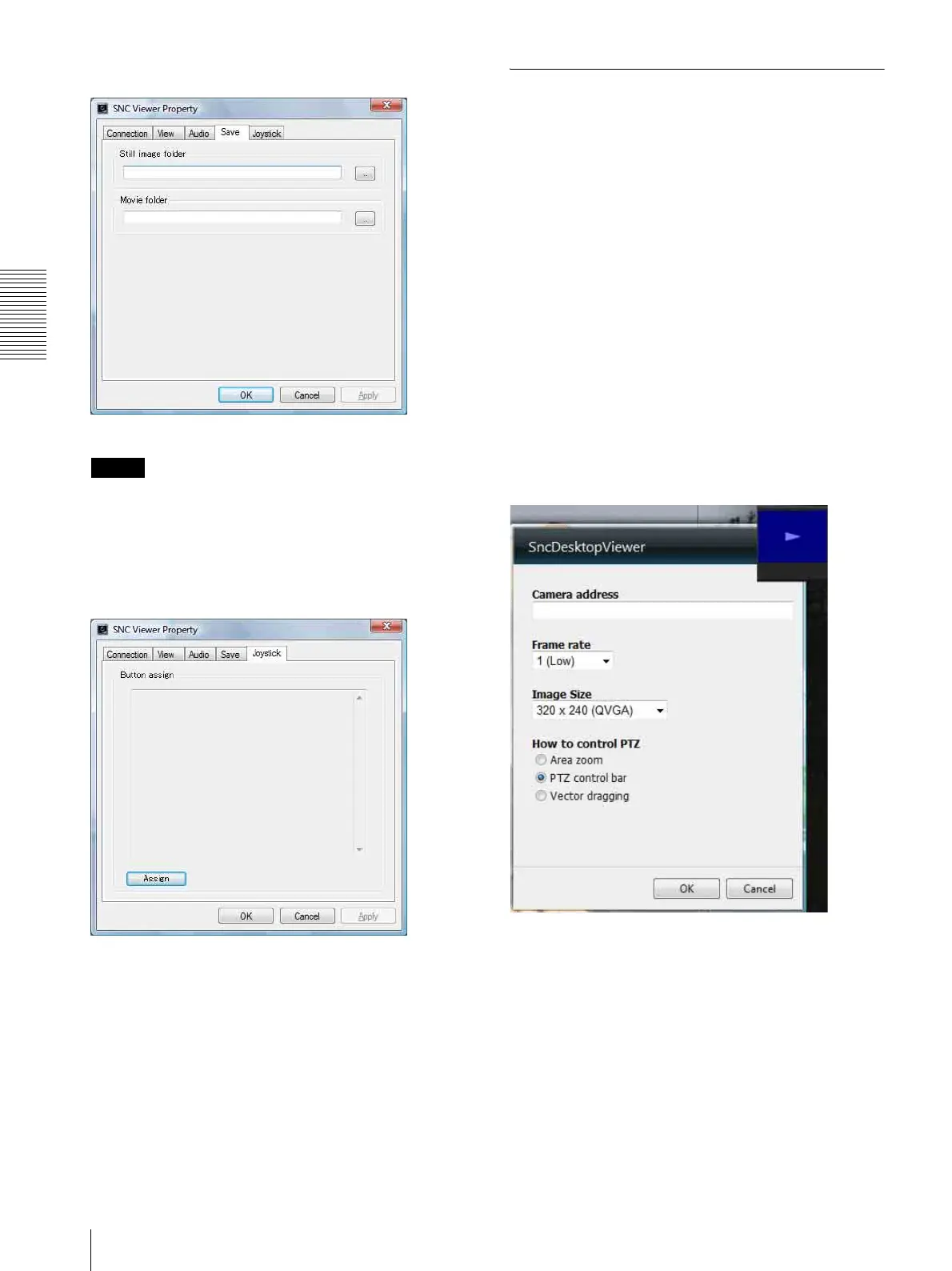
Save tab
Specify a folder to save the still images and movies to.
Note
When using the operating system of Windows VISTA or
Windows 7, you can not save video if “Enable Protected
Mode” is checked in the Control Panel-Internet Option-
Security.
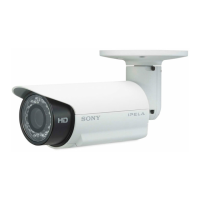
Joystick tab
You can assign the joystick buttons here.
SNC Desktop viewer
The gadget that displays the camera image on the side
bar of Windows Vista or Desktop in the case of
Windows 7.
Installing the SNC desktop viewer
1
Click Download.
When the license agreement policies are displayed
on the SNC desktop viewer download screen, agree
after reading them carefully and download the SNC
desktop viewer.
2
Execute the downloaded SncDesktopViewer.gadjet
file.
Using the SNC desktop viewer
When installation is finished, SNC desktop viewer is
displayed on the side bar of Windows Vista or Desktop
in the case of Windows 7.
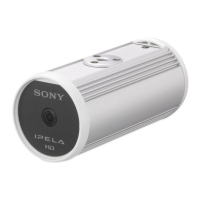
Camera address
Set the IP address for the camera to display on the
Gadget.
Frame rate
Select the frame rate for the image to display on the
Gadget.
Image size
Select the image size for the image to display on the
Gadget.




 To Next Page