77
US
Using Network Features
Searching for an item
using a keyword
When a list is displayed on the TV screen
(such as artist list, a track list, etc.), you can
enter a keyword to search for an item you
want.
Searching by keywords is available only
when the Home Network or SEN function
is selected.
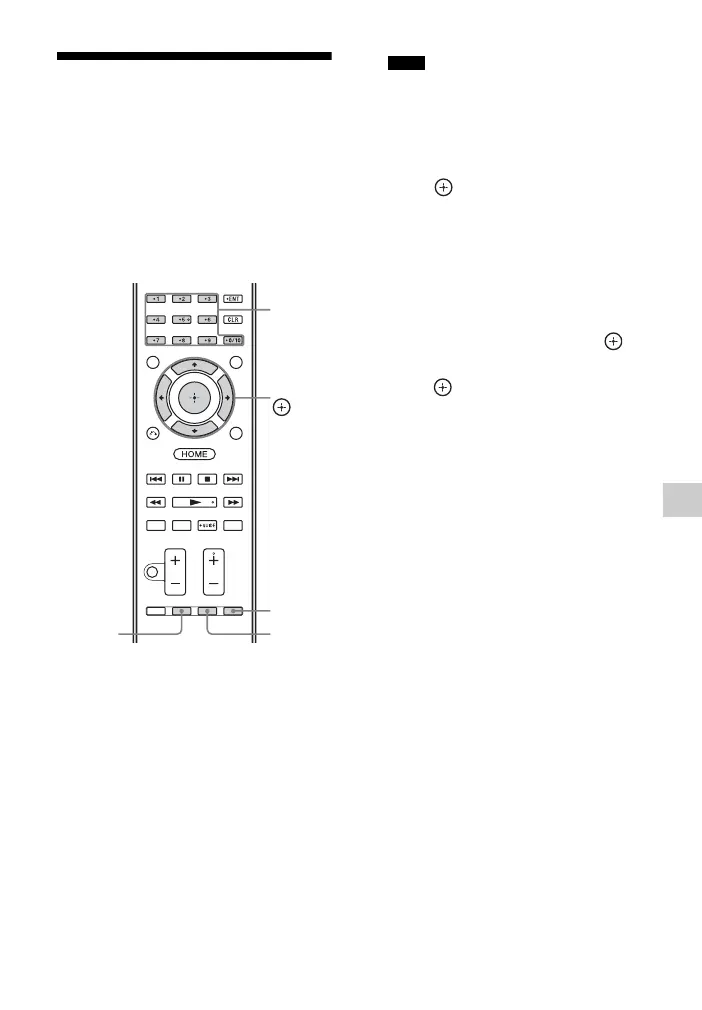
1 Press ALPHABET SEARCH while
an item list (artist list, track list,
etc.) is displayed on the TV screen.
The keyword input display appears on
the TV screen.
2 Press the numeric/text buttons to
enter a keyword.
A keyword can be up to 15 characters.
Enter a keyword that will match the letters or
a word at the beginning of the name or title
of the item you want to search for. When the
receiver searches for an item, “The” at the
beginning of a name and the following space
will be ignored.
3 Press .
An item that matches the keyword
appears. If the item appears is not the
one you are searching for, press
ALPHABET PREVIOUS/
ALPHABET NEXT to display the
previous/next item.
4 Repeat steps 1 to 3 until you find
the item you want, then press .
5 Select the track you want, then
press .
Playback starts.
Numeric/
text
buttons
ALPHABET
SEARCH
V/v/B/b,
ALPHABE
PREVIOUS
ALPHABE
NEXT
Note



 To Next Page