Setting up using NFC
To set up using NFC
To save data costs, make sure that your Android™ device is connected to a Wi-Fi
®
network.
1
Android™ device: Make sure that the NFC function is turned on and that the
screen is active and unlocked.
2
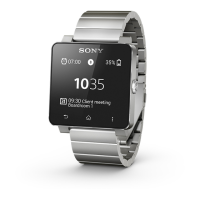
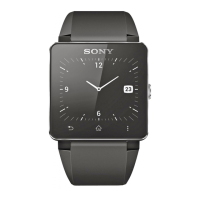
SmartWatch 2: To turn on your SmartWatch 2, press and hold down
.
3
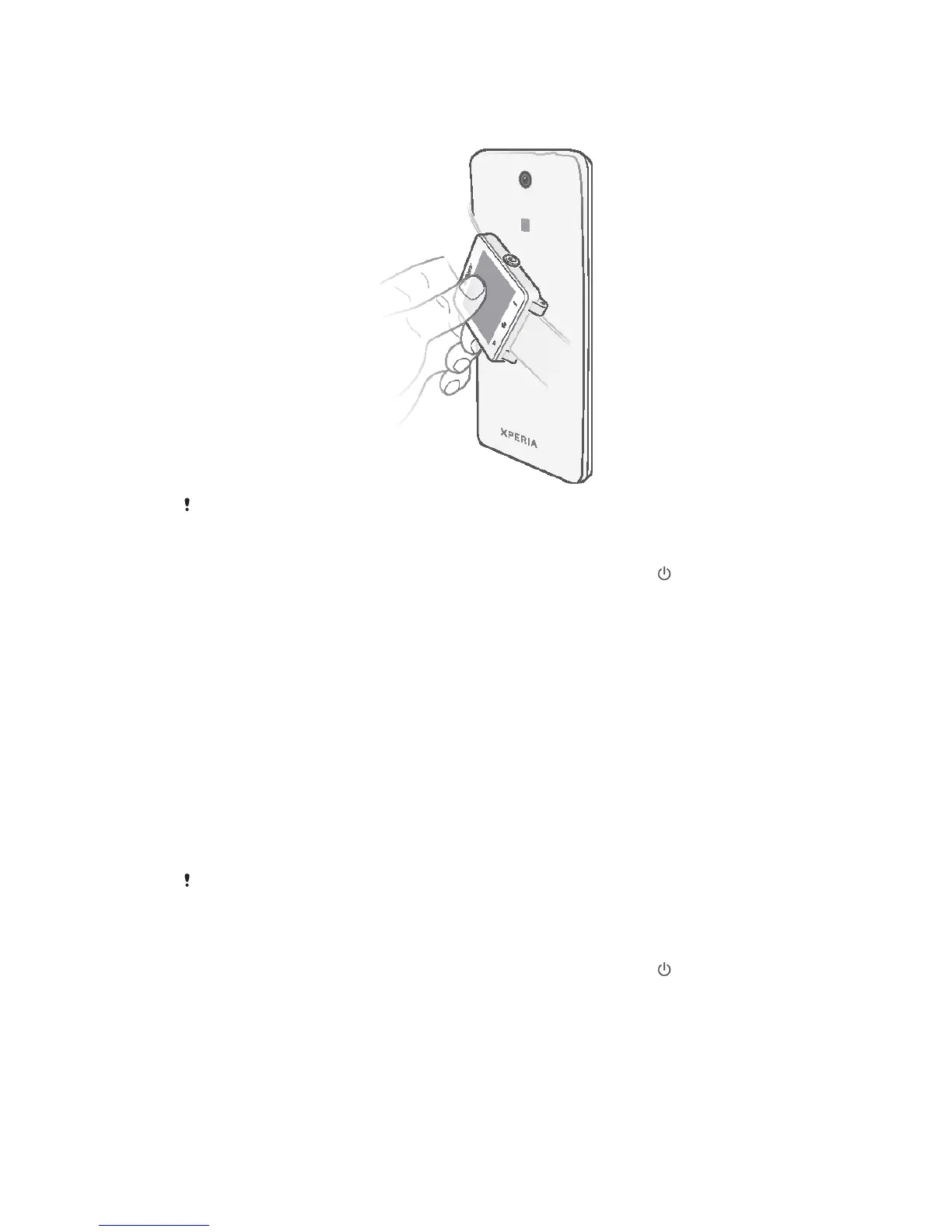
Place the Android™ device over the back of your SmartWatch 2 so that the
NFC detection area of each device touches each other. If you already have an
updated Smart Connect application, you device automatically jumps to step 6.
4
Android™ device: Follow the instructions that appear on the screen to install
or update the Smart Connect application from Google Play™.
5
To connect, place the Android™ device over the back of your SmartWatch 2
so that the NFC detection area of each device touches each other.
6
Android™ device: Follow the instructions to install the SmartWatch 2
application from Google Play™. SmartWatch 2 then restarts automatically to
finish setting up.
Setting up using the Bluetooth
®
function
If your Android™ device does not support NFC, you can connect using the
Bluetooth
®
function.
To set up using the Bluetooth
®
function
To save data costs, make sure that your Android™ device is connected to a Wi-Fi
®
network.
1
Android™ device: Make sure that you have the Smart Connect application,
which is available on Google Play™, installed on your Android™ device.
2
Android™ device: Make sure that the Bluetooth
®
function is turned on.
3
SmartWatch 2: To turn on your SmartWatch 2, press and hold down .
4
Android™ device: Scan for Bluetooth
®
devices, then select SmartWatch 2 in
the list of available devices under Settings > Bluetooth.
5
Android™ device: Follow the instructions to install the SmartWatch 2
application from Google Play™. SmartWatch 2 then restarts automatically to
finish setting up.
5
This is an Internet version of this publication. © Print only for private use.


 To Next Page