Using the keys
Back
•
Go back to the previous screen within the application or close the application.
Home
•
Go to the Home screen.
Actions
•
Open a list of options available in the current screen or application.
Home screen
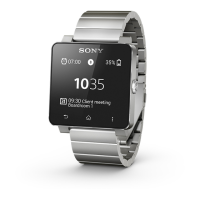
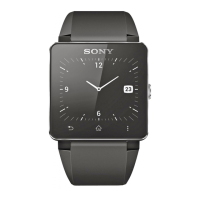
The Home screen contains all the applications on your SmartWatch 2. You can
rearrange the application icons on the Home screen.
To go to the Home screen
•
Press .
To browse the Home screen
•
Swipe left or right.
To open an application from the Home screen
•
Swipe left or right to find the application, and then tap the application.
When SmartWatch 2 is disconnected from your Android™ device, some applications are
unavailable and the icons are then shown in grey.
To arrange applications on the Home screen
1
From the Home screen, tap .
2
Select an option.
Status and notifications
The status bar shows you what's going on in your SmartWatch 2. It shows, for
example notification icons, the battery status and connection status.
Status and notification icons
The following status and notification icons may appear on the screen of your
SmartWatch 2:
Battery status
The battery is charging.
The Bluetooth® function is activated and SmartWatch 2 is connected to
your Android™ device.
The Bluetooth® function is activated and SmartWatch 2 is disconnected
from your Android™ device.
New event notifications
Home screen pane indicator
Clock screen
You can use SmartWatch 2 as a standalone watch. There are several different watch
faces to choose between.
To go to the Clock screen
•
Briefly press .
8
This is an Internet version of this publication. © Print only for private use.


 To Next Page