26
Operating Instructions
Using Picture in Picture (PIP)
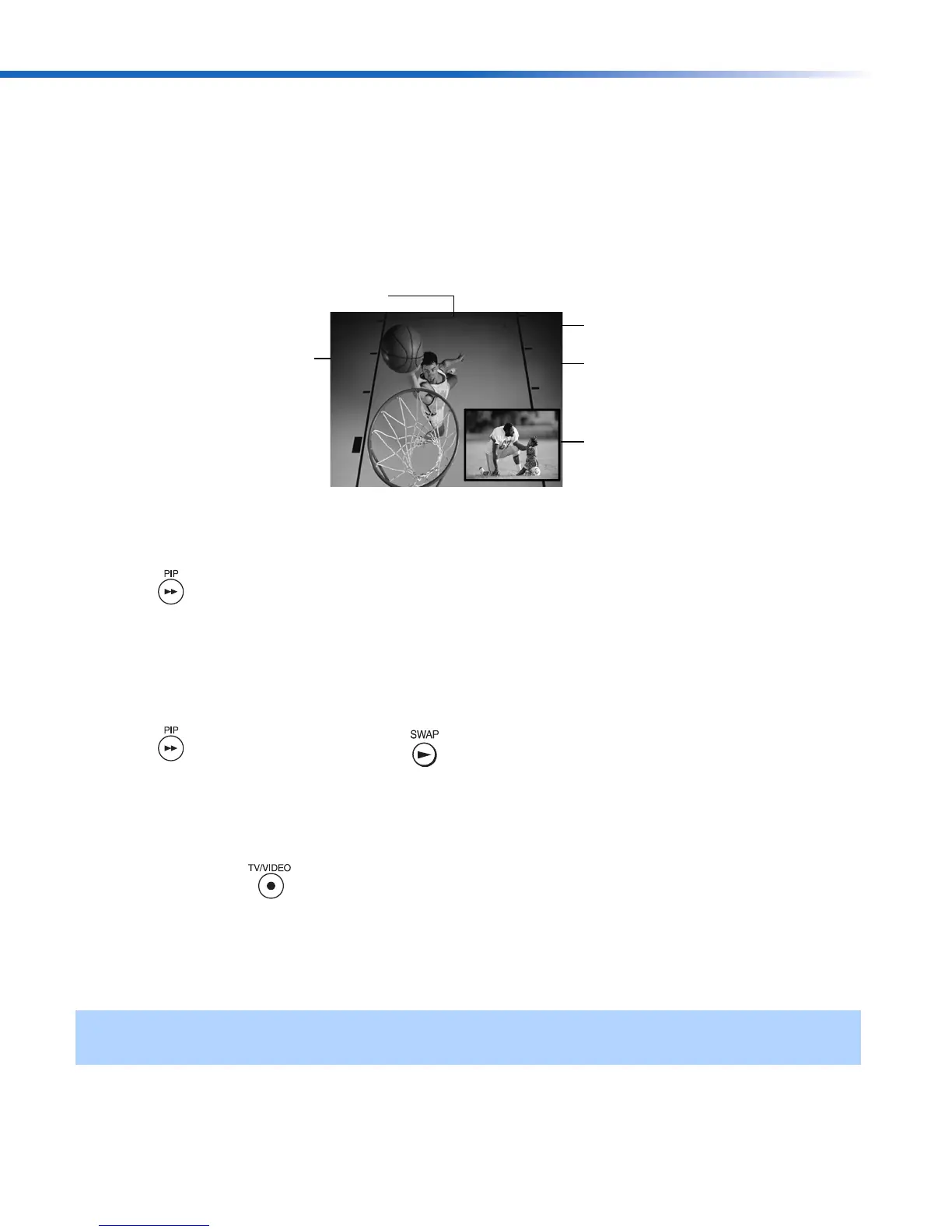
The Picture-in-Picture (PIP) feature allows you to view two programs simultaneously, one in
the full size “main” picture and one in a small “window” picture.
Displaying Picture in Picture
To use PIP
1 Press the TV button to control PIP with the yellow buttons. Tune your TV to a channel that
you know is currently airing programming.
2 Press to display the window picture.
3 Use the yellow PIP (CH +/-) buttons to change the channel in the PIP window picture.
To check your PIP
1 Press the TV button to control PIP with the yellow buttons. Tune your TV to a channel,
which you know is currently airing programming.
2 Press to turn PIP on, then press . The channel from the main window should now
appear in the window picture.
3 Use the (CH +/-) buttons on the bottom of your remote control to select the same channel
in the main picture.
4 Use the yellow PIP (CH +/-) buttons to change the channel in the PIP window picture.
5
Press the yellow PIP button to switch the PIP window to other video inputs for other
equipment that is connected to any of the VIDEO IN jacks of your TV. You should see a
different picture in your PIP window for each piece of connected video equipment. Make
sure the connected equipment is turned on and working when you perform this test.
✍ If you’re having problems with PIP, refer to “Connections that affect your ability to use PIP” on
page 28 or see “Other Information” on page 45 for possible solutions.
Channel number of
the main picture
Channel number
of the window
picture
Window
picture
Indicates which
picture is currently
picture
Main
receiving sound
6
2
9
01US01COV-BR2.book Page 26 Tuesday, February 4, 2003 11:51 AM



 To Next Page