8
Overview
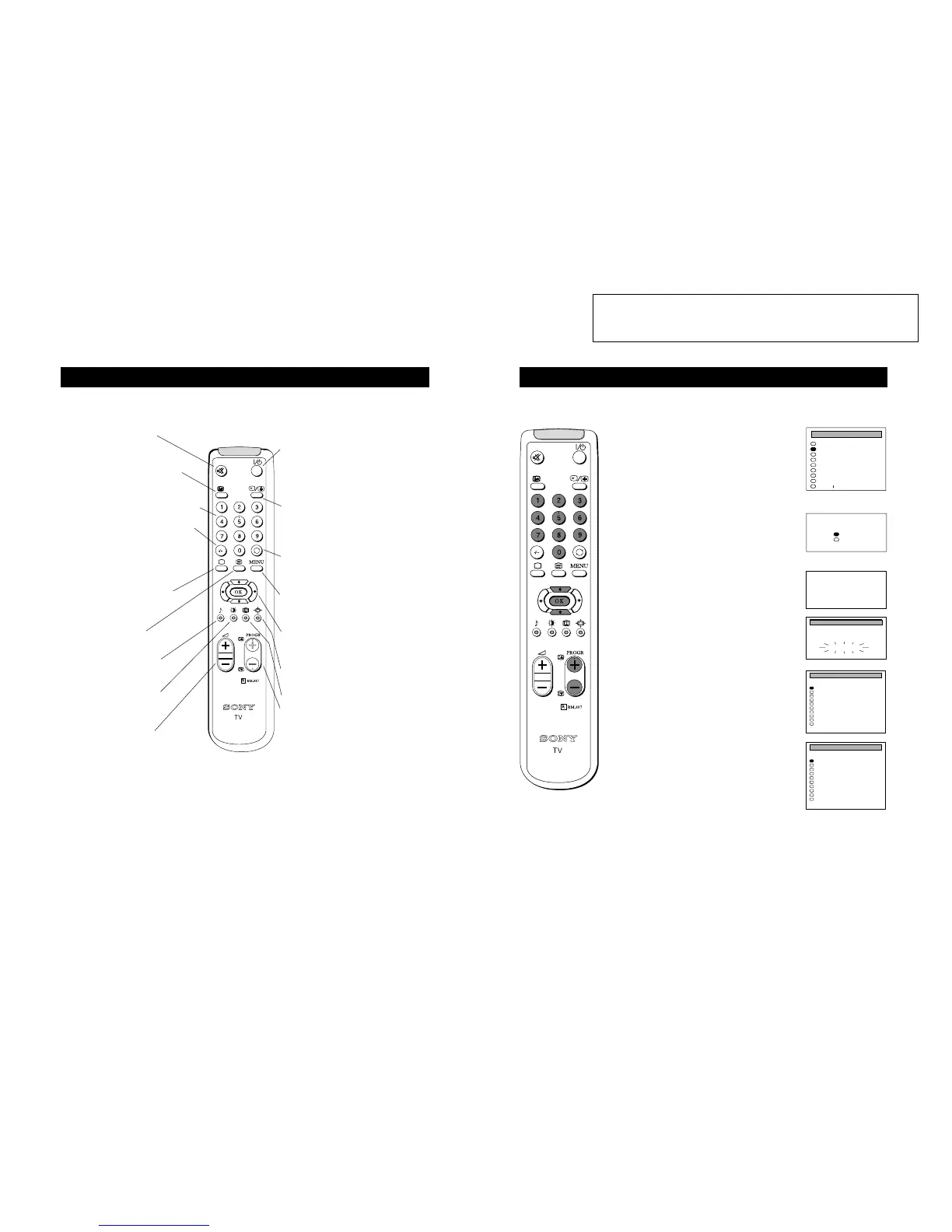
Overview of the remote control buttons
To mute sound
Press to mute TV sound. Press
again to restore the sound.
To display sound menu
Press to change the sound settings.
Press again to remove the display.
To adjust TV volume
Press to adjust the volume of the TV.
To temporarily switch off TV
Press to temporarily switch off TV. Press again
to switch on TV from standby mode.
To save energy we recommend switching off
completely when TV is not in use.
NOTE: After 15 -30 minutes without a TV
signal and without any button being pressed, the
TV switches automatically into standby mode.
To reveal on screen information
Press to reveal all on-screen indications.
Press again to cancel.
To select channels
Press to select channels.
To change screen format
Press to change the size of the screen.
To display picture menu
Press to change the picture settings.
Press again to remove the display.
To select teletext
Press to switch on Teletext.
To return to TV mode
Press to return to the normal operation
from teletext mode or standby mode.
To select menu items
Use the OK button and arrow keys to
select the options available in the menu
system of this TV.
To select input signal or freeze teletext
Press to select inputs from the TV sockets (see
Using Optional Equipment section). In teletext
mode, press to freeze the displayed page. Press
once again to cancel.
To display the menu
Press if you wish to use the TV menu
system. Press again to remove the menu
from the TV screen.
To select channels
Press the numbered buttons to select channels.
For double digit programme numbers, e.g.23,
press -/-- first, then the buttons 2 and 3.
If you enter an incorrect first digit, this should
be corrected by entering another digit (0 - 9)
and then selecting -/-- button again to enter the
programme number of your choice.
This button has no function
To return to previous channel
Press to return to the previous channel
you were watching. Note: This can be
done only after watching the present
channel for 5 seconds
6
6. Automatically tuning the TV
1 When switching on the TV for the first time, the
‘LANGUAGE’ menu appears automatically on the TV
screen enabling you to select in which language you
wish to read the TV menu screens. Press the UP and
DOWN arrow keys on the remote control to select your
language then press the OK button to confirm your
selection.
2 The ‘AUTO TUNE’ menu appears on the TV screen in
your selected language. Press the UP and DOWN arrow
keys to select ‘YES’ then press the OK button to
confirm.
3 A new menu appears asking you to check that the
antenna is connected. Ensure that the antenna is
connected then press the OK button to confirm. The TV
now starts to automatically search and store all available
channels for you. Please be patient and do not press any
buttons.
4 When the TV has finished tuning in all available
channels, the ‘PROGRAMME SORTING’ menu appears
on the TV screen which enables you to change the
channel order on your TV. If you wish to change the
order of any of the TV channels, press the PROGR+/-
button on your remote control until the channel you wish
to rearrange appears on the screen. Press the UP or
DOWN arrow keys to select the new programme number
position for your selected channel. Press the OK button
to confirm. Repeat this procedure if you wish to change
the order of other channels on your TV.
5 Press the MENU button to remove the menu from the
TV screen.
6 Press the PROGR+/- or the numbered buttons on the
remote control to view the TV channels.
Quick Start Guide
When you first switch on the TV, the following sequence of menu screens appear on the TV enabling you to 1) choose a
language for the TV menu screens, 2) add channels to the TV, 3) arrange the channels.
6
B/G
SYSPROG
C26
CHAN
- - - - -
LABEL
AUTO PROGRAMME
AUTO PROGRAMME
Please confirm that
antenna is connected
Confirm: OK




 To Next Page