12
Adjusting the picture
Additional TV Features
Although the picture is adjusted at the factory, you can modify it to suit your own taste.
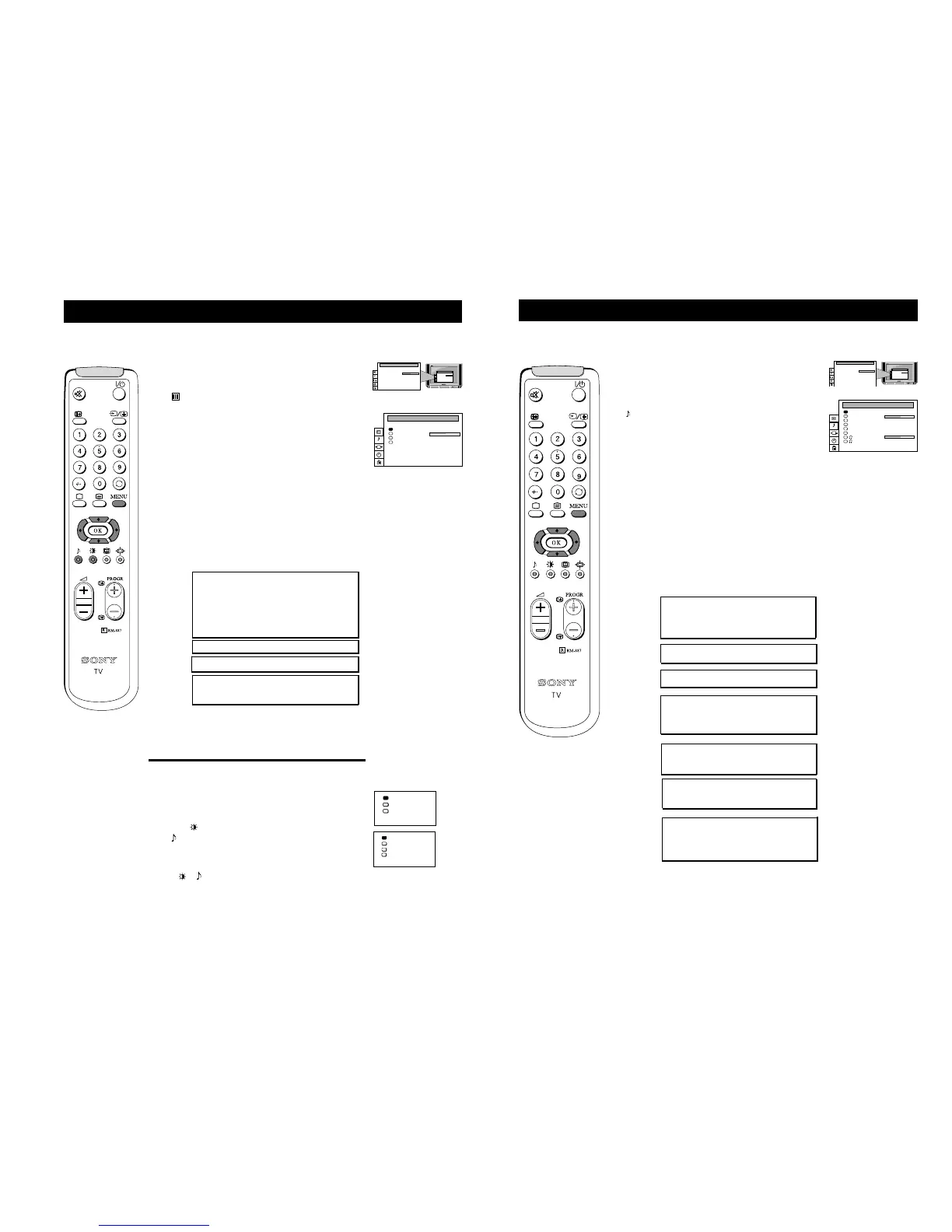
1 Press the MENU button on the remote control to display the
menu on the TV screen.
2 Press the UP or DOWN arrow key on the remote control to select
the symbol on the menu screen then press the RIGHT arrow
key to enter the ‘PICTURE CONTROL’ menu.
3 Press the UP or DOWN arrow keys to select the item on the
screen you wish to adjust then press the RIGHT arrow key to
confirm. For a description of the menu items and their effects,
see the table underneath.
4 If you selected ‘Picture Mode’ or ‘Format’ in step 3, press the UP
or DOWN arrow keys to select the item on the screen you wish
to adjust then press the RIGHT arrow key to confirm.
5 Press the RIGHT or LEFT arrow keys to adjust your selected
item.
6 As soon as you have adjusted the item, press the OK button to
store the new setting.
7 If you selected ‘Picture Mode’ or ‘Format’ in step 3, press the
LEFT arrow key to return to the ‘PICTURE CONTROL’ menu.
8 Repeat steps 3-7 to adjust the other items.
9 Press the MENU button to remove the menu from the TV screen.
Picture Mode Picture Mode B Personal (for individual settings)
Movie (for films)
b Live (for live broadcasts)
Brightness* B Darker b Brighter
Colour* B Less b More
Sharpness* B Softer b Sharper
Hue** B Greenish b Reddish
Contrast B Less b More
Reset Resets picture to factory preset levels
Format Format (refer to page 14 for details)
Scroll
Auto 16:9 B Off bOn
* Only if you select ‘Personal’ in ‘Picture Mode’.
**Available for NTSC colour system only.
Changing picture and sound modes quickly
You can quickly change the Picture Mode or the Equalizer Mode
without entering the ‘PICTURE CONTROL’ or the ‘SOUND
CONTROL’ menu screens.
1 Press the symbol on the remote control for picture modes or
the symbol for equalizer modes.
2 Press the UP or DOWN arrow keys to select the desired mode.
3 Press or again to remove the display from the TV screen.
13
Additional TV Features
Adjusting the sound
1 Press the MENU button on the remote control to display the
menu on the TV screen.
2 Press the DOWN arrow key on the remote control to select the
symbol on the menu screen then press the RIGHT arrow key
to enter the ‘SOUND CONTROL’ menu.
3 Press the UP or DOWN arrow keys to select the item on the
screen you wish to adjust then press the RIGHT arrow key to
confirm. For a description of the menu items and their effects,
see the table underneath.
4 If you selected ‘Sound Mode’ in step 3, press the UP or
DOWN arrow keys to select the item on the screen you wish to
adjust then press the RIGHT arrow key to confirm.
5 Press the RIGHT or LEFT arrow keys to adjust your selected
item.
6 As soon as you have adjusted the item, press the OK button to
store the new setting.
7 If you selected ‘Sound Mode’ in step 3, press the LEFT arrow
key to return to the ‘SOUND CONTROL’ menu.
8 Repeat steps 3-7 to adjust the other items.
9 Press the MENU button to remove the menu from the TV
screen.
Sound Mode B Personal
Jazz
Rock
b Pop
Balance Less BbMore
Reset Resets picture to factory preset levels
Spatial B On: volume level of the channels will
stay the same
b Off: volume level changes according
to the broadcast signal
Dual Sound StereoBbMono (for a stereo broadcast)
A for channel 1BbB for channel 2 (for a
bilingual broadcast)
Volume Offset B The channel volume level can be b
adjusted over a range of -12 to +12
Headphones
2 Volume Less BbMore
2 Dual Sound StereoBbMono (for a stereo broadcast)
A for channel 1BbB for channel 2
(for a bilingual broadcast)
Although the sound is adjusted at the factory, you can modify it to suit your own taste.
SOUND CONTROL
Balance
Reset
Spatial
Dual Sound
Volume Offset
Volume
Dual Sound
Sound Mode
Personal
. . . . . . . . .
Off
Mono
0
Mono
. . . . . . . . .




 To Next Page