31
Additional Information
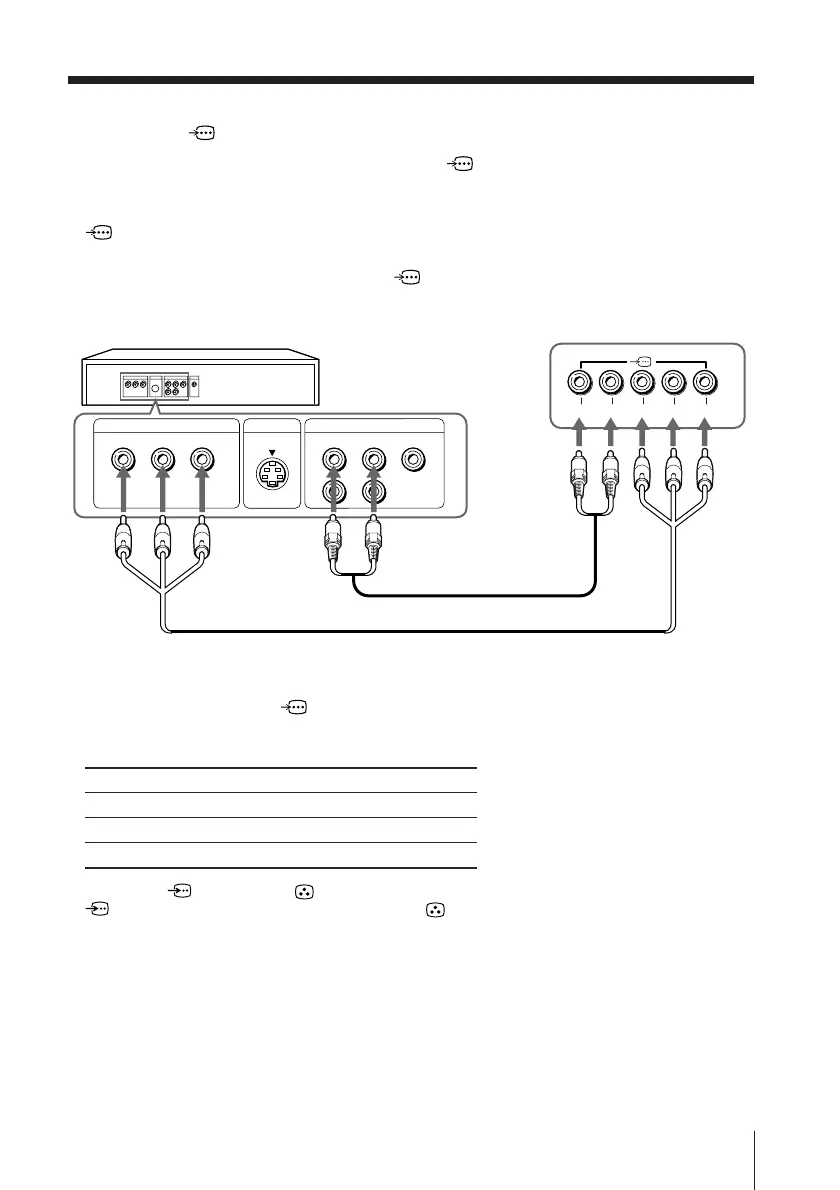
Connecting a DVD player to the component video input
terminal ( )
1 Using an audio cable, connect R and L under (component video input) on your
TV to the LINE OUT, AUDIO R and L output connectors on your DVD player.
2 Using a component video cable, connect Y, C
B, and CR under
(component video input) on your TV to the COMPONENT VIDEO OUT Y, CB,
and C
R output connectors on your DVD player.
3 Press DVD on the remote to watch the (component video input) and “DVD”
will appear on your screen.
Notes
• If your DVD player can ouput interlace and progressive mode signals, select the interlace
output when connecting to (component video input) on your TV. Your TV can receive
either 525i/60Hz or 625i/50Hz interlace signals.
• Some DVD player terminals may be labeled differently:
• When both (S video) and (video) for t 1 or t 3 are connected at the same time,
(S video) is automatically selected. To view (video), disconnect the S video cable.
• If you select “DVD” on your TV screen, the signal from the T (monitor output) jacks will not
be output properly. This does not indicate a malfunction.
DVD player
TV rear panel
Component video cable (not supplied)
Audio cable (not supplied)
Connect To (on the DVD player)
Y (green) Y
CB (blue) CB, PB, Cb or B-Y
CR (red) CR, PR, Cr or R-Y
VIDEO
R-AUDIO-L
LINE OUT
Y
COMPONENT VIDEO OUT
S VIDEO OUT
C
B
C
R
R L Y C
B
C
R




 To Next Page