20 Menu Adjustment
x Changing the “PICTURE” setting
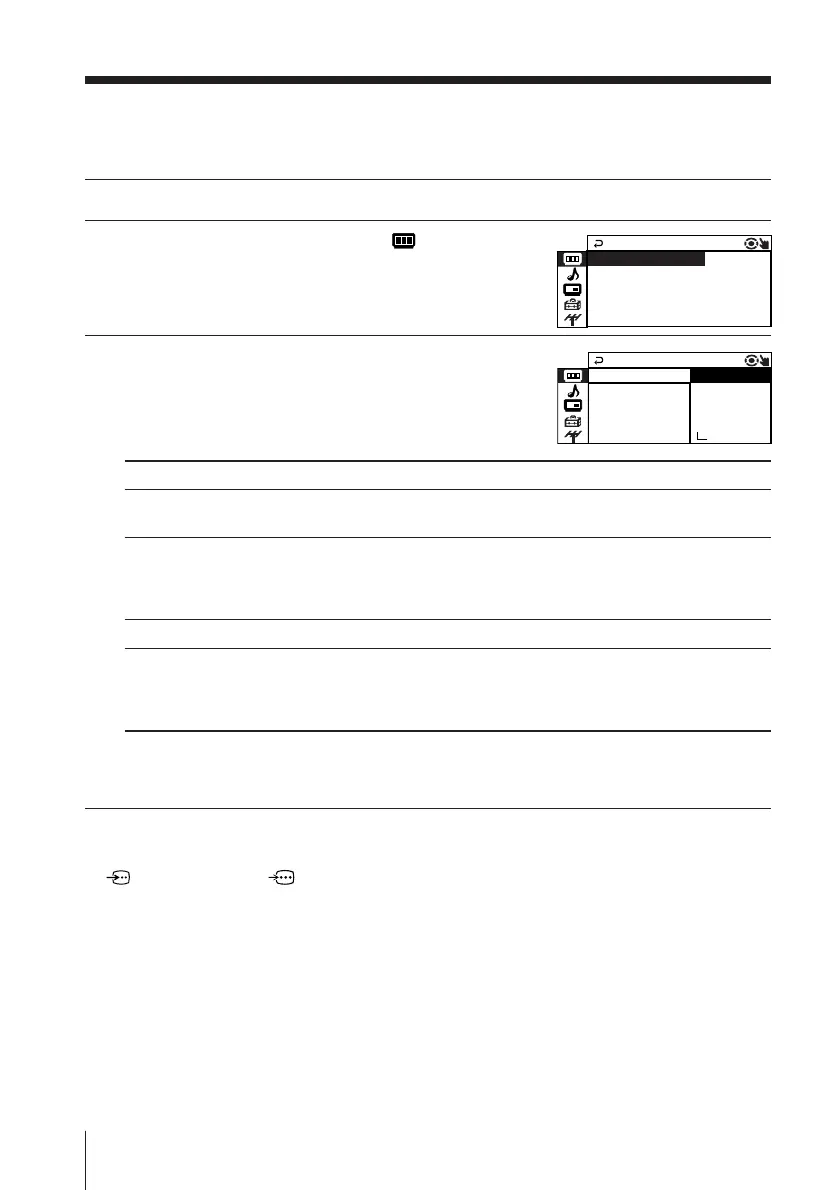
The “PICTURE” menu allows you to adjust the picture settings.
1
Press MENU.
2
Make sure the “PICTURE” icon ( ) is
selected, then press ENTER.
3
Press V or v to select the desired item
(e.g., “PICTURE MODE”), then press ENTER.
Select To
“PICTURE MODE” choose either “DYNAMIC”, “STANDARD”, “SOFT”,
“PERSONAL”*, or “ADJUST” (see page 11).
“DTE” optimize the picture contrast.
Press V or v to select “ON”, then press ENTER.
To cancel, select “OFF”, then press ENTER.
“WIDE MODE” choose either “ON” or “OFF” (see page 12).
“GAME MODE” adjust the picture setting that is suitable to view video games.
Press V or v to select “ON”, then press ENTER.
To cancel, select “OFF”, then press ENTER.
* When the “PERSONAL” mode is selected, you can receive the last adjusted picture
settings from the “ADJUST” option (see page 21).
Notes
• “GAME MODE” is available only when receiving signals through t (video input),
(S video input), or (component video input).
• The DTE mode is not selectable when “GAME MODE” is turned “ON”.
PICTURE
DT E : ON
WI DE MODE : OF F
GAME MODE : OF F
CP I CTURE MODE : DYNAM I
PICTURE
WI D E MOD E :
DTE : ON
PI CTURE MOD
STANDARD
DYNAM I C
PERSONAL
SOF T
ADJ UST
GAME MODE :
O
O




 To Next Page