– 9 –
KV-PG21P40/PG21M70/PG21P70
RM-952
Number
buttons
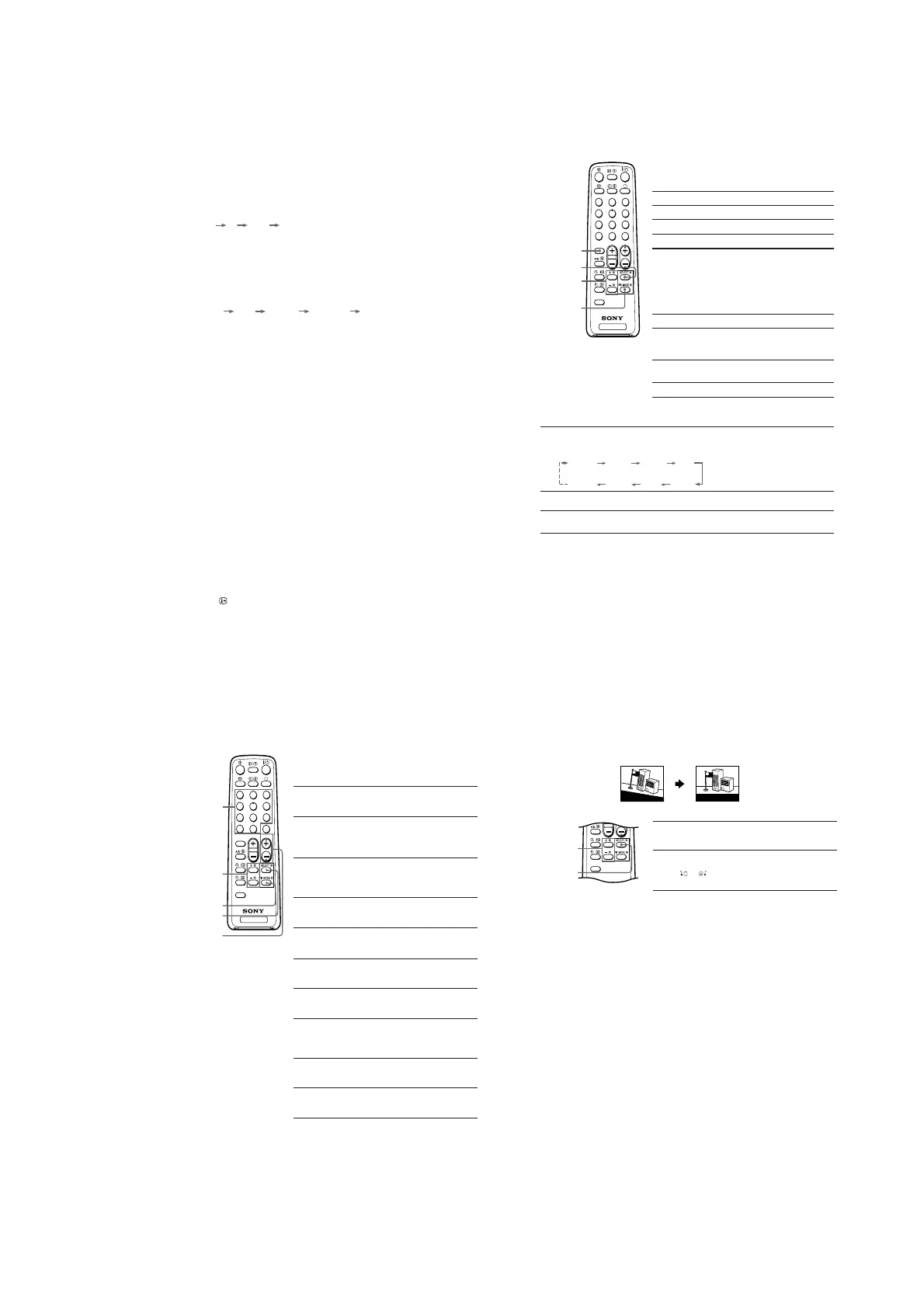
SELECT
PROGR +/–
+ or –
PIC MODE
TV
1
2
3
4
6
7
8
9
-
0
5
JUMP
SOUND
MODE
FAVORITE
PROGR
2
J
Presetting channels
You can automatically preset up to 100 TV channels in numerical sequence
from program number 1, or manually preset desired channels and channels
that cannot be preset automatically.
Presetting channels automatically
from a specified program number
1
Press SELECT until “AUTO PROGRAM” appears
on the screen.
2
Press + or – once to enter the “AUTO
PROGRAM” mode.
The on-screen display will start flashing.
3
Press PROGR +/– or the number buttons until
the desired program number appears on the
screen.
4
Press + or – to start presetting channels
automatically.
Presetting channels manually
1
Press SELECT until “MANUAL PROGRAM”
appears on the screen.
2
Press + or – once to enter the “MANUAL
PROGRAM” mode.
3
Press PROGR +/– or the number buttons until
the desired program number appears on the
screen.
4
Press + or – until the desired channel picture
appears on the screen.
5
To preset other channels manually, repeat steps
3 to 4.
Presetting channels (continued)
To change the TV system setting (KV-PG21M70/PG14M40/TG21M61 only)
If the picture or sound is abnormal when receiving programs through the 8 (antenna)
terminal
(1) Press SELECT until “TV SYS” appears on the screen.
(2) Press + or – to select the appropriate TV system until the picture or sound quality
is optimal.
B/G I D/K M
To change the color system setting
If the color is abnormal when receiving programs through the
8
(antenna) terminal
or the t (video input) terminal
(1) Press SELECT until “COLOR SYS” appears on the screen.
(2) Press + or – to select the appropriate color system until the color is optimal.
AUTO PAL SECAM
NTSC3.58 NTSC4.43
Note
• The color system “SECAM” is available for KV-PG21M70/PG14M40/TG21M61 only.
To skip program numbers
(1) Press PROGR +/– or the number buttons until the unused or unwanted program
number appears on the screen.
(2) Press SELECT until “MANUAL PROGRAM” appears on the screen.
(3) Press + or – once to enter the “MANUAL PROGRAM” mode.
(4) Press PIC MODE to skip the unused or unwanted program number.
(5) Press SELECT to exit the “MANUAL PROGRAM” mode.
Note
• To restore the skipped program number again, preset the channel automatically or manually.
To use the fine tuning function
The fine tuning (FINE) function may help to reduce the following problems:
incomplete Teletext display (KV-TG21M61 only), double images and lines moving
across the TV screen.
You can use the fine tuning function as below:
(1) Select the program number you want to adjust.
(2) Press SELECT until “MANUAL PROGRAM” appears on the screen.
(3) Press + or – once to enter the “MANUAL PROGRAM” mode.
(4) Press
to display “FINE” on the screen.
(5) Press + or – continuously until the above problems are minimized.
The + or – icon on the screen flashes while tuning.
(6) Press SELECT to exit the “MANUAL PROGRAM” mode.
K Customizing the picture and sound
You can customize the picture and sound by selecting the picture and sound
modes or by adjusting its settings.
Selecting the picture mode
Press PIC MODE to select the desired picture mode.
Select To
“DYNAMIC” view high contrast pictures.
“STANDARD” view normal contrast pictures.
“SOFT” view mild pictures.
Selecting the sound mode
B KV-TG21M61 only
Press SOUND MODE to select the desired sound
mode.
Select To
“9 DYNAMIC” listen to dynamic and clear
sound that emphasizes the low
and high sound.
“9 DRAMA” listen to sound that emphasizes
vocals and background music.
“9 SOFT” listen to soft sound.
Adjusting the picture and sound settings
1
Press SELECT until the desired setting appears.
Each time you press SELECT, the setting item will change as follows:
2
Press + or – to adjust the item.
3
To adjust other items, repeat steps 1 to 2.
Notes
•“BASS”, “TREBLE” and “BALANCE” can be adjusted for KV-TG21M61 only.
•“HUE” can be adjusted for the NTSC color system only.
• Reducing “SHARP” can also reduce picture noise.
SOUND
MODE
PIC MODE
SELECT
+ or –
PICTURE COLOR BRIGHT HUE
BALANCE TREBLE BASS
SHARP
TV
1
2
3
4
6
7
8
9
-
0
5
JUMP
SOUND
MODE
FAVORITE
PROGR
2
L Adjusting the picture position
B
KV-PG21M70/PG21P70/PG21P40/TG21M61 only
If the picture is slanting, you can adjust the picture position using the
“PIC ROTATION” function until it is optimal.
1
Press SELECT repeatedly until “PIC ROTATION”
appears on the screen.
2
Press + or – to adjust the picture position.
The
+
or icon on the screen flashes while
adjusting.
Note
• To reduce the slanting picture, keep external speakers or other electrical equipment away
from the TV.
+ or –
SELECT
Slanting Optimal
FAVORITE
G
oo
d m
orn
ing!
Good morning!



 To Next Page