85
Printing still images
Printing images directly using a PictBridge compliant printer
Regardless of what the mode dial is set to,
the print menu appears when you complete
Stage 2.
1 Select the desired printing
method with v/V on the control
button, then press z.
[All In This Folder]
Prints all the images in the folder.
[DPOF image]
Prints all the images with a (Print
order) mark (page 87) regardless of the
displayed image.
[Select]
Selects images and prints all the
selected images.
1Select the image you want to print with
b/B, then press z.
The mark appears on the selected
image.
• To select other images, repeat this
procedure.
2Select [Print] with V, then press z.
[This image]
Prints a displayed image.
• If you select [This image] and set [Index] to
[On] in step 2, you can print a set of the
same images as an index image.
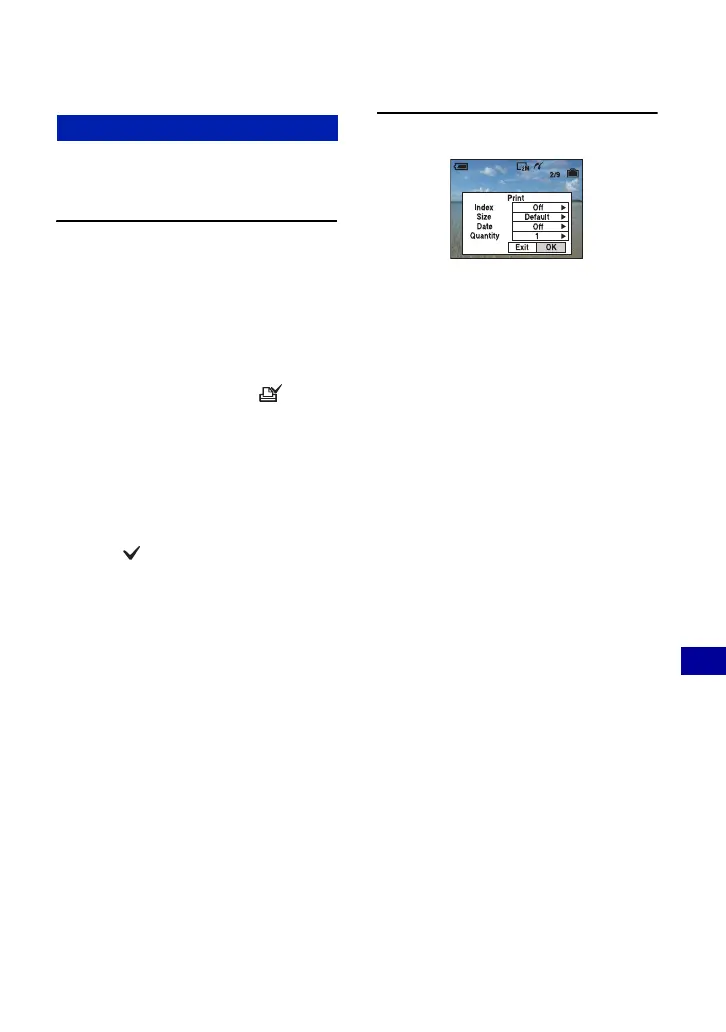
2 Select print settings with v/V/b/B.
[Index]
Select [On] to print as an index image.
[Size]
Select the size of the printing sheet.
[Date]
Select [Day&Time] or [Date] to insert
the date and time on images.
• When you choose [Date], the date will be
inserted in the order you select (page 60).
This function may not be provided
depending on the printer.
[Quantity]
When [Index] is set to [Off]:
Select the number of sheets of an image
that you want to print. The image will
be printed as a single image.
When [Index] is set to [On]:
Select the number of sets of images that
you want to print as an index image. If
you selected [This image] in step 1,
select the number of the same image
you want to print side by side on a sheet
as an index image.
• The designated number of images may not
all fit onto a single sheet depending on the
quantity of images.
Stage 3: Printing






 To Next Page