41
Monitor Adjustment
Touch panel calibration
Touch panel calibration is required if the
touching position does not correspond with the
proper item.
1 Touch “Source List,” then .
2 Touch “General.”
The general setting menu appears.
3 Touch v/V to scroll, then touch “Touch
Panel Adjust.”
The setting display appears.
4 Touch the targets in sequence.
The calibration is complete.
To cancel calibration, touch “Cancel.”
Setting the background screen
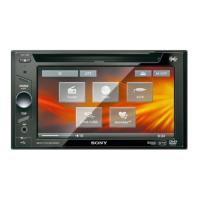
You can select your preferred screen theme.
1 Touch “Source List,” then .
2 Touch “Screen.”
The screen setting menu appears.
3 Touch “Screen Theme.”
The screen theme selection display appears.
4 Touch the desired screen theme.
To return to the previous display, touch “Back.”
Adjusting the picture
— Picture EQ
You can adjust the picture to suit the interior
brightness of the car.
The options are indicated below.
“Dynamic”: Vivid picture with bright, clear
colors.
“Standard”: Standard picture.
“Theater”: Brightens the monitor; suitable for
darkly-lit movies.
“Sepia”: Applies a sepia tone to the picture.
“Custom 1,” “Custom 2”: User-adjustable
settings (page 42).
1 During video/image playback, touch
“Source List,” then .
2 Touch “Screen.”
The screen setting menu appears.
3 Touch “Picture EQ.”
The options appear.
4 Touch the desired option.
To return to the previous display, touch “Back.”
Note
This setting is available only when the parking brake is
set.



 To Next Page