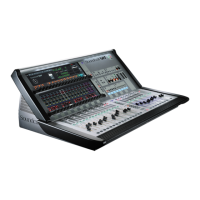
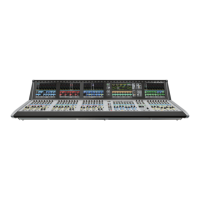
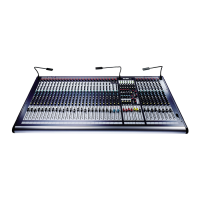
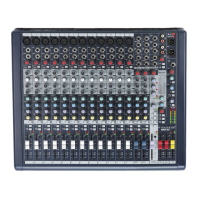
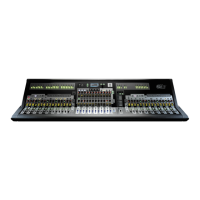
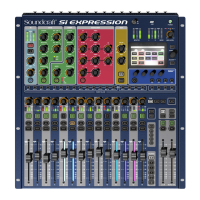
This document describes the V4.5 software release for Soundcraft Vi Series consoles, focusing on the new VM² (Vistonics Microphone Monitoring) feature. VM² integrates AKG wireless microphone status information directly into the console's channel strips, streamlining workflow and improving problem diagnosis. The V4.5 release also unifies the operating software for all Vi console models (Vi1, Vi2, Vi4, Vi6) into a single update file, simplifying future updates and bug fixes.
VM² Function Description:
VM² leverages Harman's HiQnet network control protocol to display real-time status information from AKG wireless microphones within the Soundcraft Vi Series console's GUI. This includes details such as microphone mute status, audio clipping, RF signal strength, and battery levels. The system is designed to provide quick and easy access to critical microphone data, enhancing the operator's ability to monitor and troubleshoot wireless systems during live events.
Important Technical Specifications:
- HiQnet Protocol: VM² utilizes HiQnet for network communication between AKG wireless systems and Vi consoles. HiQnet is an Ethernet-based protocol that allows remote control and monitoring of various Harman Pro-audio devices.
- AKG Hub4000Q: This device acts as a central hub for AKG wireless receivers, consolidating data from up to 8 receiver units into a single HiQnet Ethernet connection.
- Network Topology: A basic VM² network typically involves a Soundcraft Vi console, an AKG Hub4000Q, and AKG DMS or WMS receivers. An Ethernet switch is often used to connect multiple devices, including a computer running Harman's System Architect software and potentially a wireless router for the AKG wireless iPhone app.
- IP Addressing: Consoles can be configured with either DHCP or a manually set static IP address within specific ranges (10.0.0.0 - 10.255.255.255, 172.16.0.0 - 172.31.255.255, 192.168.0.0 - 192.168.255.255).
- HiQnet Node Address: Each device on the HiQnet network requires a unique node address (0 – 65,535) to prevent conflicts.
- Vi1 HiQnet Port: Early Vi1 consoles (serial numbers lower than 30210956) have a HiQnet port capable of driving short cable lengths (max 1 meter/3 feet). A network switch positioned close to the console is recommended for extending cable length.
- Vi2/4/6 HiQnet Port: The HiQnet port on Vi2/4/6 consoles is capable of driving standard Ethernet distances of up to 100m.
Usage Features:
- Setup Procedure:
- Connect the HiQnet network and ensure correct IP address configuration on all devices.
- Connect audio outputs from AKG receivers to the console's inputs (Stagebox or local).
- Associate each AKG receiver with a console connector using the mapping table on the Vi's HiQnet Setup page.
- Microphone monitoring information will then automatically display on channel strips using the AKG-mapped physical input connector.
- HiQnet Setup Page: Accessed via MENU > System > HiQnet. This page allows configuration of IP address, HiQnet node address, and displays the Device List.
- Device List: Located in the center of the HiQnet Setup page, it automatically populates with discovered AKG microphones.
- DEVICE column: Shows names of AKG microphones.
- NET column: Displays the HiQnet node address of the connected AKG Hub4000Q.
- SOURCE column: Indicates the console connector associated with each microphone, crucial for displaying VM² information on the correct channel strip.
- Locate Function: The 'LOC' button on the HiQnet Setup page activates a flashing display on the selected AKG receiver, aiding in physical identification.
- Audio Patching Matrix: Accessed via the AUDIO PATCH button, this matrix allows associating AKG microphones with physical input connectors. Chosen connectors are highlighted in bright blue; already associated connectors are greyed out.
- Channel Strip Display:
- Mini-icons (Input Section): Initial display of VM² elements: Microphone Mute indicator (red 'MUTE' icon), Microphone Audio clipping indicator (red 'C'), Microphone RF status indicator (red/green 'RF' icon), and Microphone Battery level indicator (battery icon with 7 segments).
- Detailed Monitoring Display (Zoomed Input Section): Touching the Input touch field zooms the channel strip, revealing more detailed information:
- RF Level: Bargraph and numerical signal strength in dB.
- Battery Level: Bargraph icon and numerical readout of remaining battery life in hours.
- Internal Gain: Displays the user-adjustable audio gain of WMS4500 transmitters or the output trim level of DMS700 receivers (display-only, not controllable from console).
- Network Error Display: If a network error occurs, AKG elements on the input strip overview will appear greyed out. AKG devices in the Device List will also be greyed out, and the HiQnet icon in the main console diagnostic display will change from green to grey.
Maintenance Features:
- Unified Software Update: V4.5 allows a single update file to be used for all Vi console models (Vi1, Vi2, Vi4, Vi6), simplifying future software maintenance and bug fixes.
- Switchable AutoCancel Mode for Solos: A new 'AUTO CNCL' button on the Monitor Setup page allows operators to choose between additive or auto-cancelling Solo switches, providing flexibility for different monitoring workflows (e.g., leaving a talkback feed in Solo while soloing other channels).
- Software Reconfig Button (Vi1 only): A 'RECONF' touchscreen button is added to the System Monitoring page for Local IO (Menu\System\Local). This allows updating the Vi1's IO configuration without restarting the console, useful when changing Stagebox usage or sharing a Stagebox with another console in 'synchronised' mode. (Vi2/4/6 have a hardware Reconfig button on the Local Rack front panel).
- Fader Calibration Feature (Vi2/4/6): A new 'FADER CAL' touchscreen button is added to the Menu-System-Desk page, enabling direct recalibration of faders. This is particularly useful after fader PCB replacement or liquid spills to prevent issues like fader creep or incorrect positioning. The calibration procedure involves manual alignment of faders to minus infinity and +10 marks, guided by on-screen instructions. The calibration settings are permanently stored after the console is shut down.

 Need help?
 General

 To Next Page