SA242 Gemini Chorus User’s Guide 21
move it as you perform. The Gemini will intelligently select the X or Y axis of the Hot Hand
automatically, based on the motion of the ring.
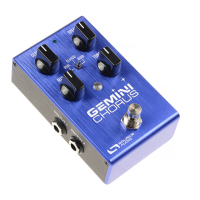
4. After setting Hot Hand range of motion, click the Gemini’s footswitch once. The calibration
is now complete, and the Control LED will blink faster (about 2 blinks per second). Now, it is
time to map the Hot Hand to the effect parameters.
5. Move the knob(s) you wish to control with the Hot Hand to their minimum desired position,
then click the Gemini’s footswitch. The Control LED will now blink even faster (about 4 blinks
per second). Note that you may control one or more knobs with the Hot Hand, up to four
total knobs.
6. Move the knob(s) you wish to control with the Hot Hand to their maximum desired position,
then click the Gemini’s footswitch. The Control LED will now be lit solid green. Note that you
may control one or more knobs with the Hot Hand, up to four total knobs.
7. After setting the minimum and maximum knob positions, the parameter mapping is
complete.
Note: The parameter range can be inverted by swapping the minimum and maximum position of the
knobs during calibration.
Reset Expression Control Mapping
To clear the expression control mapping (Expression or Hot Hand), first press the Control Input
button and turn off Control Input mode. The Control LED should be dark. Then, press and hold the
Control Input button until the Control LED blinks. This clears all Expression, Hot Hand, and MIDI
mapping.
Neuro App
The Neuro App is available as a free download for iOS and Android devices. The Neuro App provides
access to a number of parameters that are not accessible on the Gemini’s control knobs, as well as a
number of additional effect types such as filtered chorus. In order to use the Neuro App, use the
included 3.5 mm to ¼” TRS cable to make a connection between the headphone jack on your mobile
device and the Gemini’s Input 2 jack. Make sure the headphone volume on your mobile device is set
to maximum when using the Neuro App.
Neuro Hub (Formerly the Soundblox Hub)
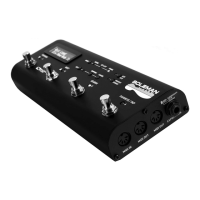
The Source Audio Neuro Hub (sold separately), unites Source Audio pedals from the Soundblox 2 and
One Series families to create a single, stage-ready system. It features shared MIDI, passive expression
pedal input, Hot Hand connectivity, and USB, and can connect to up to five Source Audio pedals. The
Neuro Hub features a powerful scene saving functionality, which allows you to create up to 128
multi-pedal presets known as scenes, each recallable via MIDI program change messages. Connect
the Neuro Hub to your computer via USB for updates, saving and editing multi-pedal presets, and
more. To connect the Gemini to the Neuro hub, use a 3.5 mm TRRS cable and make a connection
between the Gemini’s Control Input jack and any of the Neuro Hub’s multi-function outputs. For
more information, refer to the Neuro Hub documentation on the Source Audio website.
MIDI
Using a USB connection or the Neuro Hub (sold separately), the Gemini can be controlled by generic
MIDI messages. Each of the Gemini’s parameters (even those that are not assigned to a control knob)



 To Next Page